The first question is not “did you click?”
A reported phish can end with a blocked message, a stolen session, an installed remote-access tool, or a payment made to the wrong account. Deleting the email addresses only one part of that story.
This is a reusable operational playbook, not a report of a new breach. The diagrams are original SecOpsNomad editorial workflows informed by the references below. They cover common decision paths; no generic diagram can cover every environment. Follow your incident authority and service-specific procedures.
Run all relevant branches. “No” requires evidence. “Unknown” remains an open investigation task. A reply, QR scan, phone call, OAuth consent or payment change can matter even without a conventional link click. Identity / IAM and Finance are operational owners here, even though the blog's navigation uses broader team tags.
Start here: the first hour
New to this? Work down this list in order, then use the sections below for the full response. The examples use Microsoft 365; other mail systems have equivalent tools.
- Minute 0–5: thank the reporter and keep the evidence. Ask them to use the Report button in Outlook (or forward as an attachment if your process says so), and not to click, reply, or forward it to colleagues as a warning.
- Minute 5: open a case. Record the sender, subject, received time, who reported it and what they did with it.
- Minute 5–15: ask what happened, without blame. Did they click, scan a QR code, type a password, approve an MFA prompt, open an attachment, reply or call a number? On which device?
- Minute 15: if a password was typed or MFA approved, secure the account now. Revoke sessions and reset the password before anything else (section 2).
- Minute 20: find every copy. Use Explorer or message trace to see how many people received it (section 1).
- Minute 30: remove the copies and block the sender or link, with a review date on the block.
- Minute 35: find who else clicked. Check click records and ask the recipients (section 1).
- Minute 40: if an attachment was opened or a file run, isolate that device (section 3).
- Minute 45: if the email asked for a payment or bank detail change, tell Finance now. No payment without a call-back on a known number.
- Minute 60: send a status update and tell the reporter what you found.
Do not: forward the phishing email to all staff as a warning (send a description instead); open the link "to check it" from your normal browser; delete the original before saving it; or treat "I didn't click" as the end of the check if a reply, QR code or phone call was involved.
Start safely and capture the case
Ask the reporter to stop interacting and use a known internal reporting channel. Do not ask them to reopen the link, run the attachment, or forward it to colleagues. Thank them for reporting promptly.
Open an incident record with an owner and next review time. Preserve the original message and headers, identifiers, recipients, UTC timestamps, reported actions and affected account/device. Keep sensitive evidence in the restricted incident workspace. Preserve what is readily available without delaying urgent containment. Analysts inspect URLs and files only through approved analysis tooling; confidential samples do not belong in public scanning services.
Use a separate trusted channel to validate an unusual request. A familiar display name, existing conversation, or successful SPF/DKIM/DMARC check is insufficient by itself to establish that the sender's request is legitimate.
Words used in this playbook
| Term | Plain meaning |
|---|---|
| Phishing | A message that tricks people into revealing information, approving access, paying money or running something. |
| Lure | The bait in the message: a fake invoice, shared document, delivery notice or password expiry warning. |
| Lookalike domain | A domain made to look like a real one, such as examp1e.com instead of example.com. |
| SPF / DKIM / DMARC | Checks that a message came from a server allowed to send for that domain. Passing them does not prove the request is honest; a real but compromised account passes them too. |
| Message headers | The technical record of a message's route. Needed to trace and search for copies. |
| Network Message ID | Microsoft 365's ID for one message, used to find all its copies. |
| Soft delete | Removing a message from mailboxes into a recoverable location, so evidence is not lost. |
| Tenant Allow/Block List | Where Microsoft 365 admins block senders, domains, URLs and files. |
| Safe Links / URL click | Microsoft Defender's link checking, which also records who clicked a link from email. QR codes scanned on phones may not be recorded. |
| Credential harvesting | A fake sign-in page that collects passwords. |
| AiTM | A fake sign-in page that relays the real one and steals the session after MFA. |
| Consent phishing | A message that asks the user to grant an app access to their mail or files. |
| Business email compromise (BEC) | Fraud using real or lookalike email accounts to redirect payments or obtain data. |
No security team? Who does what
The owners in the tables are roles, not job titles. In a small company one person often holds several. Keep one rule: the person who removes the messages should not be the only one who checks that none are left.
| Role in this playbook | In a small company, usually | What they need ready |
|---|---|---|
| Incident lead | The office manager or managing director | Authority to block senders and approve outside help |
| Email security | The IT administrator or IT provider | Exchange admin center and Defender portal access |
| Identity / IAM | The same administrator | Entra admin access to revoke sessions and reset passwords |
| EDR / IT | The IT provider | Device management or antivirus console |
| Finance | The accounting team | A call-back rule for payment and bank detail changes |
| Legal / Privacy | Outside counsel or the personal-information manager | What data may have been entered or sent |
| Reporter and recipients | Every employee | A Report button and permission to report quickly without blame |
| Outside help | Your IT provider, your bank for payment fraud; in Japan, the police cybercrime consultation window and JPCERT/CC, which also handles phishing site takedown requests | The message headers and timeline |
1. Triage and scope the message
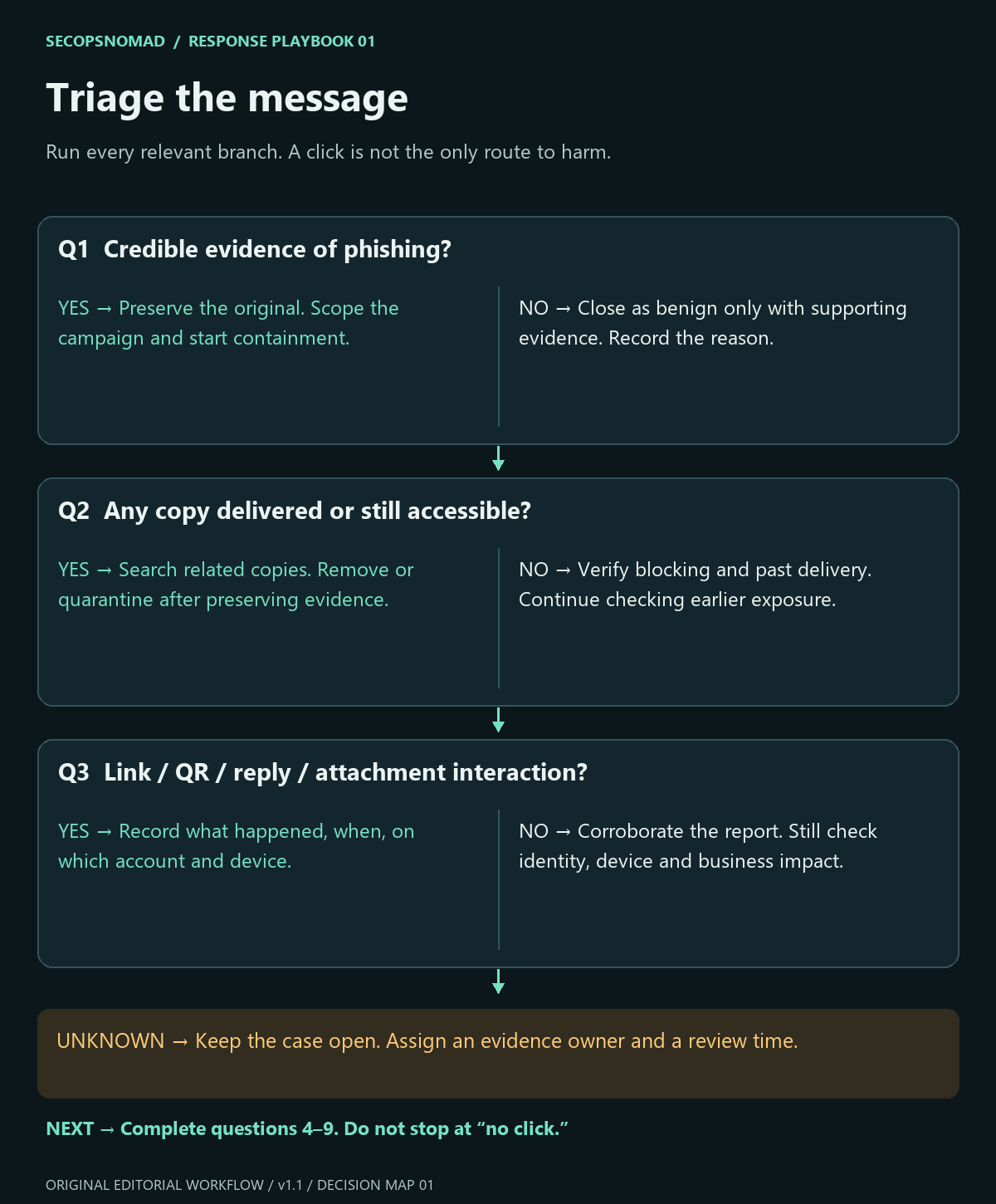
Figure 1. Original SecOpsNomad decision map. Read the equivalent decisions below; continue through all relevant branches.
| Decision | Yes | No | Unknown / evidence needed |
|---|---|---|---|
| Q1. Credible phishing evidence? | Email Security / SOC scopes and contains the suspected campaign. | Close as benign only after independent verification; record rationale and tell the reporter. | Hold a provisional verdict; obtain the original and validate the request through a trusted channel. |
| Q2. Any accessible or delivered copies? | Preserve evidence, search related recipients and variants, then quarantine/remove authorized matches. | Confirm rejection/quarantine and look for earlier deliveries or alternate channels. | Email Security checks message trace, delivery and remediation records. |
| Q3. Any interaction? | Record link/QR, reply, attachment, login or phone-call details and the actual device used. | Corroborate the user's account with available telemetry; still assess Q4–Q8. | SIEM combines user interview, click, proxy, identity and endpoint evidence. |
Search beyond an exact subject or sender when evidence supports it: these can change. Check distribution lists, shared mailboxes and external recipients where visible. An exact-message query below is a starting point, not a complete campaign hunt. Message removal and blocking should target supported indicators, with an owner and expiry/review date; blocking an entire shared hosting service can disrupt legitimate work. Verify remediation completion and failures, not just the submitted request. Microsoft phishing investigation and email remediation guidance.
How to do it: step by step
Get the original: reported messages appear in the Defender portal at Submissions (
security.microsoft.com/reportsubmission) on the user-reported tab. Save the headers and the Network Message ID in the case.Find every copy: with Defender for Office 365 Plan 2, Defender portal → Email & collaboration → Explorer; with Plan 1, Real-time detections. Filter by sender, subject, sender domain or URL domain, and widen the time range: subjects and senders often change between waves. Without Defender, use Exchange admin center → Mail flow → Message trace → Start a trace with the sender or Message ID (up to 90 days).
Remove the copies: in Explorer, select the messages → Take action → Soft delete. Without Explorer, use a Purview search and purge in Security & Compliance PowerShell (the search name and query are examples):
Connect-IPPSSession
New-ComplianceSearch -Name "Phish-2026-10-06" -ExchangeLocation All -ContentMatchQuery 'from:billing@lookalike.example AND subject:"Invoice 4471"'
Start-ComplianceSearch -Identity "Phish-2026-10-06"
Get-ComplianceSearch -Identity "Phish-2026-10-06" | Format-List Status,Items
New-ComplianceSearchAction -SearchName "Phish-2026-10-06" -Purge -PurgeType SoftDelete
Check the item count before purging; each purge run removes a limited number of items per mailbox, so repeat until the search finds none.
Block: Defender portal → Email & collaboration → Policies & rules → Threat policies → Tenant Allow/Block Lists → add the sender, domain or URL. Set an expiry and a review date. Block a real partner's domain only after weighing the business impact.
Find interaction: in Explorer, the URL click information shows who clicked through Safe Links; the hunting queries below do the same in advanced hunting. Ask every recipient directly about QR codes, replies and phone calls, which leave no click record.
Check it worked: a search for the message returns no remaining copies in mailboxes, the block is in place with a review date, and every recipient has an interaction answer of yes, no or unknown (Q1–Q3, D04–D10).
2. Secure the account, sessions and app access
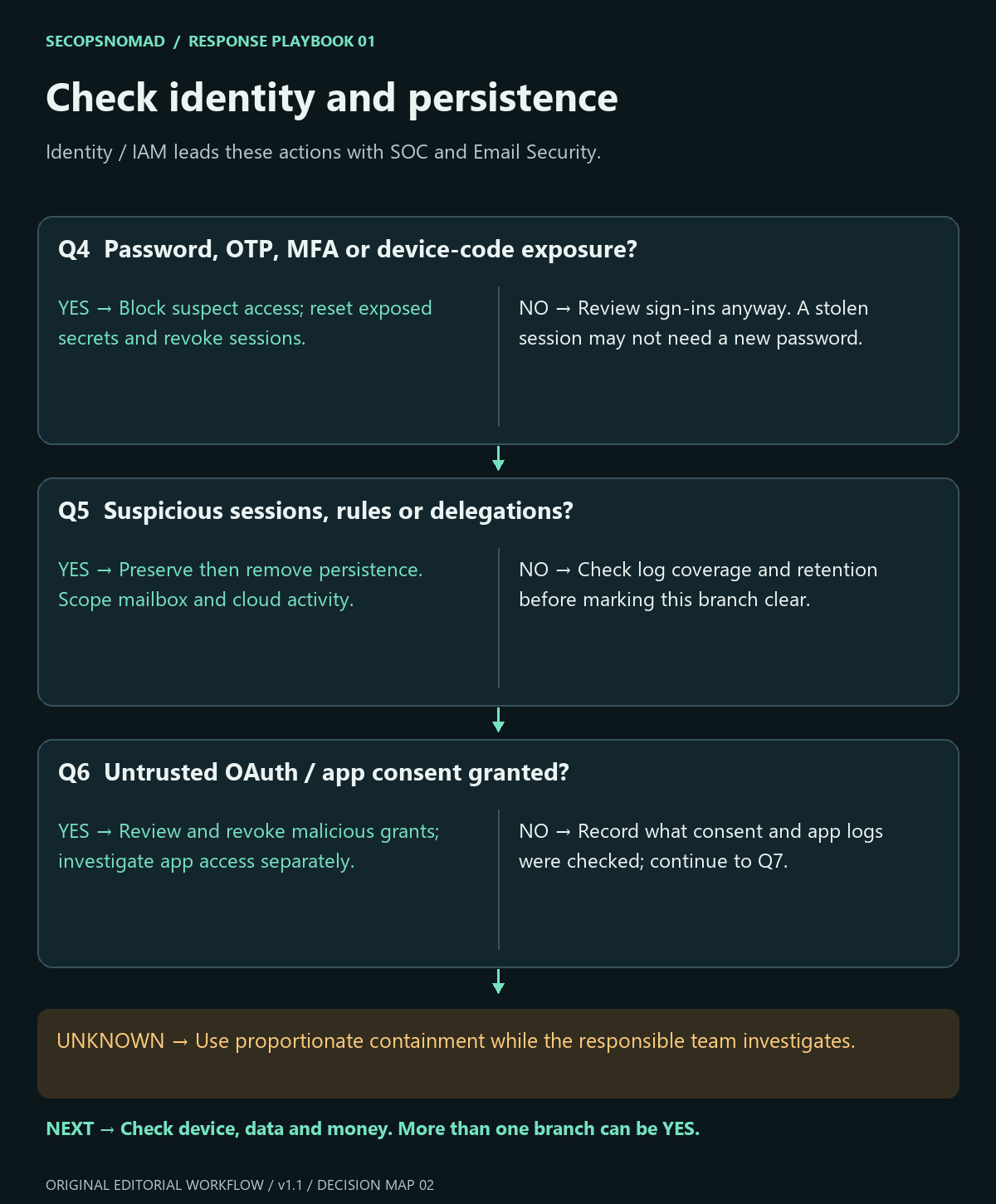
Figure 2. Identity checks are separate from endpoint checks. A password change alone is not the completion criterion.
| Decision | Yes | No | Unknown / evidence needed |
|---|---|---|---|
| Q4. Password/OTP entered, unexpected MFA approved, or QR/device-code authentication completed? | Identity / IAM blocks suspected access under the incident procedure, resets exposed credentials and revokes sessions; verify the user's identity through a trusted route. | Still inspect sign-ins and existing sessions for theft or misuse. | Establish which account and service were involved; treat credible exposure as urgent while investigating. |
| Q5. Suspicious sign-ins, new MFA methods, forwarding, rules, delegates or sent mail? | Preserve records, remove attacker-controlled changes and widen the account/cloud investigation. | Record log coverage, retention and the time window checked. | Missing identity/mail audit logs are a coverage gap, not a clean result. |
| Q6. Untrusted OAuth application consent? | Application / IAM owner reviews permissions, revokes malicious grants and assesses app activity and other affected users. | Document the consent and application evidence reviewed. | Obtain app ID, scope, granting user and consent time; do not assume a password reset removes app permissions. |
Use a known-clean device for recovery. Review connected cloud services and reused exposed credentials. Access revocation can take time, and an application may maintain its own session: verify access actually stopped and invalidate application sessions where supported. Microsoft compromised-account response, access-revocation limitations and application-permission review.
How to do it: step by step
Revoke sessions and block sign-in for anyone who typed a password, approved MFA or completed a code: Entra admin center → Entra ID → Users → user → Revoke sessions; block sign-in under Account status while you investigate. Full steps are in the account compromise playbook.
Reset the password from a clean device and check Authentication methods for anything the user did not add.
Check mailbox settings for forwarding and hidden rules:
Connect-ExchangeOnline
Get-Mailbox -Identity user@example.com | Format-List ForwardingAddress,ForwardingSmtpAddress,DeliverToMailboxAndForward
Get-InboxRule -Mailbox user@example.com -IncludeHidden | Format-List Name,Enabled,RedirectTo,ForwardTo,ForwardAsAttachmentTo,MoveToFolder,DeleteMessage
Check app consent: Defender portal → Audit (
security.microsoft.com/auditlogsearch) → activity Consent to application → the user and date range. Review and remove untrusted grants in Entra ID → Enterprise apps → the app → Permissions.Read the sign-in log after the click time: a successful sign-in from an unfamiliar address minutes after the user's own suggests a stolen session, which only revocation fixes.
Check it worked: no successful sign-ins from unknown sources after the revoke time, and every method, rule and app grant is confirmed by the user or removed (Q4–Q6, D11–D15).
3. Check devices, data and money
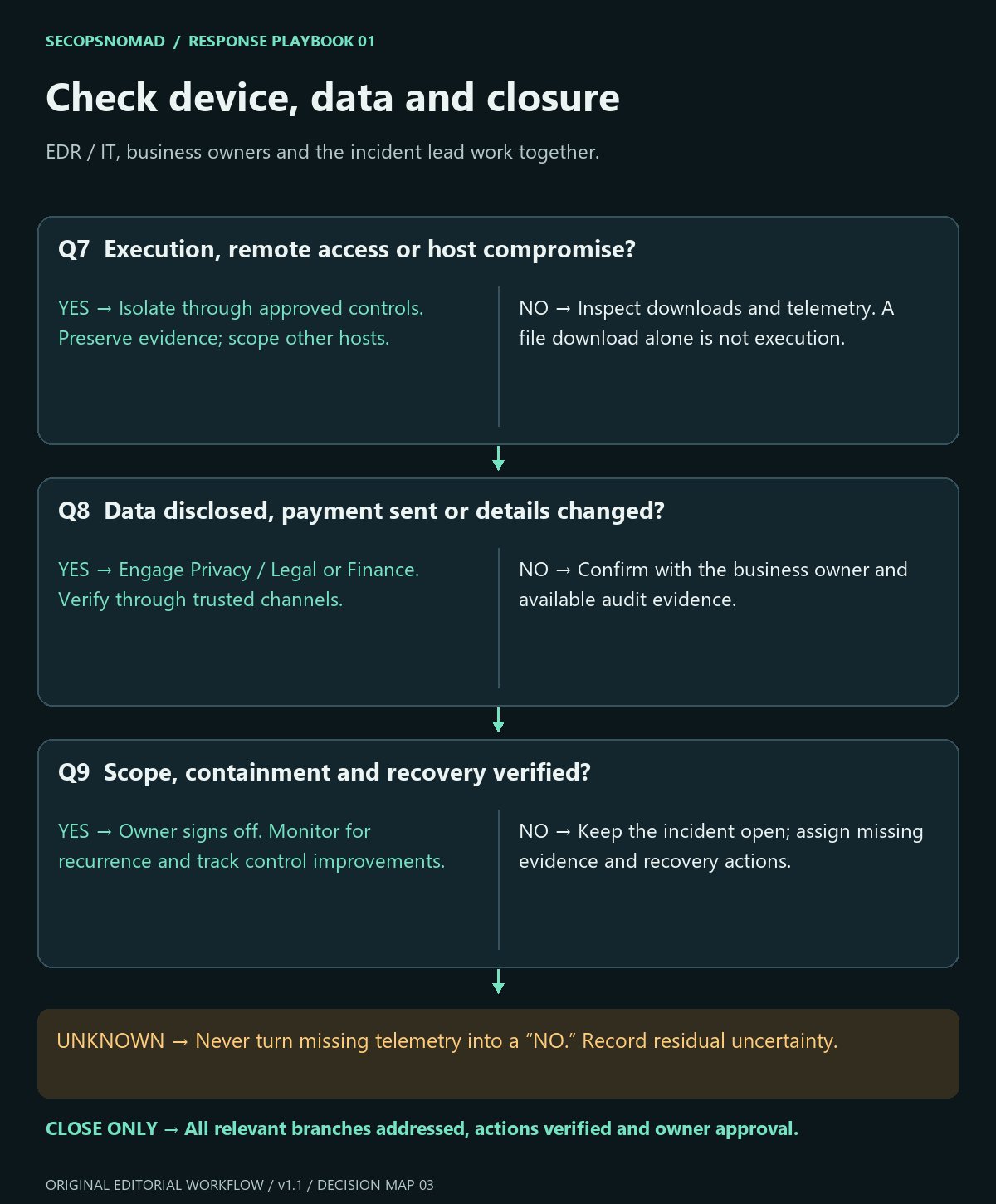
Figure 3. The incident ends when response outcomes are verified, not when the email disappears.
| Decision | Yes | No | Unknown / evidence needed |
|---|---|---|---|
| Q7. Payload execution, remote access or host compromise? | EDR / IT isolates affected hosts using approved controls; preserves evidence and investigates persistence, network activity and related hosts. | Review downloaded files and process/browser evidence; download is not synonymous with execution. | Unsupported, personal or offline device: involve IT and the incident lead; apply available access controls while evidence is obtained. |
| Q8. Data disclosed, payment sent, or bank/payroll details changed? | Data owner and Legal / Privacy assess exposure; Finance contacts the financial institution promptly through a known channel for recovery options and freezes suspicious pending changes. | Confirm with the business owner and relevant records, including replies and uploads. | Open a separate impact task; do not wait for malware evidence to involve the business. |
| Q9. Scope, containment and recovery verified? | Incident owner signs off on closure, monitoring and improvement tasks. | Keep open and assign unfinished work. | Record the limitation and require explicit risk acceptance or more investigation. |
An EDR isolation request needs confirmation: platform support, connectivity and response status matter. Do not erase or rebuild a device before the incident lead decides what evidence is required; active harm may require immediate containment. Defender for Endpoint response actions.
For suspected payment fraud, speed matters, but recovery is not guaranteed. Contact the bank directly using a verified number. Legal / Privacy determines jurisdiction-specific reporting and notification duties; this playbook sets no universal deadline. FBI IC3 BEC guidance.
How to do it: step by step
- Device: if a file was opened, a command pasted or software installed, isolate the device: Defender portal → Assets → Devices → the device → Isolate device. Then run a full scan and collect an investigation package, or ask your IT provider to do the equivalent.
- Personal or unmanaged devices: QR codes are often scanned on personal phones. Ask the user to sign out of work apps there and change the password from another device; record that you cannot inspect it.
- Data: ask what was typed or uploaded (customer data, card numbers, documents) and tell Legal/Privacy the same day.
- Money: if a payment was made or bank details changed, Finance calls the bank immediately on a known number and asks about recalling the transfer, then records the reference. Speed matters, but recovery is not guaranteed.
- Partners: if the phish came from a real partner's account, tell them through a known phone number (template below) so they can secure their mailbox.
Check it worked: each affected device, data item and payment has an outcome recorded, and the incident lead can sign off Q9 with evidence (Q7–Q9, D16–D30).
4. Detailed decision register: 30 checks that prevent skipped branches
Use Q1–Q9 as the overview and D01–D30 as the working record. These are supporting checks, not 30 independent verdicts. Prioritize D01–D05 at intake; run identity, device and business-impact checks in parallel when relevant. Do not delay bank contact or active-harm containment until the end of the list.
For every row, choose Yes / No / Unknown / Not applicable and record the evidence reference, accountable person, UTC decision time, action status and next review. A Yes or No is not automatically good or bad: follow the action in that column. Unknown → the listed owner obtains the evidence, sets a deadline and selects proportionate containment; it never silently becomes No. Use Not applicable only with a documented reason and reviewer. Material uncertainty requires explicit incident-authority acceptance before closure.
A simulation is closed as an exercise only when the authorized exercise owner verifies the exact campaign and there is no contradictory evidence. An apparently legitimate message still needs independent validation; if new suspicious activity is found, reopen the case. Avoid numerical risk scores that hide one severe consequence behind several benign answers.
Download the editable decision register (CSV). This blank working record belongs in your restricted incident workspace once populated, not on this public blog.
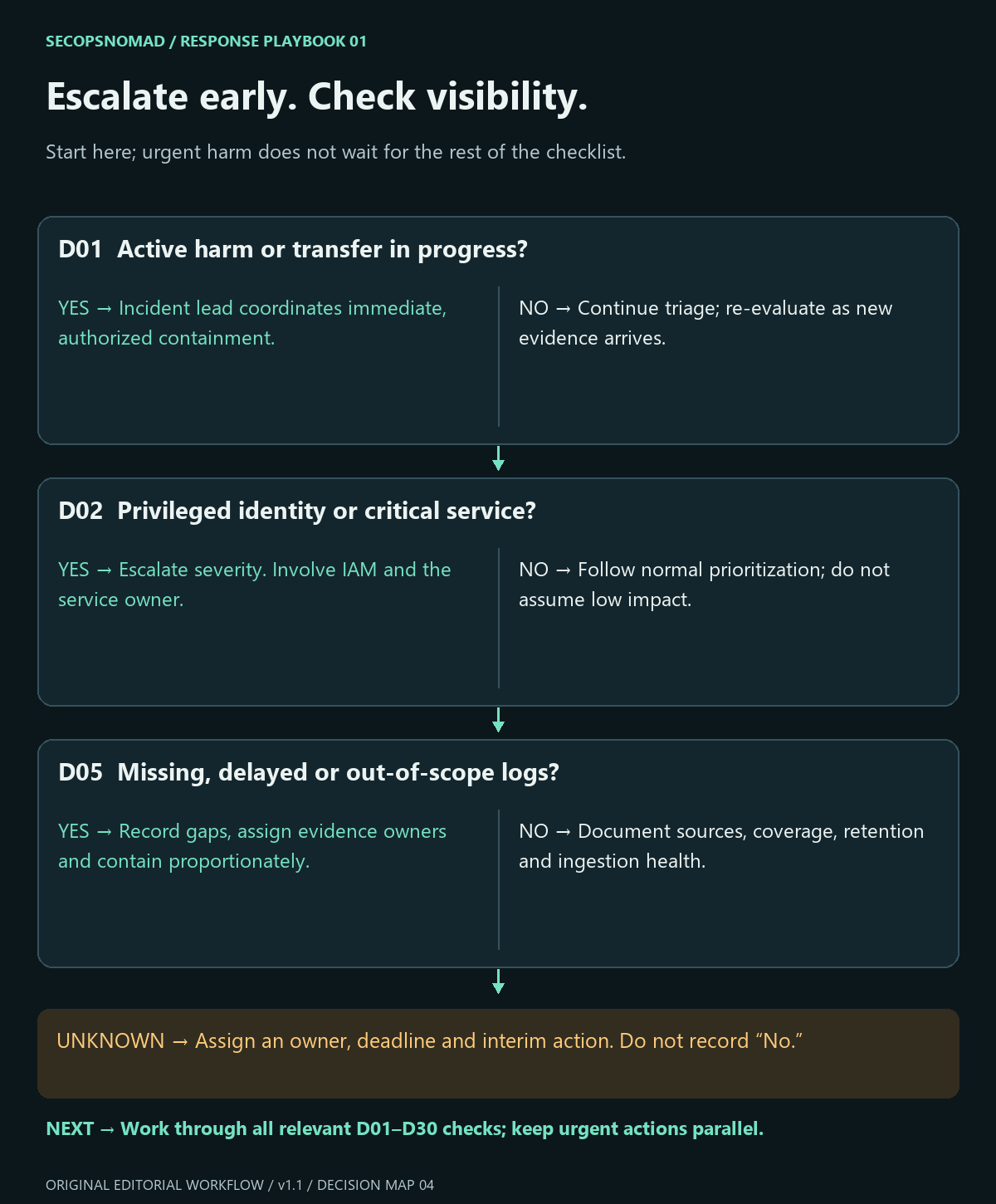
Figure 4. Check urgency and visibility before relying on a no-impact conclusion. Full evidence requirements are in D01–D05.
Urgency and evidence
| Decision / owner | Yes → | No → | Evidence to decide |
|---|---|---|---|
| D01. Is harm active: suspicious access, encryption, exfiltration or a transfer in progress? — Incident lead | Declare urgent response; contain and involve the relevant business owner now. | Continue triage; reassess when new evidence arrives. | Current alerts, session/activity timestamps and business confirmation. |
| D02. Is a privileged identity, critical service or high-impact mailbox involved? — Incident lead / IAM | Escalate severity and involve the service owner; assess administrative reach. | Use normal incident prioritization; impact can still increase. | Actual roles, resource access, service criticality; job title alone is insufficient. |
| D03. Are multiple users, organizations or channels affected? — SOC / Third-party Risk | Coordinate campaign response and separate affected entities into tracked tasks. | Keep the current scope provisional; search for linked copies and activity. | Recipient/campaign results, partner reports and related alerts. |
| D04. Is the original evidence authentic and usable? — SOC / Email Security | Preserve originals, identifiers and collection context; normalize investigation times. | Recover originals or trusted logs; mark screenshots and recollections as incomplete. | Original message/headers, source system, collection time, time zone and evidence location. |
| D05. Are required logs missing, expired, delayed or outside coverage? — SIEM / data owner | Record the gap, find alternative evidence and assign a deadline; use proportionate containment. | Record which sources, retention windows and ingestion health were verified. | Source availability, sensor health, event lag, clock alignment and retention limits. |
Message, channel and user action
| Decision / owner | Yes → | No → | Evidence to decide |
|---|---|---|---|
| D06. Could a trusted internal or supplier account have sent the phish? — Email Security / Third-party Risk | Investigate that trust boundary; verify with the sender through known contact details. | Continue origin analysis; external origin does not prove maliciousness. | Original routing, conversation context, sender confirmation and available account activity. |
| D07. Do headers, lookalike domains or request details conflict with the claimed sender? — Email Security | Correlate anomalies with the request and other evidence; do not use a single signal as the verdict. | Continue content and account checks; successful authentication can accompany abuse. | From / Reply-To / Return-Path, authentication results, exact domain and trusted request validation. |
| D08. Did contact continue via QR, SMS, chat, calendar invite, phone or a personal device? — SOC / IT | Add the actual channel and device to scope; collect permitted evidence and route to identity/device checks. | Record which channels were checked and retain the original scope. | User timeline, chat/invite records and managed-device or authorized mobile evidence. |
| D09. Can interaction be attributed to a person rather than a scanner or preview service? — SIEM / SOC | Correlate the user, time and device; check what happened after access. | Do not label a scanner event as user compromise; keep identity and business checks open. | Click/proxy event context, user confirmation and endpoint/browser activity; no record may mean unknown. |
| D10. Are all located copies contained, including shared mailboxes and later variants? — Email Security | Record successful action results and continue monitoring for new variants. | Retry failures or address uncovered locations; warn affected users through a trusted channel. | Delivery and post-delivery state, action receipts, shared mailboxes, distribution expansion and search scope. |
Identity and application access
| Decision / owner | Yes → | No → | Evidence to decide |
|---|---|---|---|
| D11. Were passwords, recovery codes, API keys or other secrets exposed or reused? — IAM / secret owner | Rotate the affected secrets through approved processes; scope reuse and dependent services. | Continue token/session and consent checks even without password exposure. | User account of submission, secret inventory and authentication history; never paste secrets into the case. |
| D12. Is there evidence of stolen sessions, AiTM or device-code authorization? — IAM / SOC | Contain the identity, revoke relevant sessions and investigate activity across connected services. | Check other evidence; normal-looking sign-ins or a legitimate login page do not settle the case. | Authentication flow, session context, app ID, sign-ins and cloud activity correlated in time. |
| D13. Were MFA methods, recovery details, devices or roles changed without authorization? — IAM | Preserve the audit record, remove attacker changes and investigate the account that made them. | Record the baseline and audit period reviewed. | Registration, enrollment, recovery, role-assignment and administrative audit events. |
| D14. Were app grants, application credentials or service-principal permissions changed? — IAM / app owner | Separate delegated consent from app-only access; contain malicious grants/credentials and scope resources reached. | Record the applications and grant types checked; a password reset is not this check. | Consent/grant logs, app and service-principal IDs, credential changes, permissions and resource audit logs. |
| D15. Was help-desk recovery, account unlocking or mobile-number control abused? — IAM / help desk | Verify identity independently, stop fraudulent changes and coordinate with the authorized telecom owner if relevant. | Record recovery/help-desk checks and continue other identity branches. | Support tickets, reset/enrollment audit trail and authorized account-owner confirmation. |
Endpoint and execution
| Decision / owner | Yes → | No → | Evidence to decide |
|---|---|---|---|
| D16. Was the downloaded file opened or executed? — EDR / IT | If opened/executed, reconstruct its behavior; isolate when compromise is suspected, per procedure. | Preserve the download and check whether browser or other activity still created exposure. | File timestamps/hash, process lineage and user/device timeline; absent telemetry means unknown. |
| D17. Did the user paste a command, enable macros or follow a fake verification/fix prompt? — EDR / SOC | Treat as possible execution; collect process/script evidence without rerunning the supplied command. | Continue attachment, browser and remote-access checks. | User sequence, available script/command telemetry, process ancestry and network activity. |
| D18. Was a remote tool, browser extension, app or configuration profile installed or authorized? — EDR / IT | Validate against approved inventory; contain unauthorized access and investigate permissions/persistence. | Record installation and permission sources checked; a legitimate tool name does not establish safety. | Software/extension/profile changes, remote-session logs, permissions and device-management records. |
| D19. Are persistence, lateral movement, suspicious egress or additional affected hosts evident? — EDR / SIEM | Expand the incident and contain linked systems/identities; involve specialists for destructive activity. | Keep the scoped monitoring plan; record telemetry and time coverage. | Processes, services/tasks, network/DNS records, remote logons and linked alerts. |
| D20. Is the device unmanaged, offline, unsupported, or not successfully isolated? — IT / incident lead | Arrange approved alternative containment and evidence collection; assess business/safety effects with the owner. | Confirm actual isolation status and preserve the management/response channel. | Action completion, current connectivity and sensor status; a queued request is not isolation. |
Data, money and external impact
| Decision / owner | Yes → | No → | Evidence to decide |
|---|---|---|---|
| D21. Was sensitive content viewed, downloaded, uploaded or shared without authorization? — Data owner / Legal / Privacy | Scope data categories, people and resources; separate confirmed access from possible exposure. | Record the audit sources and limitations supporting the assessment. | Mailbox/cloud/file access, sharing changes, user disclosures and DLP evidence. |
| D22. Was money sent, a payment queued, or supplier/payroll/card information changed? — Finance / fraud owner | Use known contacts to stop pending changes and request recovery promptly; preserve transaction evidence. | Verify with the process owner, not only the email recipient. | Transaction/change records and independent confirmation; recovery is not guaranteed. |
| D23. Did replies, forwarded mail or partner communications spread data or the lure? — Email Security / business owner | Scope recipients and coordinate targeted warnings/corrections with authorized communications owners. | Document outbound/reply evidence reviewed; exact original-message searches are insufficient. | Sent/reply/forward records, mailbox rules, sharing records and partner confirmation. |
| D24. Could legal, contractual, privacy or insurance reporting duties apply? — Legal / Privacy / incident lead | Record applicable jurisdiction/contract, start event and decision owner; obtain qualified assessment promptly. | Record the assessment basis and revisit if scope changes. | Data categories, location/contract context, affected parties and documented counsel/owner assessment. |
| D25. Is evidence at risk from retention, cleanup, rebuilding or a preservation obligation? — Incident lead / evidence owner | Preserve required evidence and authorize remediation sequencing; do not delay urgent harm containment unnecessarily. | Keep normal controlled evidence handling and document the retention plan. | Collection provenance, access controls, retention/preservation decisions and destructive-action approvals. |
Verification and closure
| Decision / owner | Yes → | No → | Evidence to decide |
|---|---|---|---|
| D26. Are every required containment action and its downstream effects verified? — Incident lead / action owners | Record completion and proceed to recovery checks. | Keep the case open; chase failed or queued actions and continued access. | Removal status, blocked access, app-session invalidation and endpoint action results. |
| D27. Is affected scope supported, with every material unknown resolved or explicitly accepted? — SOC / incident lead | Record the scope, confidence and accepted limitations. | Assign each gap an owner and next review; broaden scope where evidence warrants. | User/device/app/campaign scope plus per-source coverage, not just zero query hits. |
| D28. Can access be restored without reintroducing the observed compromise? — IAM / IT / service owner | Restore in a controlled sequence, verify functionality and watch for recurrence. | Keep restrictions appropriate to the risk and finish recovery tasks. | Known-clean endpoint, secured identity/app permissions, removed persistence and owner approval. |
| D29. Are monitoring, detection improvements and reopening triggers assigned? — SIEM / detection owner | Set review times and track remediation/control-improvement tickets. | Define the observation window, coverage and accountable owner before closure. | Monitoring plan, rules tested in the environment, trigger thresholds and ticket ownership. |
| D30. Have business owners approved the outcome and required communications? — Incident lead / business owner | Close with a recorded rationale after D26–D29 pass; retain lessons and improvement tracking. | Keep closure pending and complete approvals, notifications or impact reconciliation. | Outcome summary, finance/privacy decisions, reporter feedback and explicit sign-off. |
Why the extra identity and device branches matter
Session-cookie theft, device-code phishing and malicious app consent are different authorization paths. A user can visit a genuine sign-in page and still authorize an attacker-controlled session or app. Investigate the resulting access, not only the page's domain. App-only credentials require separate assessment from a user's password and delegated consent. See Microsoft's session-cookie investigation, device-code campaign analysis and consent-phishing guidance.
The endpoint questions explicitly include fake repair/verification instructions, remote-support tools, browser extensions and mobile profiles. These are investigation possibilities, not a claim that each is present in this incident. A signed or familiar tool still needs an authorized business purpose. CISA documents phishing-assisted misuse of legitimate remote tools in its RMM advisory.
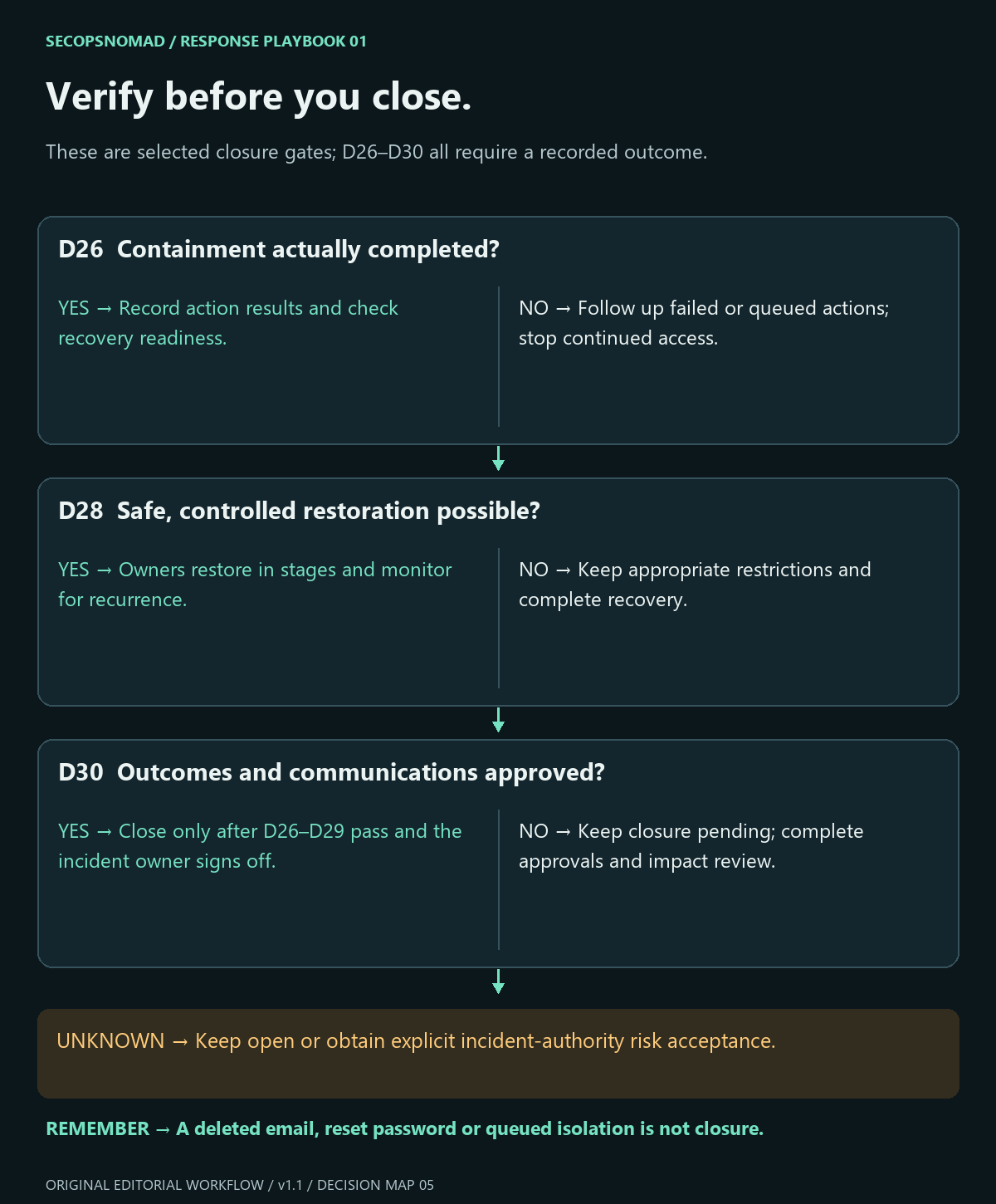
Figure 5. Closure is an evidence gate. D26–D30 must all be addressed; one successful action does not finish the incident.
Test the branches before using this in an incident
Include these counterexamples in the tabletop: a scanner-only click; a phish that passes DMARC; a vendor mailbox sending a genuine-looking invoice; a malicious consent with no password entered; an offline laptop with a queued isolation; a transfer requested but not yet sent; logs that expired before discovery; a privileged account with little visible activity; and a claimed exercise that the exercise owner cannot confirm. Each must produce an owner, evidence requirement and next action without inventing a clean result.
Hunting starters: scoped evidence, not a verdict
No incident-specific IOCs are supplied: this is a general playbook. Preserve real message IDs, URLs, hashes and their provenance in the case. Never publish victim addresses, session tokens or sensitive URL parameters. The following read-only examples were reviewed against documentation on 2 October 2026 and were not run against a live tenant or Splunk deployment.
KQL: identify recorded recipients of one message
Run in Microsoft Defender XDR Advanced Hunting with licensed, populated Defender for Office 365 data and read access to the relevant email records. Replace the NetworkMessageId from Defender, not the public Internet Message-ID. Uses the documented EmailEvents fields below. EmailEvents schema.
// Microsoft Defender XDR Advanced Hunting; read-only; not live-tested.
// Replace the message ID copied from Defender. Lookback: 7 days.
let MessageId = "REPLACE_WITH_NETWORK_MESSAGE_ID";
EmailEvents
| where Timestamp >= ago(7d)
| where NetworkMessageId == MessageId
| summarize arg_max(Timestamp, *) by NetworkMessageId, RecipientEmailAddress
| project Timestamp, NetworkMessageId, RecipientEmailAddress,
    SenderFromAddress, Subject, DeliveryAction, DeliveryLocation
| order by Timestamp desc
| take 500
Download the message-scope KQL.
The latest recorded row per recipient shows email-processing evidence; validate current location and completed removal in the email portal. Seven days and 500 rows are deliberate bounds. If capped, split the time window or approved recipient scope and record the gap. Different message IDs and expired telemetry will be missed.
KQL: review recorded Safe Links interactions
Same product and permissions; requires populated UrlClickEvents. Examine the action and click-through flag rather than treating every row as successful access. QR scans on another device, direct browsing and channels outside coverage can be absent. A click is not proof of credential submission. UrlClickEvents schema.
// Microsoft Defender XDR Advanced Hunting; read-only; not live-tested.
// Safe Links coverage is required. Absence of results is not a no-click verdict.
let MessageId = "REPLACE_WITH_NETWORK_MESSAGE_ID";
UrlClickEvents
| where Timestamp >= ago(7d)
| where NetworkMessageId == MessageId
| where Workload == "Email"
| project Timestamp, AccountUpn, NetworkMessageId, Url,
    ActionType, IsClickedThrough
| order by Timestamp desc
| take 500
Download the click-review KQL.
Splunk: scope a known message in mapped email logs
Use Splunk Enterprise or Cloud with read permission to the approved email index. Replace index, sourcetype and source message identifier. The parser must supply _time, message_id, recipient, src_user, subject and action with the meanings in Splunk's Email model. Verify these mappings locally; message_id is not automatically Microsoft's NetworkMessageId. This searches raw mapped events and does not require an accelerated data model. Splunk CIM Email fields.
index=YOUR_EMAIL_INDEX sourcetype=YOUR_EMAIL_SOURCETYPE earliest=-7d latest=now
message_id="REPLACE_WITH_SOURCE_MESSAGE_ID"
| stats min(_time) as first_seen max(_time) as last_seen count
    values(src_user) as senders values(subject) as subjects
    values(action) as actions by message_id recipient
| sort 0 - last_seen
| head 500
| convert ctime(first_seen) ctime(last_seen)
Repeated log events inflate count; it is not a victim count. actions may include earlier and later states; consult the timeline to confirm current delivery/removal. Missing parsers, retention gaps or the 500-row cap limit conclusions. These examples do not query identity, endpoint or payment systems: assign those branches separately.
Copy-paste templates
Replace everything in [square brackets]. Never include passwords or live phishing links in these messages; describe the message instead. Have Legal review anything that goes outside the company.
Reply to the person who reported it
Hi [name],
Thank you for reporting the email "[subject]" so quickly. It [was phishing / was a legitimate message / is still being checked].
What we did: [removed it from N mailboxes and blocked the sender].
Please let us know straight away if you clicked a link, scanned a QR code, entered a password, approved a sign-in request or opened an attachment from it. There is no blame; early reports are what make this fast.
[IT / security team]
Warning to all staff (describe, do not forward)
Subject: Warning: fake "[lure, e.g. invoice / shared document]" emails

Some staff received an email that looks like [description: sender name, subject, what it asks for]. It is a phishing attempt.
- If you still see it, do not click, scan or reply. Use the Report button.
- If you already clicked, entered your password or approved a sign-in, tell [contact] now. You will not be blamed.
- [Finance: do not act on any request in it to change bank details.]
We will never ask for your password by email or chat.
[IT / security team, contact]
Message to a partner whose account sent the phishing
Send after calling them on a known number.
Subject: Phishing sent from your account [address] on [date]

Dear [name],
Following our call, this confirms that on [date and time] our staff received an email from [address] that we believe was not sent by you. It [asked recipients to scan a QR code to view an invoice / contained a link to a fake sign-in page].
Details for your IT team: subject "[subject]", sent [time and time zone], Network Message ID [ID], link domain [domain – not clickable].
We have blocked [what] on our side until you confirm your mailbox is secure. Please let us know when it is, and confirm any bank details by phone.
[Name, title, company, phone]
Management briefing (five lines)
1. What happened: a phishing email posing as [lure] reached [N] staff on [date].
2. Interaction: [N] clicked or scanned; [N] entered credentials; [N] opened files; all affected accounts secured at [time].
3. Impact: [e.g. one mailbox accessed for 40 minutes; no payment made; no malware found].
4. Decisions needed: [e.g. notify partner; require phishing-resistant MFA; QR phishing training].
5. Next update / closure: [time]. Lead: [name].
Worked example: a QR code invoice from a real supplier
Fictional scenario. The company, people, times and numbers are invented to show how the decisions connect.
The situation: an architecture firm with 80 staff receives emails from a long-standing supplier's real mailbox: "Invoice ready – scan the QR code to view". The supplier's account had been compromised.
- 09:10 – report. A project manager reports it with the Report button (Q1, D04). The IT administrator opens a case.
- 09:15 – scope. Explorer finds 46 delivered copies in three waves with different subjects (Q2, D03, D10). SPF, DKIM and DMARC all pass because the supplier's own account sent them (D06, D07).
- 09:25 – contain the mail. All 46 copies are soft-deleted; the phishing site's domain is blocked with a 30-day review. The supplier's domain is not blocked, to avoid stopping real invoices (Q2).
- 09:35 – interaction. Safe Links recorded no clicks, because QR codes were scanned on phones (D08). Asking all 46 recipients finds three who scanned; one entered a password and approved the MFA prompt on a personal phone (Q3, Q4, D09).
- 09:45 – secure the account. Sessions are revoked and the password reset. The sign-in log shows a sign-in from a hosting provider at 09:02, and a new inbox rule hiding replies containing "payment" (Q5, D12, D13). The rule is recorded and removed; no app consent is found (Q6).
- 10:30 – devices and money. No files were downloaded (Q7). An accounts payable clerk had replied asking about "new bank details" but paid nothing; Finance confirms by phone with the supplier (Q8, D22, D23).
- 11:00 – partner. The supplier is called on the contract number and receives the partner template; they confirm the compromise and secure their mailbox (D06).
- Next day – close. No further sign-ins from unknown sources. The lead closes the case and assigns improvements: phishing-resistant MFA for staff who use phones, QR-code examples in training, and a rule that bank changes always need a call-back (Q9, D26–D30).
What made the difference: asking every recipient instead of relying on click logs, which could not see QR scans; revoking the session, not only the password; and not trusting the message just because SPF, DKIM and DMARC passed.
Close with evidence and improve the posture
Record affected users/devices, evidence references, decisions for Q1–Q9 and D01–D30, action timestamps and results, residual uncertainty, business impact, owner and next review time. Require all relevant branches to be resolved or explicitly accepted by the incident authority.
Before restoring access, verify account and device recovery with the owners. Define a monitoring period appropriate to the case and retention available; renewed activity reopens the investigation. Feed the findings into a concrete improvement: stronger sign-in controls, consent governance, endpoint visibility, faster email removal, independently verified payment changes or better evidence retention. Reward useful reporting rather than blaming the person who reported.
Tabletop check: test a blocked phish; a QR scan on a personal phone; a fake MFA/device-code sign-in; malicious OAuth consent; attachment execution; and an invoice reply that changes bank details. Each should reach an owner and a documented outcome. A no-click answer must not skip the invoice or account branches.
Sources and version
Version 1.1 — Added 30 evidence-based supporting decisions, escalation/closure maps and editable registers. source/schema review: 2 October 2026. Sources are linked beside the steps they support. Branch design, evidence gates and prioritization are SecOpsNomad editorial recommendations. Tools, licensing and organizational authority determine which actions are available. No live incident or query execution is claimed.
Version 1.2 — 2026-10-06: expanded for first-time responders. Added a first-hour checklist, a glossary, a small-team role map, step-by-step how-tos for sections 1–3, copy-paste templates and a worked example. Decision IDs, tables and queries are unchanged.