One compromised account can open many doors
The first account you find is a starting point, not a reliable boundary for the incident. A stolen password may be only one part of the problem: sessions, recovery methods, app grants, mailbox permissions and connected devices can keep access alive.
This reusable account-compromise playbook has 36 decisions, with yes/no actions, evidence checks and named owners. It is an original SecOpsNomad workflow, not a report of a new breach. Use it for a suspected human-user account compromise. Privileged, guest, shared and workload identities need their specialist owners; do not apply a user password-reset recipe to a service principal or assume one tenant controls a guest’s home identity.
The SOCFortress Account Compromised playbook was a structural reference for the response lifecycle. The wording, decision register and diagrams here are original; no endorsement or affiliation is implied. Its response phases and the Cyber Kill Chain serve different purposes: the former organize the response, while the latter describe an intrusion. We combine a preparation/triage layer, the seven analytical stages, and explicit recovery/closure gates.
Do not wait to finish the chain before containing credible compromise. Some stages are unobserved or inapplicable. Weaponization can happen outside your visibility; a cloud-only incident may have no malware installation or conventional C2 channel. Mark this honestly rather than forcing the evidence into a story.
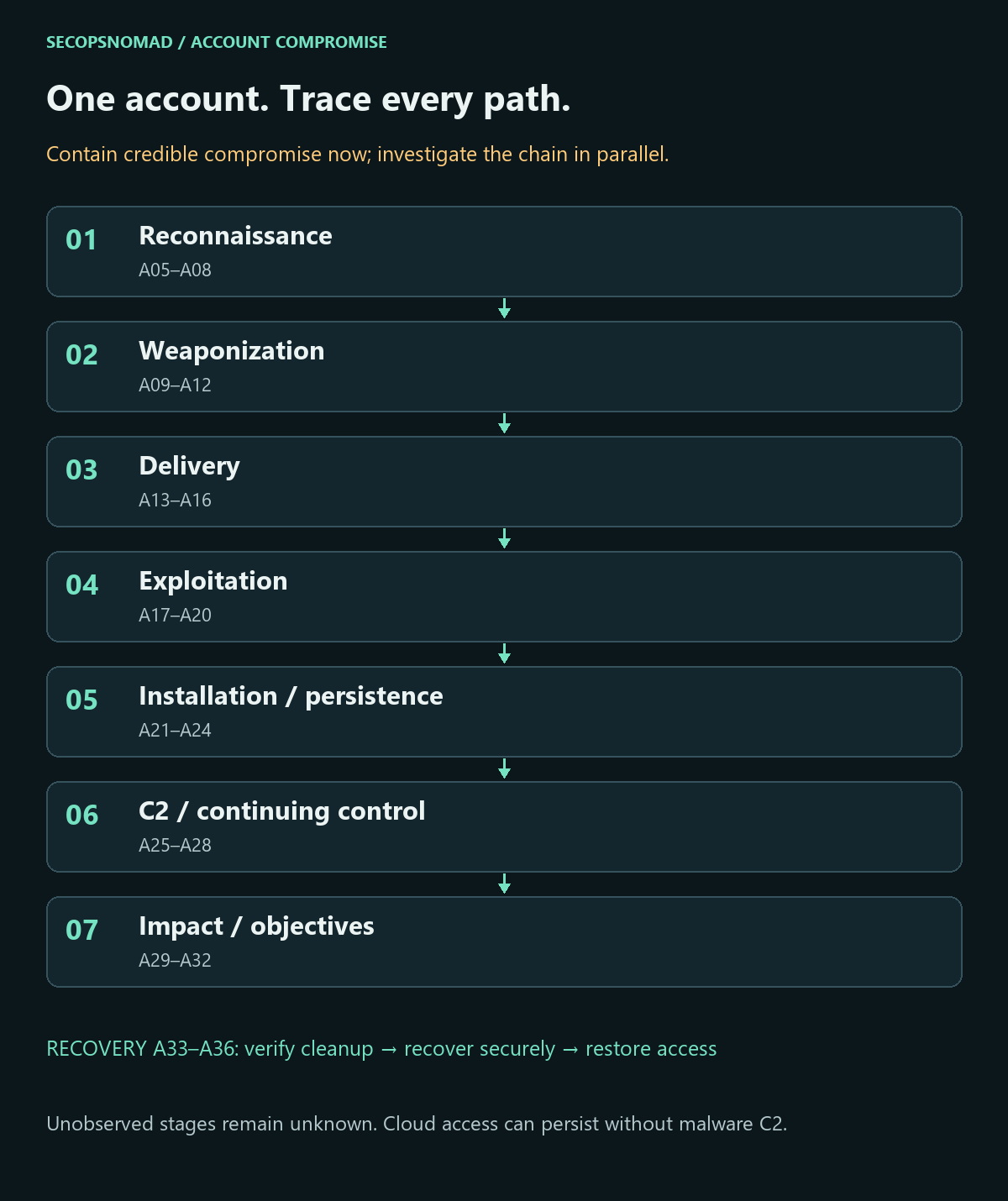
Overview. Reconnaissance → weaponization → delivery → exploitation → installation → command and control (C2) → actions on objectives/impact. Triage and recovery are additional response workstreams. Every visual decision has an equivalent table below.
Start here: the first hour
New to this? Work down this list in order, then use the stages below for the full investigation. The examples use Microsoft 365 and Entra ID; the same steps apply to other identity providers under different names.
- Minute 0–5: write down what you know. Who reported it, which account, what looked wrong, and when (in UTC). Keep the original alert or email.
- Minute 5: open a case and name an incident lead. Note the account's object ID (Entra admin center → user → Overview); usernames and email addresses can change, the object ID cannot.
- Minute 5–10: call the user on a phone number you already have, not one from the suspicious email or a reply. Ask what they received, clicked, typed or approved, and on which device. Do not ask them to try it again.
- Minute 10: block sign-in and revoke sessions (stage 0 shows where). Changing the password alone does not sign the attacker out.
- Minute 15: check whether the account is special. Administrator roles, shared mailbox, a service relying on it, or an emergency access account: involve their owners before going further.
- Minute 15–30: save the evidence. Download the account's sign-in logs and audit logs for at least the last 30 days (stage 1), before anyone removes things.
- Minute 30–40: look for the attacker's leftovers. New MFA methods, inbox rules, forwarding, mailbox delegates and app consents (stage 5). Record each one before removing it.
- Minute 40: check outgoing mail. A message trace of what the account sent tells you whether customers or colleagues received phishing from it (stage 7).
- Minute 45: warn finance if the account deals with invoices or payments: no bank detail changes without a call-back.
- Minute 50–60: send the first status update using the template near the end of this page, and set the next update time.
Do not: reset the password and close the case; email the user at the compromised mailbox; delete rules or apps before recording them; or let the user back in before their device has been checked.
Preparation and decision rules
Before an incident, identify who can restrict users, revoke sessions, investigate mail, review applications and recover identity infrastructure. Maintain an approved emergency-access path, service dependency inventory, trusted contact list and a way to preserve identity/resource audit data. Exercise the workflow with a test account, including how to verify that application access stopped.
- Yes: perform the action and continue every other relevant check.
- No: record the evidence, scope and time window supporting the answer. No alert alone is not enough.
- Unknown: keep an open task with an assigned owner and next review time. Use proportionate containment while investigating.
- Not applicable: state why and name the reviewer. Do not use it for missing logs.
Record case ID, tenant/object ID, identity type, UTC window, answer/rationale, evidence location, action/result, assigned owner and review time. Preserve sensitive logs in the restricted case workspace. Do not place passwords, cookies, tokens or personal data in this public playbook or a public scanner.
Download the English decision register (CSV). The blank working columns are for your private case records; treat text added to a spreadsheet as untrusted input.
Owners: SOC/SIEM builds the timeline and scope; IAM/Directory contains identity access; Email Security investigates mail; EDR/DFIR assesses devices; application owners handle their sessions and credentials; Service desk verifies the user; Finance reviews payment fraud; Legal/Privacy assesses data and notification; the incident lead approves recovery and closure. These roles are more specific than the site’s navigation tags.
Words used in this playbook
| Term | Plain meaning |
|---|---|
| Account compromise | Someone other than the owner can use the account, with or without its password. |
| Object ID | The permanent, unique identifier of an account in Entra ID. Use it in records instead of the email address. |
| Session / token | What keeps the account signed in after the password and MFA check. A stolen session works without the password. |
| Revoke sessions | Invalidates the account's refresh tokens so it must sign in again. Access tokens already issued can keep working for up to about an hour. |
| MFA method | A second check such as the Authenticator app or a phone number. Attackers often add their own so they can return. |
| Adversary-in-the-middle (AiTM) | A phishing site that relays the real sign-in page and steals the session after the user completes MFA. |
| Device code phishing | The attacker sends a code and asks the user to enter it on a real Microsoft page, which signs the attacker's device in. |
| Inbox rule | An automatic mailbox action. Attackers use hidden rules to forward mail or hide replies from the real user. |
| OAuth consent / app grant | Permission given to an application to act on the user's data. It survives a password change until removed. |
| Sign-in log / audit log | Entra ID records of every sign-in, and of every change to users, groups, apps and settings. |
| Unified audit log | Microsoft 365's record of actions inside services such as Exchange, SharePoint and Teams. |
| Conditional Access | Entra ID rules that decide when sign-ins need MFA, a managed device or are blocked. |
No security team? Who does what
The owners in the tables are roles, not job titles. In a small company one person often holds several. Keep one rule: the person who removes the attacker's access should not be the only one who checks that it is gone.
| Role in this playbook | In a small company, usually | What they need ready |
|---|---|---|
| Incident lead | The managing director or office manager | Authority to block an account and approve outside help |
| IAM / directory | The IT administrator or IT provider | A Microsoft 365 admin account protected by MFA and an emergency access account |
| SOC / SIEM | The same administrator, or a managed security provider | Access to sign-in, audit and unified audit logs |
| Email security | The IT administrator | Exchange admin center and Defender portal access |
| EDR / DFIR | The IT provider, or an incident response firm | Device management or antivirus console; a way to collect a device |
| Service desk | Whoever resets passwords | A verification procedure that does not rely on the compromised mailbox |
| Finance | The accounting team | A call-back rule for payment changes |
| Legal / Privacy | Outside counsel or the personal-information manager | What data the account could see |
| Outside help | Your IT provider, Microsoft support, an incident response firm; in Japan, JPCERT/CC and the police cybercrime consultation window | The case summary and timeline |
0. Triage: take control of the response
- Record the tenant, immutable account/object ID, username aliases, account type, first alert and credible unauthorized activity. Assign a case lead and decision authority.
- From trusted administration, restrict compromised access using the organization’s procedure. Coordinate critical workload and emergency-account dependencies. Preserve available evidence without delaying urgent containment.
- Verify the person through a known independent contact route. Do not send recovery secrets to the suspected mailbox or ask the user to repeat the attacker’s steps.
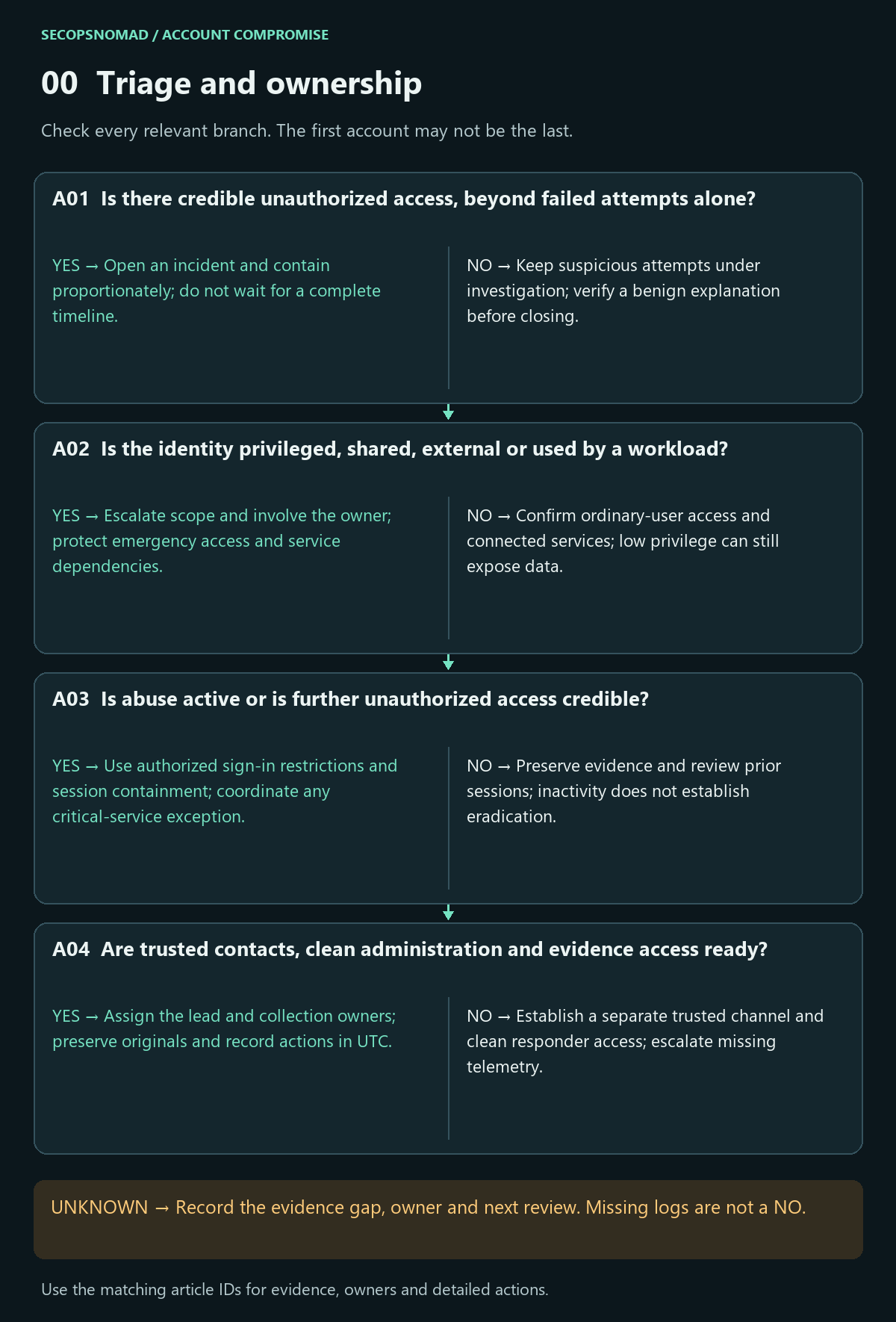
Original decision map. Check each branch independently; unknown answers remain open.
| Decision | Yes | No | Evidence / resolve unknowns | Lead owner |
|---|---|---|---|---|
| A01. Is there credible unauthorized access, beyond failed attempts alone? | Open an incident and contain proportionately; do not wait for a complete timeline. | Keep suspicious attempts under investigation; verify a benign explanation before closing. | Original alert, successful activity, user confirmation via a trusted route, UTC times. | SOC + IAM |
| A02. Is the identity privileged, shared, external or used by a workload? | Escalate scope and involve the owner; protect emergency access and service dependencies. | Confirm ordinary-user access and connected services; low privilege can still expose data. | Tenant and object ID, roles, group access, account type and application dependencies. | IAM + service owner + incident lead |
| A03. Is abuse active or is further unauthorized access credible? | Use authorized sign-in restrictions and session containment; coordinate any critical-service exception. | Preserve evidence and review prior sessions; inactivity does not establish eradication. | Recent application actions, active sessions, restriction results and business impact. | IAM + SOC + application owner |
| A04. Are trusted contacts, clean administration and evidence access ready? | Assign the lead and collection owners; preserve originals and record actions in UTC. | Establish a separate trusted channel and clean responder access; escalate missing telemetry. | Case ID, verified contact method, log availability, collection time and evidence access. | Incident lead + DFIR |
For Microsoft 365, review the vendor’s compromised-account response. Blocking access, reviewing authentication methods, mailbox settings and application permissions are separate tasks; the matrix is our operational synthesis, not a copied vendor checklist.
How to do it: step by step
Block sign-in: Entra admin center → Entra ID → Users → All users → select the user → under Account status select Edit → clear Account enabled → Save.
Revoke sessions: on the same user's Overview page select Revoke sessions. In the Microsoft 365 admin center the equivalent is Users → Active users → user → Account tab → Sign out of all sessions. With PowerShell:
Connect-MgGraph -Scopes "User.ReadWrite.All","User.RevokeSessions.All"
Update-MgUser -UserId <user-object-id> -AccountEnabled:$false
Revoke-MgUserSignInSession -UserId <user-object-id>
Hybrid accounts: if the account is synchronised from on-premises Active Directory, disable it there too (
Disable-ADAccount -Identity <sAMAccountName>), or synchronisation may re-enable it.Know the delay: access tokens already issued last up to about an hour; apps that support continuous access evaluation react faster. Note the time you acted so you can check later activity against it.
Verify the person through a phone number from your directory or HR records. Agree how you will contact them until their account is back.
Check it worked: the user's sign-in log shows new attempts failing as disabled, and the revoke time is in the case record (A01–A04). Microsoft: revoke user access.
1. Reconnaissance: identify targeting and discovery
- Build a timeline starting before the first suspicious success and extend it when earlier evidence emerges. Identify time zones, event time, ingestion delay and retention.
- Compare external targeting with discovery after entry. Do not label every internet scan, login failure or directory query as part of the same attack.
- Use user, device, network and resource context together. A foreign IP, impossible-travel alert or familiar IP is evidence to assess, not a verdict by itself.
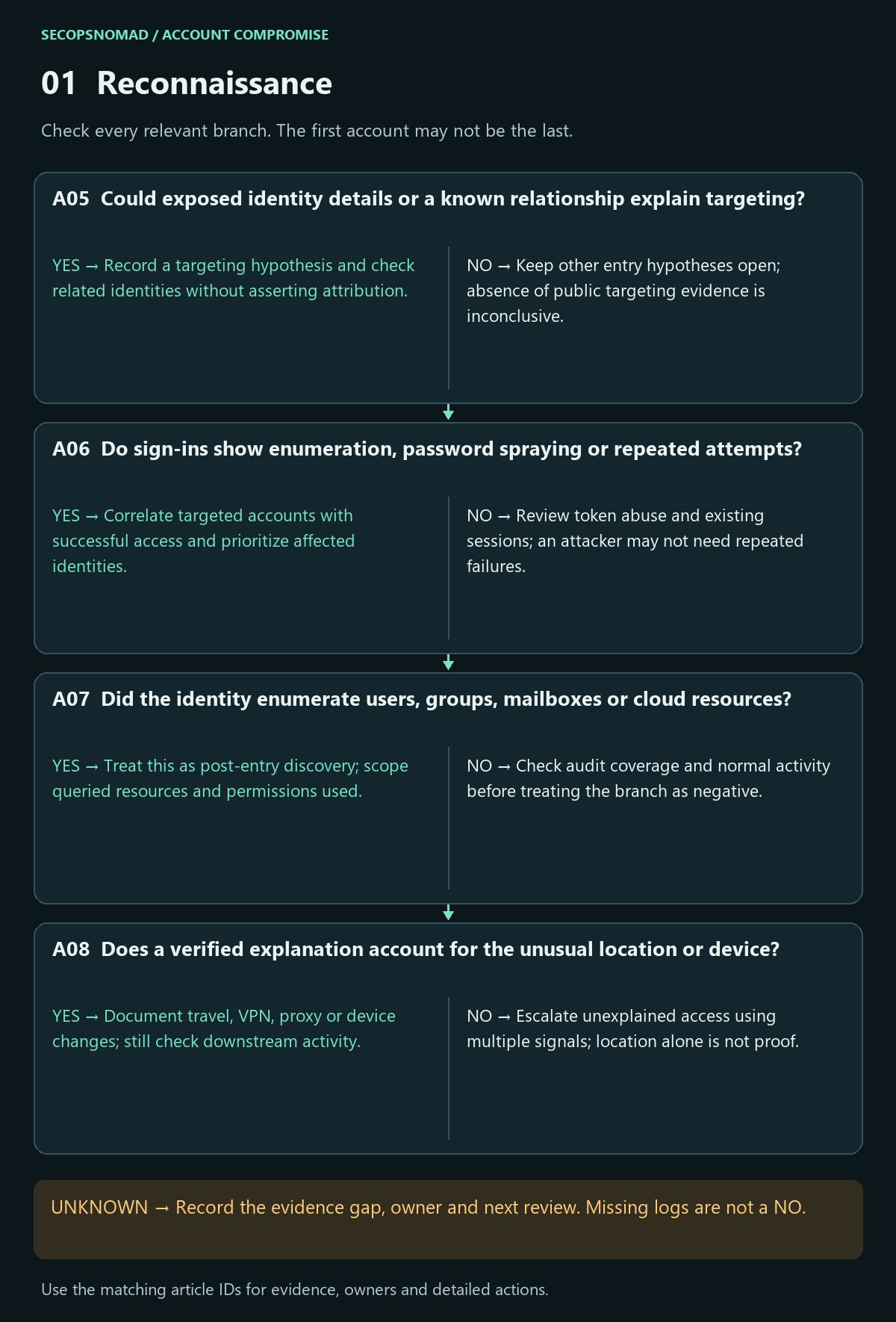
Original decision map. Check each branch independently; unknown answers remain open.
| Decision | Yes | No | Evidence / resolve unknowns | Lead owner |
|---|---|---|---|---|
| A05. Could exposed identity details or a known relationship explain targeting? | Record a targeting hypothesis and check related identities without asserting attribution. | Keep other entry hypotheses open; absence of public targeting evidence is inconclusive. | Reported lure, impersonated role, public exposure and related reports. | SOC + Threat Intelligence |
| A06. Do sign-ins show enumeration, password spraying or repeated attempts? | Correlate targeted accounts with successful access and prioritize affected identities. | Review token abuse and existing sessions; an attacker may not need repeated failures. | IdP/VPN results, source context, targeted users, rate patterns and successful events. | SIEM + IAM |
| A07. Did the identity enumerate users, groups, mailboxes or cloud resources? | Treat this as post-entry discovery; scope queried resources and permissions used. | Check audit coverage and normal activity before treating the branch as negative. | Directory and application audit, object IDs, API operations and baseline usage. | SIEM + application owner |
| A08. Does a verified explanation account for the unusual location or device? | Document travel, VPN, proxy or device changes; still check downstream activity. | Escalate unexplained access using multiple signals; location alone is not proof. | Trusted user interview, device state, IP ownership, authentication details and actions. | SOC + IAM + user support |
How to do it: step by step
- Open the sign-in logs: Entra ID → Monitoring & health → Sign-in logs. Filter by the user and set the date range to at least 30 days. Check both User sign-ins (interactive) and User sign-ins (non-interactive); attackers using stolen tokens often appear only in the second.
- Download each view (CSV or JSON) into the case folder before changing anything else.
- Read failures for patterns: many failures across many users from one address suggest password spraying; failures from many addresses against this one account suggest targeting.
- Check discovery after entry: Entra ID → Monitoring & health → Audit logs, filtered on the user as the actor, and the unified audit log (stage 4) for searches, mailbox listing or file browsing the user would not normally do.
- Treat location as a clue, not a verdict: a foreign IP can be a VPN; a familiar IP can be an attacker using a proxy near you. Look at device, browser, app and time together.
Check it worked: a timeline that starts before the first suspicious success, with each unusual source labelled explained or unexplained (A05–A08).
2. Weaponization: assess preparation without guessing
- Weaponization describes attacker preparation. A victim may have no evidence of it; record unknown rather than inventing a toolkit or attribution.
- If available, preserve lures and artifacts for authorized isolated analysis. Do not run them on responder devices, revisit malicious links from a normal browser or upload confidential samples publicly.
- Distinguish password theft, token/cookie theft, malicious application consent and recovery-process abuse. They may coexist and require different cleanup.
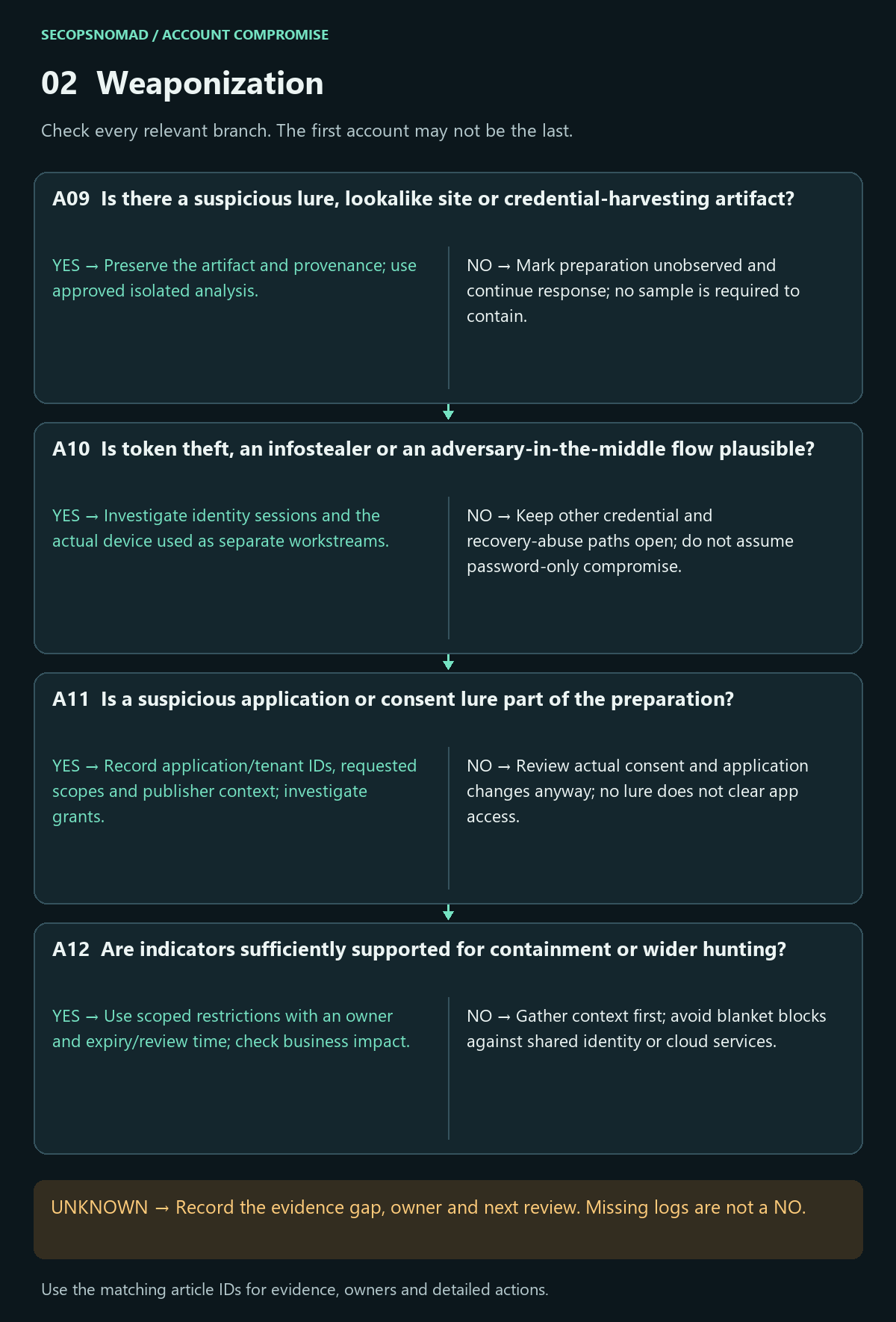
Original decision map. Check each branch independently; unknown answers remain open.
| Decision | Yes | No | Evidence / resolve unknowns | Lead owner |
|---|---|---|---|---|
| A09. Is there a suspicious lure, lookalike site or credential-harvesting artifact? | Preserve the artifact and provenance; use approved isolated analysis. | Mark preparation unobserved and continue response; no sample is required to contain. | Original message, URL text, screenshot, delivery context and analysis report. | Email Security + DFIR |
| A10. Is token theft, an infostealer or an adversary-in-the-middle flow plausible? | Investigate identity sessions and the actual device used as separate workstreams. | Keep other credential and recovery-abuse paths open; do not assume password-only compromise. | User actions, browser and EDR evidence, authentication sequence and session context. | EDR + IAM + DFIR |
| A11. Is a suspicious application or consent lure part of the preparation? | Record application/tenant IDs, requested scopes and publisher context; investigate grants. | Review actual consent and application changes anyway; no lure does not clear app access. | Consent prompt, application owner, publisher evidence, permissions and creation time. | IAM + Cloud / SaaS owner |
| A12. Are indicators sufficiently supported for containment or wider hunting? | Use scoped restrictions with an owner and expiry/review time; check business impact. | Gather context first; avoid blanket blocks against shared identity or cloud services. | Indicator type, source, observation period, confidence and relationship to activity. | Threat Intelligence + Network + SOC |
How to do it: step by step
- Preserve the lure without opening it: ask the user to report the message with the Report button in Outlook, or collect it in the Defender portal at Submissions (
security.microsoft.com/reportsubmission). Copy the message headers into the case. - Do not visit links from your normal browser. If analysis is needed, use your approved sandbox or provider.
- Work out the method from the sign-in log: open a suspicious sign-in and read Authentication Details and the app and authentication protocol. A sign-in from an unfamiliar address minutes after the user's own MFA, for the same app, suggests AiTM token theft; the authentication protocol Device code suggests device code phishing.
- Check risk detections if you have Entra ID P2: Entra admin center → ID Protection reports for risky users and risky sign-ins.
- Record each method separately: password theft, token theft, malicious consent and recovery abuse need different clean-up.
Check it worked: a written statement of how the attacker most likely got in, with the evidence and confidence (A09–A12).
3. Delivery: establish how access was exposed
- Interview the user without blame: what was received, which account and device were used, what was entered, approved, installed or shared, and when?
- Preserve original delivery/support records. A cloud-only account incident can arise without an email or a malware installation.
- Look for related recipients, other devices, guest tenants and supplier identities. Follow the phishing playbook when a lure was involved.
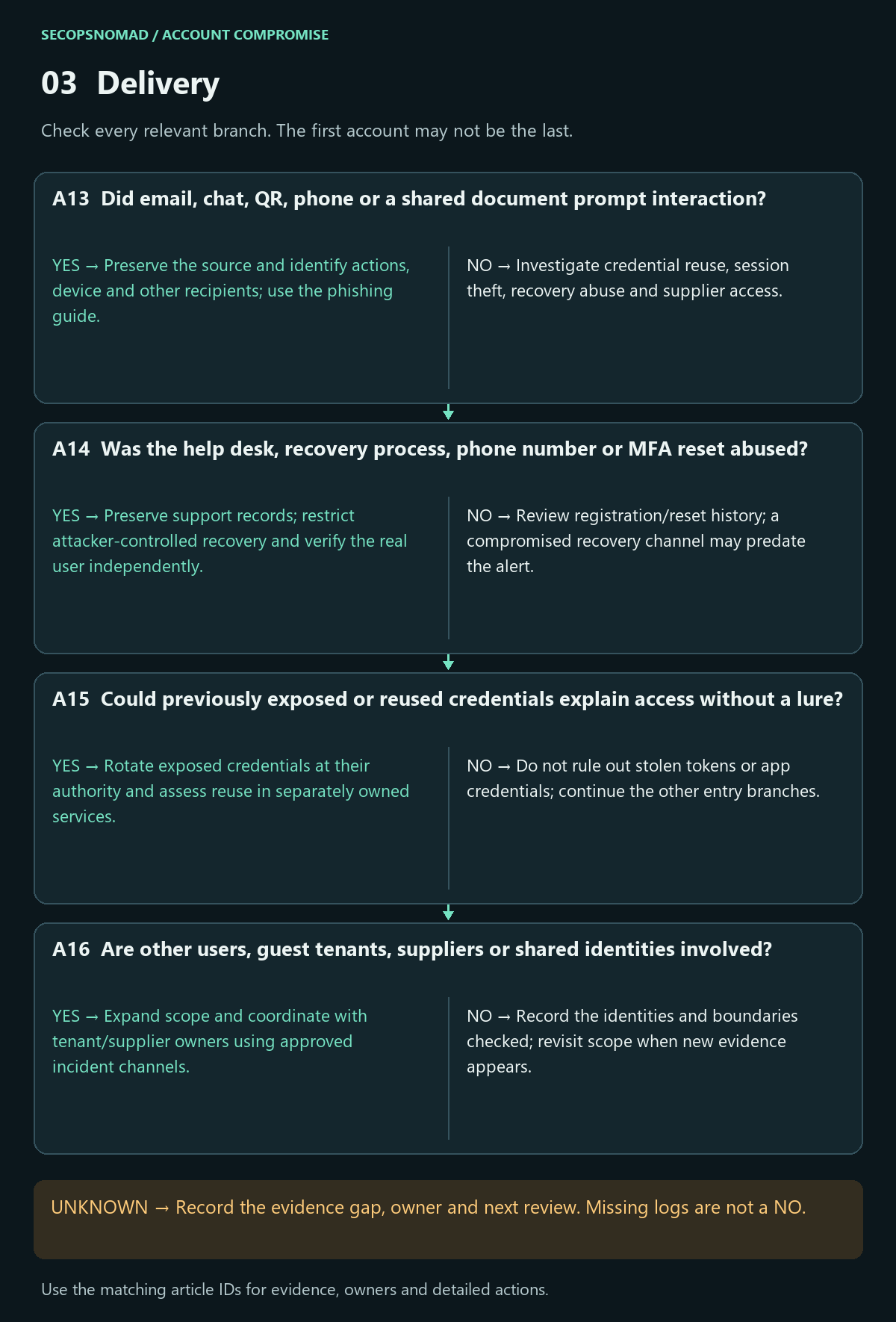
Original decision map. Check each branch independently; unknown answers remain open.
| Decision | Yes | No | Evidence / resolve unknowns | Lead owner |
|---|---|---|---|---|
| A13. Did email, chat, QR, phone or a shared document prompt interaction? | Preserve the source and identify actions, device and other recipients; use the phishing guide. | Investigate credential reuse, session theft, recovery abuse and supplier access. | Original content, delivery trace, user account, actual device and interaction times. | Email Security + SOC |
| A14. Was the help desk, recovery process, phone number or MFA reset abused? | Preserve support records; restrict attacker-controlled recovery and verify the real user independently. | Review registration/reset history; a compromised recovery channel may predate the alert. | Help-desk tickets, method changes, recovery events and verified contact history. | IAM + Service desk |
| A15. Could previously exposed or reused credentials explain access without a lure? | Rotate exposed credentials at their authority and assess reuse in separately owned services. | Do not rule out stolen tokens or app credentials; continue the other entry branches. | Trusted exposure notification, relevant authentication and credential ownership. | IAM + user + service owners |
| A16. Are other users, guest tenants, suppliers or shared identities involved? | Expand scope and coordinate with tenant/supplier owners using approved incident channels. | Record the identities and boundaries checked; revisit scope when new evidence appears. | Guest/home tenant IDs, shared access, supplier records and related activity. | Incident lead + IAM + Third-party Risk |
If a lure was involved, continue the phishing response playbook in parallel. Account containment does not remove other delivered copies.
How to do it: step by step
- Interview the user without blame: what arrived (email, Teams, QR code, phone call), what they clicked, typed or approved, on which device, and when. Write their answers down as quotes.
- Find the message and its other recipients: Exchange admin center → Mail flow → Message trace → Start a trace with the sender and a time range. With Defender for Office 365 Plan 2, Defender portal → Email & collaboration → Explorer shows all recipients and lets you remove copies.
- Check the service desk: any password or MFA reset requests for this user in the window, and whether the caller was verified.
- Look wider: other users who received the lure or signed in from the same attacker address; follow the phishing playbook for the message itself.
Check it worked: the delivery path is recorded with its evidence, and every other recipient or account with the same indicators has an owner (A13–A16).
4. Exploitation: verify unauthorized use
- Correlate identity sign-ins with resource activity. Keep successful authentication, authorization and actual data operations distinct.
- Review interactive and non-interactive use, MFA context, device-code activity and session theft. A successful MFA claim does not establish that the genuine user performed the action.
- Assess the device used, including personal or unmanaged devices. Evidence of host compromise opens a separate endpoint investigation; a suspicious attachment alone does not prove execution.
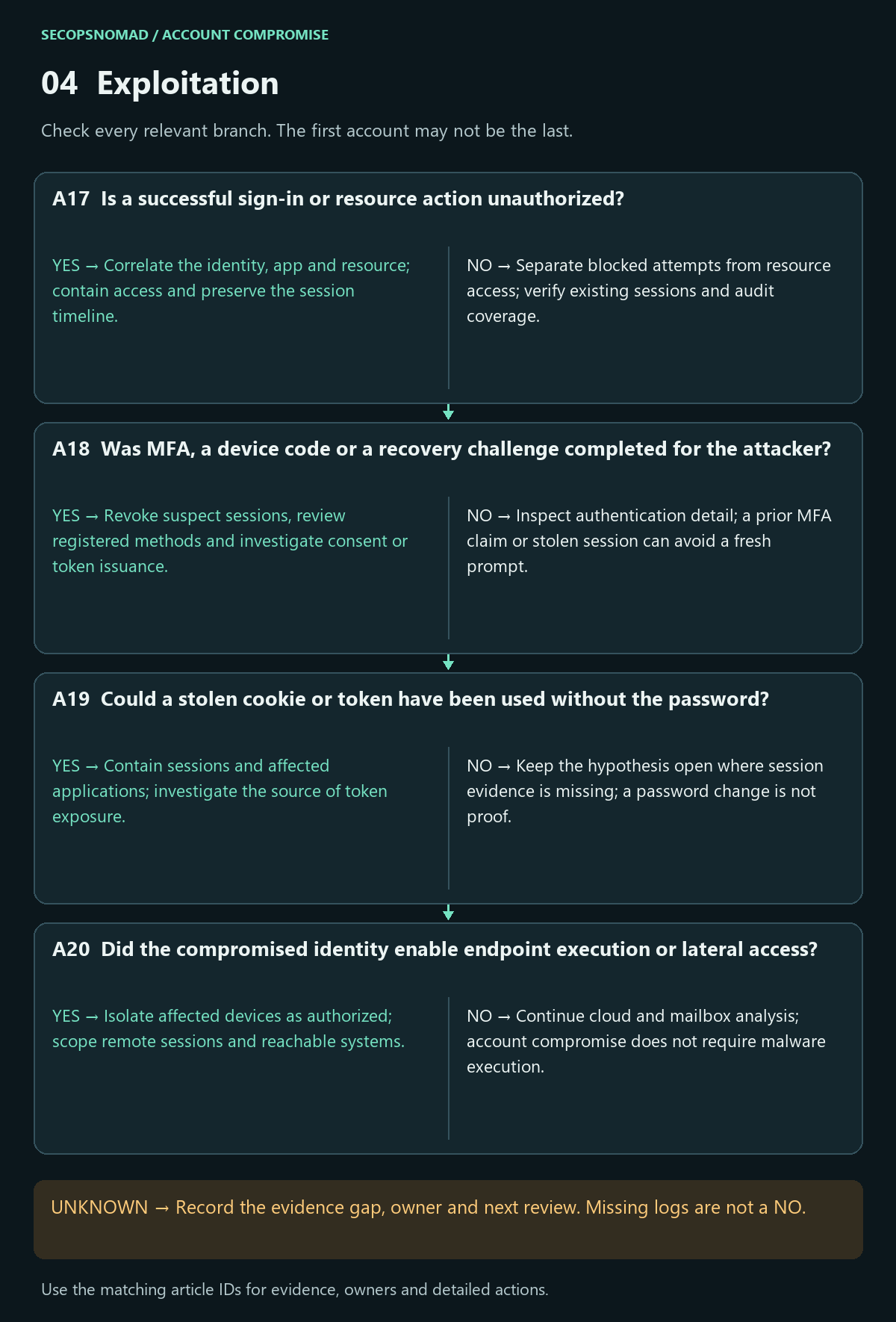
Original decision map. Check each branch independently; unknown answers remain open.
| Decision | Yes | No | Evidence / resolve unknowns | Lead owner |
|---|---|---|---|---|
| A17. Is a successful sign-in or resource action unauthorized? | Correlate the identity, app and resource; contain access and preserve the session timeline. | Separate blocked attempts from resource access; verify existing sessions and audit coverage. | Sign-in result, resource audit, identity object ID, app ID and user verification. | IAM + SIEM |
| A18. Was MFA, a device code or a recovery challenge completed for the attacker? | Revoke suspect sessions, review registered methods and investigate consent or token issuance. | Inspect authentication detail; a prior MFA claim or stolen session can avoid a fresh prompt. | Authentication sequence, challenge type, user report, device/app IDs and issuance context. | IAM + SOC |
| A19. Could a stolen cookie or token have been used without the password? | Contain sessions and affected applications; investigate the source of token exposure. | Keep the hypothesis open where session evidence is missing; a password change is not proof. | Session/correlation IDs where available, resource actions, device/browser evidence. | IAM + application owner + EDR |
| A20. Did the compromised identity enable endpoint execution or lateral access? | Isolate affected devices as authorized; scope remote sessions and reachable systems. | Continue cloud and mailbox analysis; account compromise does not require malware execution. | EDR lineage, VPN/RDP/SSH sessions, cloud console actions and destination evidence. | EDR + Network + SIEM |
Microsoft’s token-theft investigation distinguishes user/session and device investigation contexts. Preserve both; do not declare a device clean from an identity-only search.
How to do it: step by step
Compare the attacker's sign-ins with actions: use the KQL in the hunting section below, or the downloaded logs, to line up each suspicious sign-in with what happened next.
Search the unified audit log for the user and window: Microsoft Purview portal → Audit → Search (or the Defender portal's audit search), or Exchange Online PowerShell:
Connect-ExchangeOnline
Search-UnifiedAuditLog -StartDate "2026-09-06" -EndDate "2026-10-06" -UserIds user@example.com -ResultSize 5000 |
  Select-Object CreationDate,Operations,ClientIP,AuditData | Export-Csv .\ual-user.csv -NoTypeInformation
Look at MFA context: in each suspicious sign-in, Authentication Details shows whether MFA was satisfied and how. "MFA satisfied by claim in the token" on an unfamiliar device points to a stolen session.
Check the device: if the user's computer may be infected (an attachment ran, an infostealer is suspected), open a device investigation with your EDR or IT provider.
Check it worked: each suspicious sign-in is matched to the actions that followed or marked "no action seen", with log coverage noted (A17–A20).
5. Installation: investigate identity persistence
- For an identity incident, installation may be account or application persistence rather than installed malware. Compare configuration history and effective access, not just current visible settings.
- Preserve unauthorized methods, grants, rules and access changes before removal where practical. Review mailbox delegation and hidden rules as well as forwarding.
- Review application-only credentials and SaaS-specific access separately from the user. Changes to federation or identity administration require broader incident command and a specialist recovery plan.
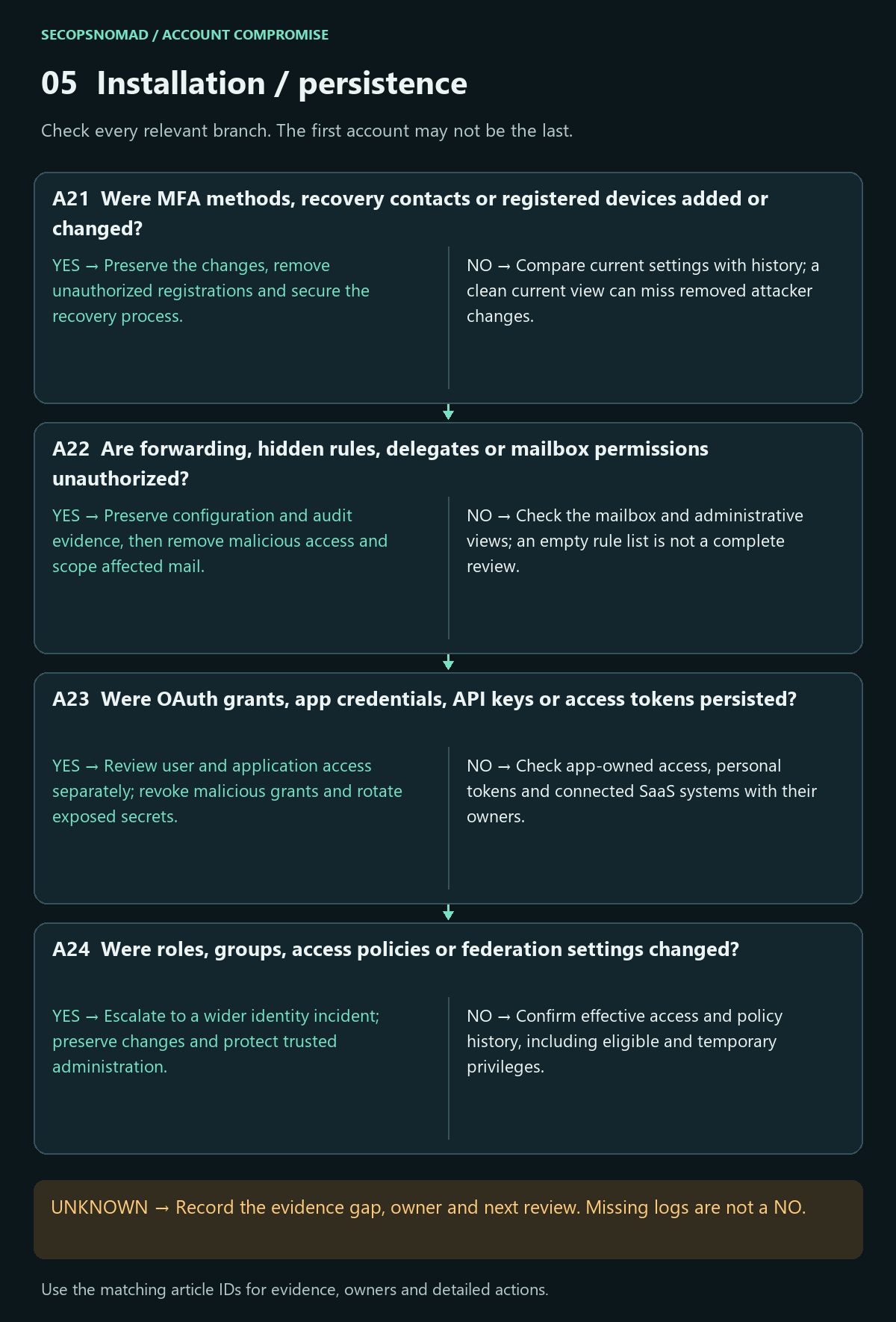
Original decision map. Check each branch independently; unknown answers remain open.
| Decision | Yes | No | Evidence / resolve unknowns | Lead owner |
|---|---|---|---|---|
| A21. Were MFA methods, recovery contacts or registered devices added or changed? | Preserve the changes, remove unauthorized registrations and secure the recovery process. | Compare current settings with history; a clean current view can miss removed attacker changes. | Authentication-method audit, device registrations, recovery settings and verified baseline. | IAM + Service desk |
| A22. Are forwarding, hidden rules, delegates or mailbox permissions unauthorized? | Preserve configuration and audit evidence, then remove malicious access and scope affected mail. | Check the mailbox and administrative views; an empty rule list is not a complete review. | Inbox/hidden rules, forwarding, delegates, SendAs access and related admin events. | Email Security + messaging owner |
| A23. Were OAuth grants, app credentials, API keys or access tokens persisted? | Review user and application access separately; revoke malicious grants and rotate exposed secrets. | Check app-owned access, personal tokens and connected SaaS systems with their owners. | Application/service-principal IDs, grants, keys, PATs, SSH keys and service-specific audit. | IAM + Cloud / SaaS owner |
| A24. Were roles, groups, access policies or federation settings changed? | Escalate to a wider identity incident; preserve changes and protect trusted administration. | Confirm effective access and policy history, including eligible and temporary privileges. | Role/group audit, privileged activation, policy changes, federation and admin baselines. | IAM + Directory + incident lead |
Use the malicious/compromised application investigation guidance when app access is implicated. An application’s independent credential or application permission can outlive cleanup of the initial user account.
How to do it: step by step
MFA methods: Entra ID → Users → user → Authentication methods. Compare each method with what the user says they registered. With PowerShell:
Get-MgUserAuthenticationMethod -UserId <user-object-id>. Remove unknown methods after recording them.Forwarding and inbox rules (Exchange Online PowerShell):
Get-Mailbox -Identity user@example.com | Format-List ForwardingAddress,ForwardingSmtpAddress,DeliverToMailboxAndForward
Get-InboxRule -Mailbox user@example.com -IncludeHidden | Format-List Name,Enabled,RedirectTo,ForwardTo,ForwardAsAttachmentTo,MoveToFolder,DeleteMessage,Identity
Get-MailboxPermission -Identity user@example.com | Where-Object { -not $_.IsInherited }
Get-RecipientPermission -Identity user@example.com
App consents: list the delegated grants the user gave, then remove untrusted ones:
Connect-MgGraph -Scopes "DelegatedPermissionGrant.ReadWrite.All"
Get-MgOauth2PermissionGrant -Filter "principalId eq '<user-object-id>'" | Format-List Id,ClientId,Scope
Remove-MgOauth2PermissionGrant -OAuth2PermissionGrantId <grant-id>
The portal view is Entra ID → Enterprise apps → the app → Permissions.
Devices and roles: check the user's Devices page for unknown registrations, and the audit log for role, group or policy changes made by or for the user.
Check it worked: every method, rule, permission, grant and device is either confirmed by the user or recorded and removed (A21–A24). Microsoft: review app permissions.
6. C2: find and stop continuing control
- Traditional C2 is a malware/attacker control channel. Here we also track continuing control through legitimate portals, APIs, sessions and delegated trust; those are not automatically classic malware C2.
- Record each containment action, target, time, result and verification source. Compare resource activity after action time; distinguish delayed log arrival from a genuinely new action.
- Blocking a sign-in, changing a password and revoking identity sessions are different controls. Verify each affected application’s sessions and alternate credentials with its owner.
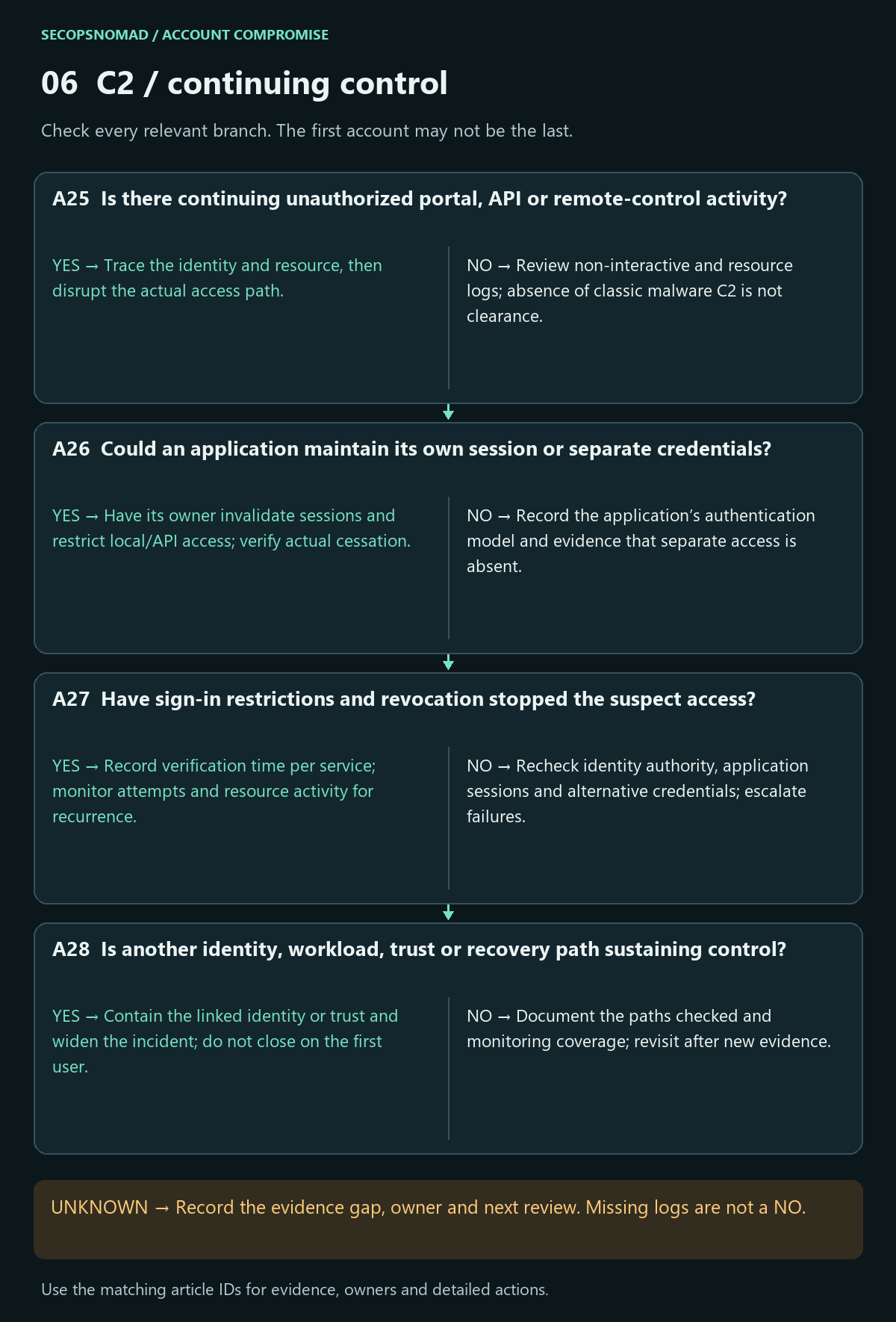
Original decision map. Check each branch independently; unknown answers remain open.
| Decision | Yes | No | Evidence / resolve unknowns | Lead owner |
|---|---|---|---|---|
| A25. Is there continuing unauthorized portal, API or remote-control activity? | Trace the identity and resource, then disrupt the actual access path. | Review non-interactive and resource logs; absence of classic malware C2 is not clearance. | Application actions, API audit, remote access, sign-ins and initiating device context. | SIEM + IAM + Network |
| A26. Could an application maintain its own session or separate credentials? | Have its owner invalidate sessions and restrict local/API access; verify actual cessation. | Record the application’s authentication model and evidence that separate access is absent. | SaaS session controls, local accounts, app passwords, API keys and access logs. | Application owner + IAM |
| A27. Have sign-in restrictions and revocation stopped the suspect access? | Record verification time per service; monitor attempts and resource activity for recurrence. | Recheck identity authority, application sessions and alternative credentials; escalate failures. | Control results, post-action sign-ins, resource actions and known telemetry delays. | IAM + SOC + application owner |
| A28. Is another identity, workload, trust or recovery path sustaining control? | Contain the linked identity or trust and widen the incident; do not close on the first user. | Document the paths checked and monitoring coverage; revisit after new evidence. | New identities, app-only access, guest relationships, federation and recovery changes. | IAM + Cloud + incident lead |
Microsoft documents that Entra cannot directly revoke a session cookie issued by an application. Revocation behavior depends on the application and token model; avoid promising instant universal sign-out. Verify resource access, not just a successful control request. Emergency access revocation.
How to do it: step by step
- Check after the revoke time: in the sign-in logs, filter from the time you revoked sessions. Any success, interactive or not, from an unknown source means access continues.
- Look for other ways in: app passwords (Entra ID → user → Authentication methods shows an option to delete them), mobile devices synchronising mail (
Get-MobileDevice -Mailbox user@example.com), and third-party apps with their own sessions. - Contain those too: remove the app grant from stage 5, ask each application owner to end the user's sessions in their system, and block the app if it is malicious (Enterprise apps → app → Properties → Enabled for users to sign-in? → No).
- Record each action: what, target, time, result, and where you verified it.
Check it worked: no successful sign-ins or app activity from unknown sources after the containment time, checked across interactive, non-interactive and application logs (A25–A28).
7. Impact: establish data, fraud and service consequences
- Maintain separate assessments for confidentiality, integrity, availability and financial loss. Record what is confirmed, suspected and unobservable.
- Scope sent mail, document/repository access, sharing, exports and downstream secrets. No download event is not proof that no data was viewed or copied.
- Finance handles payment verification/recovery through established contacts. Legal/Privacy determines case-specific notification, preservation and contractual duties. This playbook sets no universal reporting deadline.
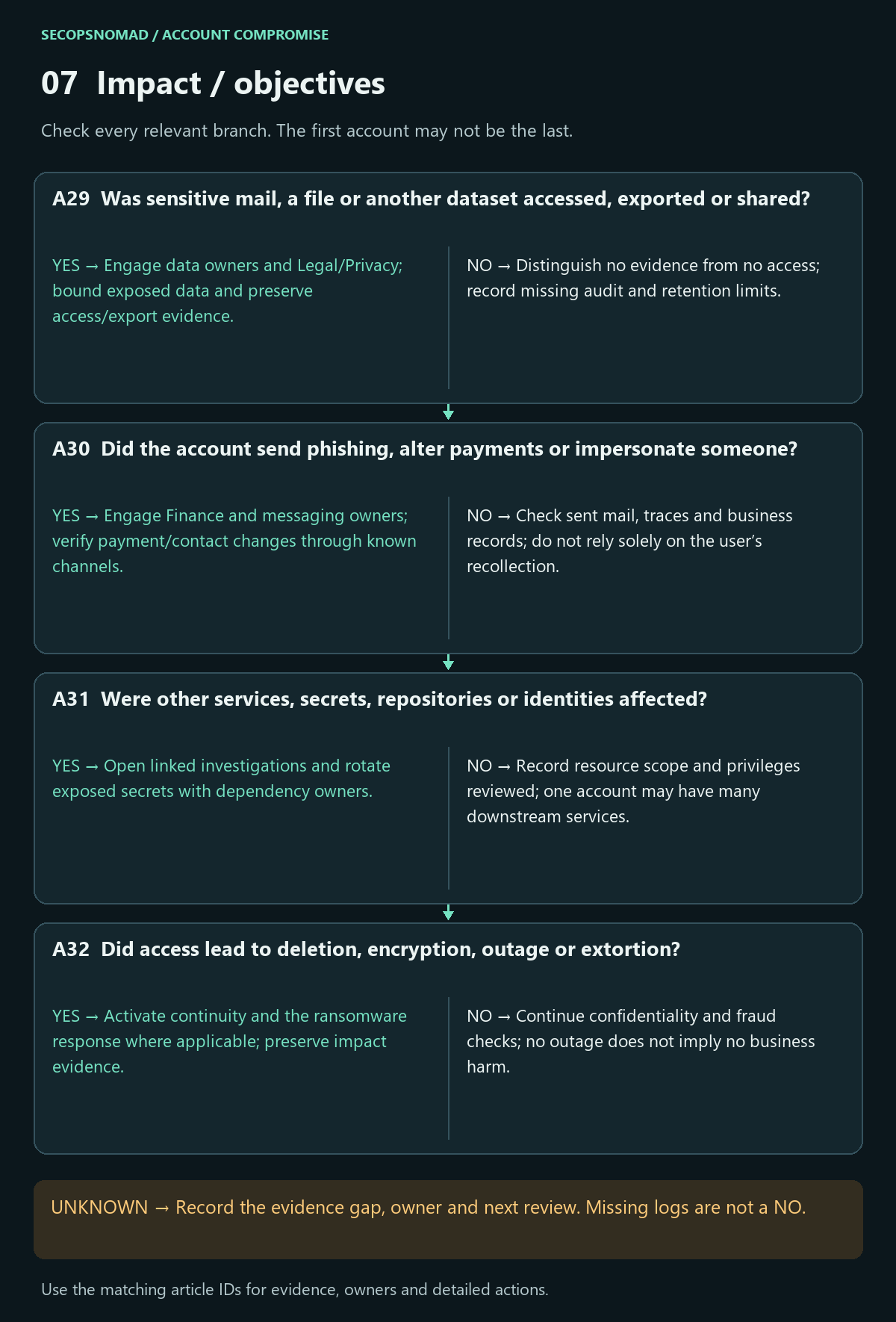
Original decision map. Check each branch independently; unknown answers remain open.
| Decision | Yes | No | Evidence / resolve unknowns | Lead owner |
|---|---|---|---|---|
| A29. Was sensitive mail, a file or another dataset accessed, exported or shared? | Engage data owners and Legal/Privacy; bound exposed data and preserve access/export evidence. | Distinguish no evidence from no access; record missing audit and retention limits. | Mailbox/file access, downloads, exports, sharing changes, data classification and recipients. | DFIR + data owner + Legal / Privacy |
| A30. Did the account send phishing, alter payments or impersonate someone? | Engage Finance and messaging owners; verify payment/contact changes through known channels. | Check sent mail, traces and business records; do not rely solely on the user’s recollection. | Message trace, sent/deleted items, recipient scope, payment records and approvals. | Email Security + Finance + incident lead |
| A31. Were other services, secrets, repositories or identities affected? | Open linked investigations and rotate exposed secrets with dependency owners. | Record resource scope and privileges reviewed; one account may have many downstream services. | SaaS/cloud/repository audit, vault access, service credentials and identity relationships. | Cloud / IT + IAM + SIEM |
| A32. Did access lead to deletion, encryption, outage or extortion? | Activate continuity and the ransomware response where applicable; preserve impact evidence. | Continue confidentiality and fraud checks; no outage does not imply no business harm. | Deleted/changed objects, service health, ransom claims, recovery points and user impact. | Incident lead + IT + Legal / Privacy |
If destructive activity or ransomware is involved, run the ransomware response playbook as a linked workstream. A recovered account does not restore damaged data or settle disclosure risk.
How to do it: step by step
What was read: search mailbox access records. Bind entries list individual messages; Sync entries mean whole folders were downloaded to a client.
Search-UnifiedAuditLog -StartDate "2026-09-06" -EndDate "2026-10-06" -UserIds user@example.com -Operations MailItemsAccessed -ResultSize 5000 |
  Export-Csv .\mailitemsaccessed.csv -NoTypeInformation
What was sent: Exchange admin center → Mail flow → Message trace → Senders: the user → time range of the incident. Export the recipients; they may need a warning (template below).
Files and sharing: in Purview Audit, search the user for file access, download and sharing activity in SharePoint and OneDrive.
Money: ask Finance whether any payment or bank detail change came through this account's mail; contact the bank immediately through a known number if so.
Check it worked: separate lists of data read, mail sent, files shared and payments affected, each marked confirmed, suspected or not observed (A29–A32). Microsoft: investigate with MailItemsAccessed.
8. Recovery: return access only after verification
- Require a documented remediation list for the entry cause, devices, identity settings, sessions, application grants and exposed secrets. Assign a verifier for each item.
- Recover through a clean device and known-trusted channel. Reset at the authoritative identity source, handle hybrid synchronization/federation with its owner, and re-enroll approved phishing-resistant MFA where supported.
- Restore least privilege in stages, test dependent services and observe resource activity. Define monitoring duration/end criteria with the incident lead; close only with impact assessment and business acceptance.
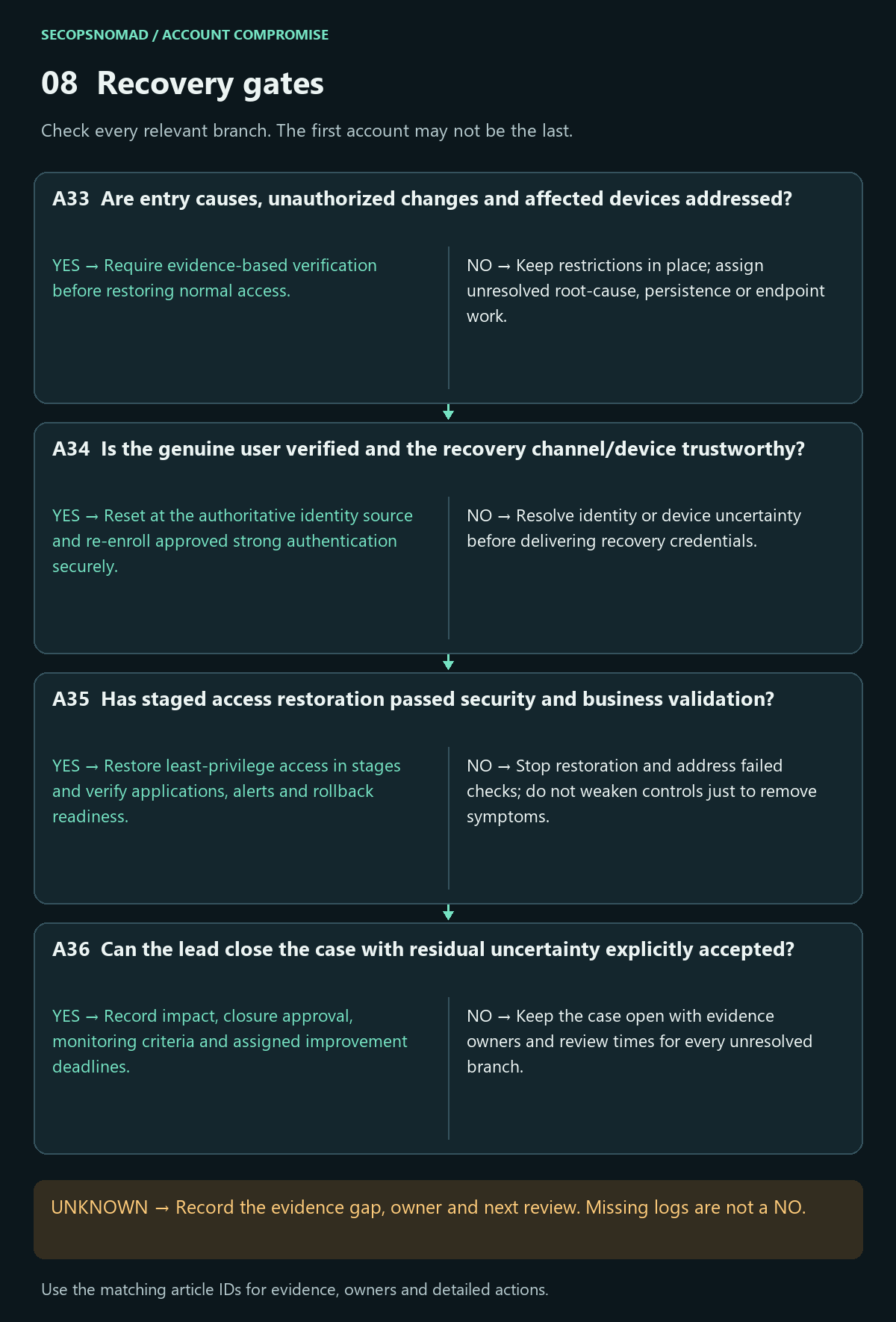
Original decision map. Check each branch independently; unknown answers remain open.
| Decision | Yes | No | Evidence / resolve unknowns | Lead owner |
|---|---|---|---|---|
| A33. Are entry causes, unauthorized changes and affected devices addressed? | Require evidence-based verification before restoring normal access. | Keep restrictions in place; assign unresolved root-cause, persistence or endpoint work. | Remediation results, trusted device assessment, configuration baseline and access review. | DFIR + IAM + IT |
| A34. Is the genuine user verified and the recovery channel/device trustworthy? | Reset at the authoritative identity source and re-enroll approved strong authentication securely. | Resolve identity or device uncertainty before delivering recovery credentials. | Independent identity proof, clean-device check, approved recovery contact and authority. | Service desk + IAM + EDR |
| A35. Has staged access restoration passed security and business validation? | Restore least-privilege access in stages and verify applications, alerts and rollback readiness. | Stop restoration and address failed checks; do not weaken controls just to remove symptoms. | Login tests, MFA enforcement, app authorization, business tests and monitoring results. | IAM + application owner + SOC |
| A36. Can the lead close the case with residual uncertainty explicitly accepted? | Record impact, closure approval, monitoring criteria and assigned improvement deadlines. | Keep the case open with evidence owners and review times for every unresolved branch. | Final timeline, scope, containment verification, impact decisions and recovery sign-off. | Incident lead + business + Legal / Privacy |
How to do it: step by step
- Clean the device first: the user signs back in only from a device that has been scanned or rebuilt.
- Reset the password and MFA: Entra ID → Users → user → Authentication methods → Reset password, then Require re-register multifactor authentication. For hybrid accounts, reset in Active Directory. Prefer phishing-resistant methods such as passkeys where supported.
- Re-enable the account (clear the block from stage 0) and walk the user through registration on a call.
- Restore access in stages and watch the sign-in logs daily for two weeks. Agree in advance what would reopen the case.
- Fix the entry cause: for example, require compliant devices or phishing-resistant MFA with Conditional Access, restrict user consent to apps, and block device code flow if you do not use it.
Check it worked: the user works normally from a trusted device, monitoring shows no unknown sign-ins, and the lead records the closure decision (A33–A36).
Hunting: account-scoped KQL and Splunk starters
No live IOC is supplied. This is a generic response guide, not a report about a named attacker or a set of malicious IPs. Use verified object IDs, usernames and case evidence. All four examples are read-only, documentation/schema-reviewed and not executed in a live environment.
The KQL examples target Microsoft Sentinel / Azure Monitor Log Analytics, not Defender XDR Advanced Hunting. They require the named tables to be connected and populated, appropriate workspace/table access, available retention, and a query-capable table plan. A license or connector being present does not prove the relevant audit events were collected. Confirm telemetry with its owner before interpreting results.
Replace each obvious placeholder. Use a verified immutable Entra user object ID for the first two queries and record the tenant context. Do not paste untrusted strings into query syntax. All examples use a 24-hour window and cap displayed results at 500; this does not limit all underlying scan cost. For a historical case use explicit UTC bounds. If a cap is reached, split the time range and retain every export. The first/last visible row is not necessarily the incident boundary.
1. Sign-in timeline. Requires both SigninLogs and AADNonInteractiveUserSignInLogs; a missing table is a gap to resolve, not suppress. The union projects fields common to both and leaves ResultType uninterpreted because source semantics need checking. Review successes, failures, conditional-access detail and resource actions together. These are user logs, not service-principal/managed-identity coverage. Familiar IPs, VPNs and legitimate token refreshes need context; a sign-in row does not prove data access.
2. Directory changes. AuditLogs checks the selected user as initiator and as a member of TargetResources, preserving the full event for review. An event is not necessarily malicious. Dynamic-field layouts vary: inspect representative records and confirm extraction of InitiatedBy.user.id and TargetResources[].id. Activity performed by an attacker-created application or a different identity needs a separate pivot to that object. This is not an exhaustive effective-permissions inventory.
3. Mailbox activity. OfficeActivity limits to Exchange and looks for the UPN as actor or mailbox owner. Check both current and historical aliases. Administrator actions may identify a target mailbox only in other fields, so expand using verified mailbox/object identifiers. Audit availability, licensing, retention and event aggregation affect what is visible. Neither an empty result nor absence of a download event proves no exposure; this query does not cover all SharePoint/OneDrive or other SaaS operations.
4. Authentication in Splunk. Select your authentication index and sourcetype with CIM-style extractions: _time, user, action, src, dest, app, authentication_method, signature. The query uses raw events, not an accelerated data model. Verify index permission and mappings, particularly whether user is a UPN, short name or another identifier. Shared NAT and legitimate administration can resemble abuse. Preserve raw evidence before pivoting to application and device activity.
KQL: interactive and non-interactive sign-in timeline
Download account-signin-timeline.kql
// Microsoft Sentinel / Log Analytics. Read-only; not live-tested.
// Requires BOTH user sign-in tables. Replace the Entra object ID.
let TargetUserId = "REPLACE_WITH_ENTRA_USER_OBJECT_ID";
union withsource=LogTable SigninLogs, AADNonInteractiveUserSignInLogs
| where TimeGenerated between (ago(24h) .. now())
| where UserId =~ TargetUserId
| project TimeGenerated, CreatedDateTime, LogTable, UserId, UserPrincipalName,
    IPAddress, AppDisplayName, AppId, ResourceDisplayName, ResultType,
    ResultDescription, ConditionalAccessStatus, CorrelationId
| order by TimeGenerated asc
| take 500
KQL: changes by or targeting the account
Download account-directory-changes.kql
// Microsoft Sentinel / Log Analytics. Read-only; not live-tested.
// Return events initiated by the user OR naming the user as a target.
let TargetUserId = "REPLACE_WITH_ENTRA_USER_OBJECT_ID";
AuditLogs
| where TimeGenerated between (ago(24h) .. now())
| extend ActorId = tostring(InitiatedBy.user.id),
    Targets = iff(coalesce(array_length(TargetResources), 0) == 0, dynamic([{}]), TargetResources)
| mv-expand Target = Targets
| extend TargetId = tostring(Target.id)
| where ActorId =~ TargetUserId or TargetId =~ TargetUserId
| summarize arg_max(TimeGenerated, *) by Id
| project TimeGenerated, Id, OperationName, Result, InitiatedBy,
    TargetResources, CorrelationId
| order by TimeGenerated asc
| take 500
KQL: mailbox actor and owner activity
Download account-mailbox-activity.kql
// Microsoft Sentinel / Log Analytics. Read-only; not live-tested.
// Replace the verified UPN; also search historical aliases separately.
let TargetUPN = "REPLACE_WITH_VERIFIED_USER_UPN";
OfficeActivity
| where TimeGenerated between (ago(24h) .. now())
| where OfficeWorkload == "Exchange"
| where UserId =~ TargetUPN or MailboxOwnerUPN =~ TargetUPN
| project TimeGenerated, OfficeId, Operation, ResultStatus, UserId,
    MailboxOwnerUPN, ClientIP, OfficeObjectId, Parameters
| order by TimeGenerated asc
| take 500
Splunk: authentication events for one account
Download account-authentication-review.spl
index="REPLACE_WITH_AUTH_INDEX" sourcetype="REPLACE_WITH_AUTH_SOURCETYPE" earliest=-24h latest=now
| where lower(user)=lower("REPLACE_WITH_EXACT_USER")
| sort 500 + _time
| table _time user action src dest app authentication_method signature
Copy-paste templates
Replace everything in [square brackets]. Never include passwords or codes. Have Legal or Privacy review anything sent outside the company.
Message to the affected user (by phone or a separate channel)
Do not send this to the compromised mailbox.
Hi [name], this is [your name] from [IT / security].
We have temporarily blocked your account because we saw sign-ins we believe were not you. This is not a disciplinary matter; quick reporting helps everyone.
What we need from you now:
1. Do not sign in on any device until we call you back.
2. Tell us what you received, clicked, typed or approved around [date/time], and on which device.
3. Keep the device you use for work switched on but disconnected from Wi-Fi, if we ask you to.
We will call you on this number at [time] to set up your account again. If anyone else calls or emails asking for codes or passwords, do not respond and tell us.
Warning to recipients of mail sent by the compromised account
Use after stage 7, sent from a different, trusted account.
Subject: Please ignore emails from [name] sent between [start] and [end]

Dear [recipient],
Between [start time] and [end time] on [date], emails were sent from the account of our colleague [name] without their knowledge. The messages [had the subject "…" / asked you to open a shared document / requested a payment change].
If you received such a message:
- Do not click its links or open its attachments.
- If you entered a password after opening it, change that password and contact your IT team.
- If you were asked to change bank details or make a payment, do not act on it; call us on [known number].
We have secured the account and are investigating. We are sorry for the inconvenience.
[Name, title, company, phone]
Internal status update
Subject: [INCIDENT case-ID] Account compromise – status [number] at [time]

Account: [user, object ID]   Status: [Contained / Investigating / Recovering]
How access was gained: [e.g. phishing with session theft – likely / confirmed]
Done: sign-in blocked and sessions revoked at [time]; [MFA method / inbox rule / app grant] removed after recording.
Found so far: [e.g. 612 phishing emails sent externally; 140 messages read; no file downloads]
Not yet known: [e.g. whether the user's laptop is infected]
Next steps and owners: [action – owner – due]
Next update: [time]. Lead: [name]
Management briefing (five lines)
1. What happened: [user/role]'s Microsoft 365 account was used by an attacker from [time] to [time], most likely after [phishing / password reuse].
2. Current state: the attacker's access has been [removed and verified / removed, verification ongoing].
3. Impact so far: [e.g. phishing sent to N customers; mailbox contents read including X; no payment made].
4. Decisions needed: [e.g. notify customers who received phishing; legal assessment of exposed contract; enforce phishing-resistant MFA for sales staff].
5. Next update: [time]. Lead: [name].
Worked example: a stolen session and a hidden rule
Fictional scenario. The company, people, times and numbers are invented to show how the decisions connect.
The situation: a sales manager at a 60-person trading company clicks a "shared document" link on Monday at 16:39, signs in and approves the MFA prompt. The page was an adversary-in-the-middle proxy.
- Tue 10:05 – the report. Two customers phone to ask about an odd shared-document email from the sales manager (A01, A13).
- 10:12 – contain. The IT administrator, acting as incident lead, blocks sign-in and revokes sessions, then calls the manager on their desk number to confirm they sent nothing (A03, A04).
- 10:30 – how they got in. The sign-in log shows the manager's own sign-in at 16:41 and, at 16:42, a sign-in for the same app from a hosting provider with MFA "satisfied by claim in the token": session theft (A10, A17–A19).
- 10:50 – leftovers. A second Authenticator app was registered at 16:50 (A21). A hidden inbox rule moved any message containing "invoice" or "payment" to an obscure folder and marked it read (A22). A "Mail Sync" app had been granted mail access (A23). Each is recorded, then removed.
- 11:20 – containment verified. Interactive and non-interactive sign-ins from the attacker's address stop after 10:14; no app activity continues after the grant is removed (A25–A27).
- 12:00 – impact. Message trace shows 612 emails sent to external contacts overnight (A30). Mailbox access records show 140 messages opened individually, including a customer contract (A29). One customer's finance team had received a request to pay a new account and phoned to check, so no money was lost.
- 14:00 – communication. Recipients receive the warning template from a colleague's account; Legal assesses the contract exposure (A29); the phishing domain is blocked.
- 16:00 – recovery. The laptop is scanned and found clean. The password is reset, MFA is re-registered with a passkey, and a Conditional Access policy now requires compliant devices for the sales team (A33–A35). After 14 quiet days, the lead closes the case (A36).
What made the difference: sessions were revoked, not just the password changed; the team looked for the hidden rule and the app grant before declaring the account clean; and the customer who phoned to check was exactly what the warning email asked people to do.
Open questions and post-incident improvement
A generic playbook cannot prove the earliest entry time, every stolen token, sign-out from every application, all data viewed or complete eradication. Record unavailable logs, other tenants, unmanaged devices, unreviewed applications and control-propagation uncertainty explicitly. Completing every row is not a guarantee of exhaustive coverage.
At closure, review which detections worked, what was missed, response authority, evidence collection, identity verification, application revocation and recovery tests. Assign improvements and deadlines, then validate them through a controlled exercise using a test identity. Review process failures without blaming the person who reported the incident.
References and revision history
References checked on 2026-10-03. Product capabilities, licensing and telemetry configuration can change; confirm your environment before using the operational examples.
- SOCFortress: Account Compromised (structural reference)
- Microsoft: compromised email account response
- Microsoft: emergency access revocation
- Microsoft: token theft investigation
- Microsoft: compromised and malicious applications
- SigninLogs schema
- AADNonInteractiveUserSignInLogs schema
- AuditLogs schema
- OfficeActivity schema
- Splunk CIM Authentication
2026-10-03: first edition. Published with matching decision IDs and query text in English and Japanese.
2026-10-06: expanded for first-time responders. Added a first-hour checklist, a glossary, a small-team role map, step-by-step how-tos for every stage, copy-paste templates and a worked example. Decision IDs, tables and queries are unchanged.