An interviewer gives you a handful of log records and asks, “What happened?” Your first useful answer is a short sequence you can support: which computer recorded the activity, which account was named, what outcome was logged, and what still needs checking.
In Topic 03, you inspected users, permissions, processes and services. This time you will read records of activity and produce a log timeline and a one-page triage note. These are everyday skills in junior SOC and security analyst roles.
You need: a browser, a text editor and the practice log. The core exercise works on any operating system. The optional Windows sections use Event Viewer and Windows PowerShell on your own PC, with existing permission to read its Security log. Budget about three hours. No SIEM account is needed.
Download the Topic 04 workbook. The six figures are annotated teaching illustrations. They show fictional values, not captured incident screens; select one to open it at full size.
1. Read one event before counting many
A log is a collection of records. An event is a recorded observation; an alert is a notification produced by a rule or detection. An alert might combine several events. Neither a record nor an alert explains the whole incident on its own.
Our sample uses two Windows Security event IDs from the provider Microsoft-Windows-Security-Auditing:
| Event ID | What the event records | What it does not establish |
|---|---|---|
| 4624 | An account was successfully logged on; a logon session was created on the destination computer. | That the activity was authorised or harmless. |
| 4625 | An account failed to log on, recorded on the computer where the attempt was made. | Who was behind the attempt or whether it was an attack. |
Always keep the provider and channel with an event ID. Numbers are not universal across every product. In Event Viewer, “Information” is an event level, not a security verdict; read the event’s audit outcome and fields.
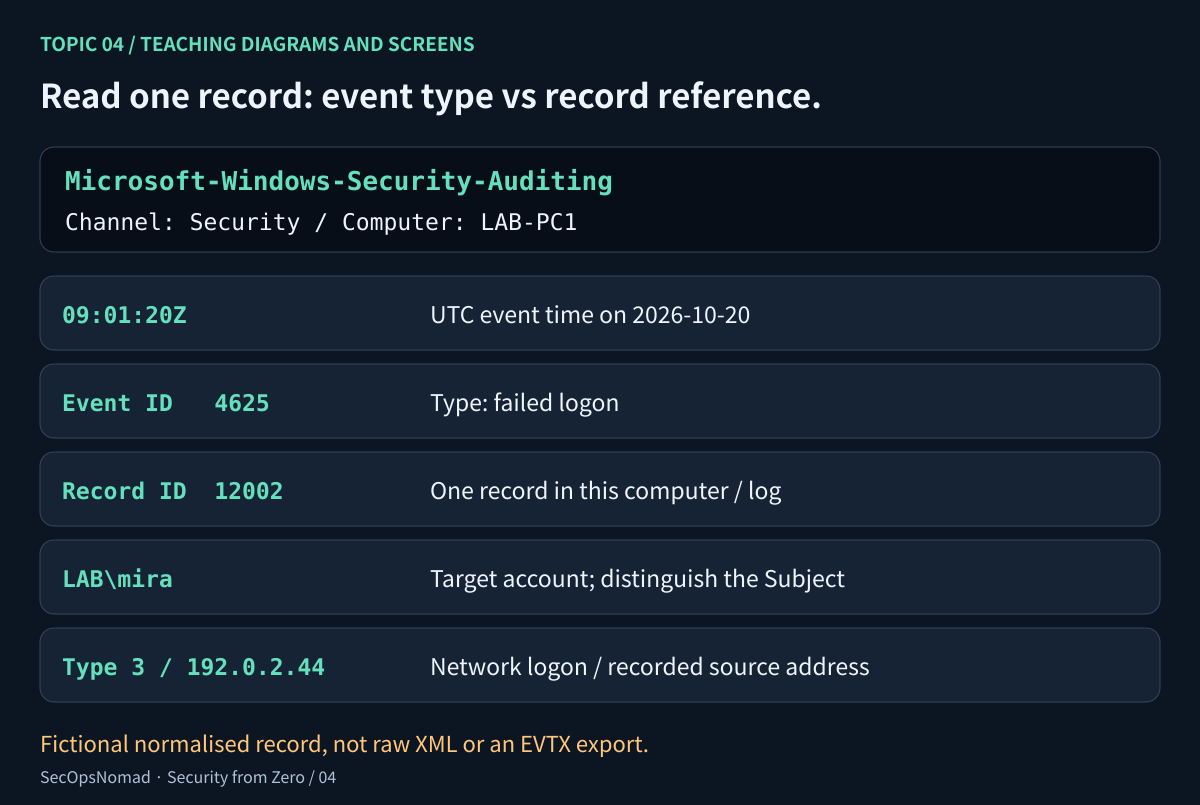
Figure 1. Event ID says what kind of event it is. Record ID helps locate that particular record in its source log.
The download is JSON Lines: one JSON object per line. It deliberately uses shorter, normalised field names. It is not raw Windows XML, .evtx, or a SIEM table. For example:
{
  "time_utc": "2026-10-20T09:01:20Z",
  "provider": "Microsoft-Windows-Security-Auditing",
  "channel": "Security",
  "computer": "LAB-PC1",
  "record_id": 12002,
  "event_id": 4625,
  "user": "LAB\\mira",
  "logon_type": 3,
  "source_ip": "192.0.2.44",
  "status": "0xC000006D",
  "sub_status": "0xC000006A"
}
The doubled backslash is JSON escaping: the account is LAB\mira, with one backslash. In this teaching file, user combines the target account’s domain and name, source_ip corresponds to IpAddress, and time_utc represents TimeCreated/SystemTime. Other fields map to Computer, EventRecordID, EventID, LogonType, Status and SubStatus. These mappings describe this file only.
In a real 4624 event, read New Logon for the account that logged on. In 4625, read Account For Which Logon Failed. The Subject section identifies the account reporting or requesting the logon and can name a different identity. Avoid copying the first account name you see.
Checkpoint: explain the difference between event ID 4625 and record ID 12002 without calling either a process ID.
2. Optional Windows lab: find the source record
On your own Windows PC, open Command Prompt and run:
eventvwr.msc
In Event Viewer, expand Windows Logs → Security. Open Filter Current Log, choose Custom range under Logged, and set a start and end covering the last 15 minutes. Enter event IDs 4624,4625. Select a record and compare General with Details → XML View. Locate its provider, computer, event ID, record ID, timestamp, target account and logon type. Wording and available fields vary with Windows version and event version.
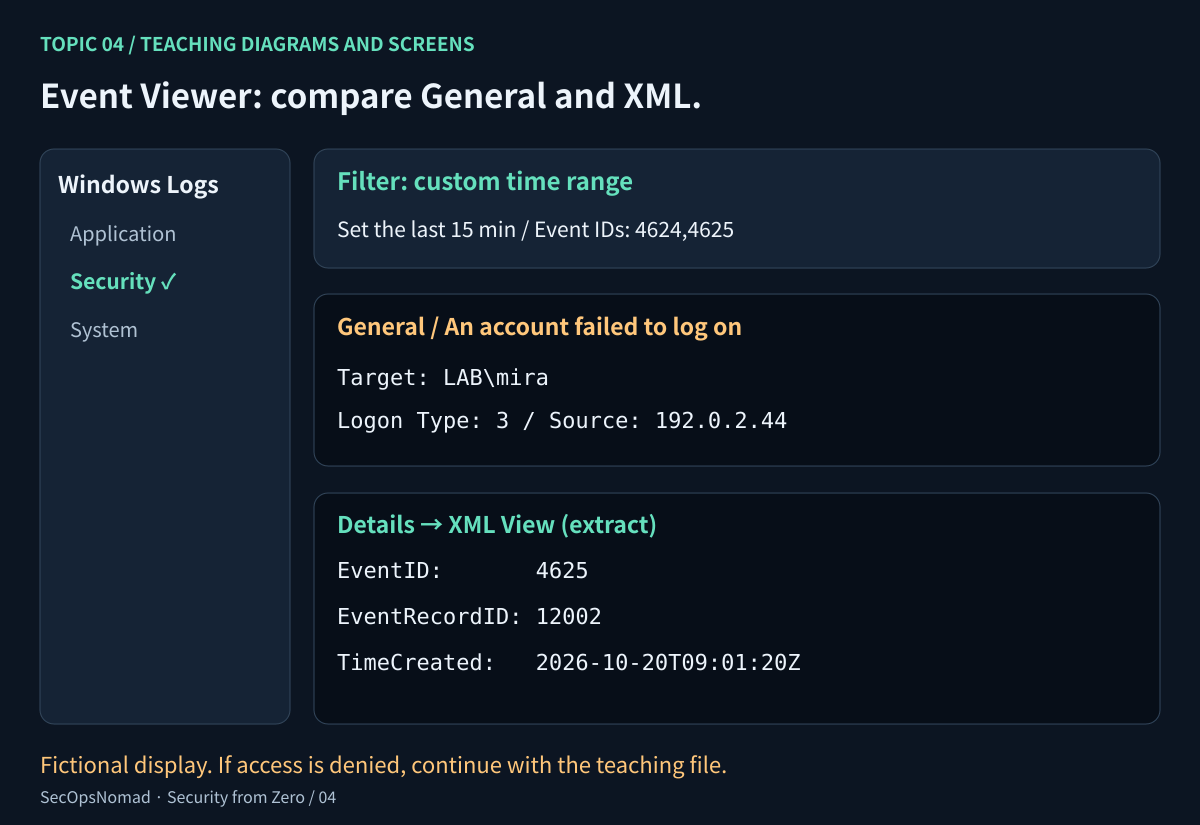
Figure 2. General helps you read the event; XML lets you check the named fields and original timestamp.
If access is denied, record that limitation and use the practice file. On a managed device, use the access process your organisation provides. This exercise does not require changing audit policy, clearing a log or deliberately causing failed logons. A quiet log may reflect audit configuration, retention, the selected window or access limits.
With existing Security-log access, the following Windows PowerShell query reads only the local computer, fixes a 15-minute window, and returns at most 20 records:
$end = Get-Date
$start = $end.AddMinutes(-15)
$events = @(Get-WinEvent -FilterHashtable @{
    LogName = 'Security'
    ProviderName = 'Microsoft-Windows-Security-Auditing'
    Id = 4624, 4625
    StartTime = $start
    EndTime = $end
} -MaxEvents 20 -ErrorAction Stop)
$events | Select-Object TimeCreated, Id, RecordId, MachineName |
    Format-Table -AutoSize
Get-WinEvent returns newest first by default. The 20-record cap means this output is a sample, not a total for a busy window. No matching events and access denied are different outcomes; record the actual message. If records were returned, inspect the newest selected event’s XML:
$events[0].ToXml()
Keep real account names, hostnames and exported logs private. Use the fictional dataset for a public portfolio. Mark this Windows lab “not executed” if you used only the sample.
3. Put times on the same clock
The sample’s timestamps end in Z, meaning UTC. 2026-10-20T09:01:20Z and 2026-10-20T18:01:20+09:00 represent the same instant. A time without a zone or offset is incomplete evidence until you establish its context.
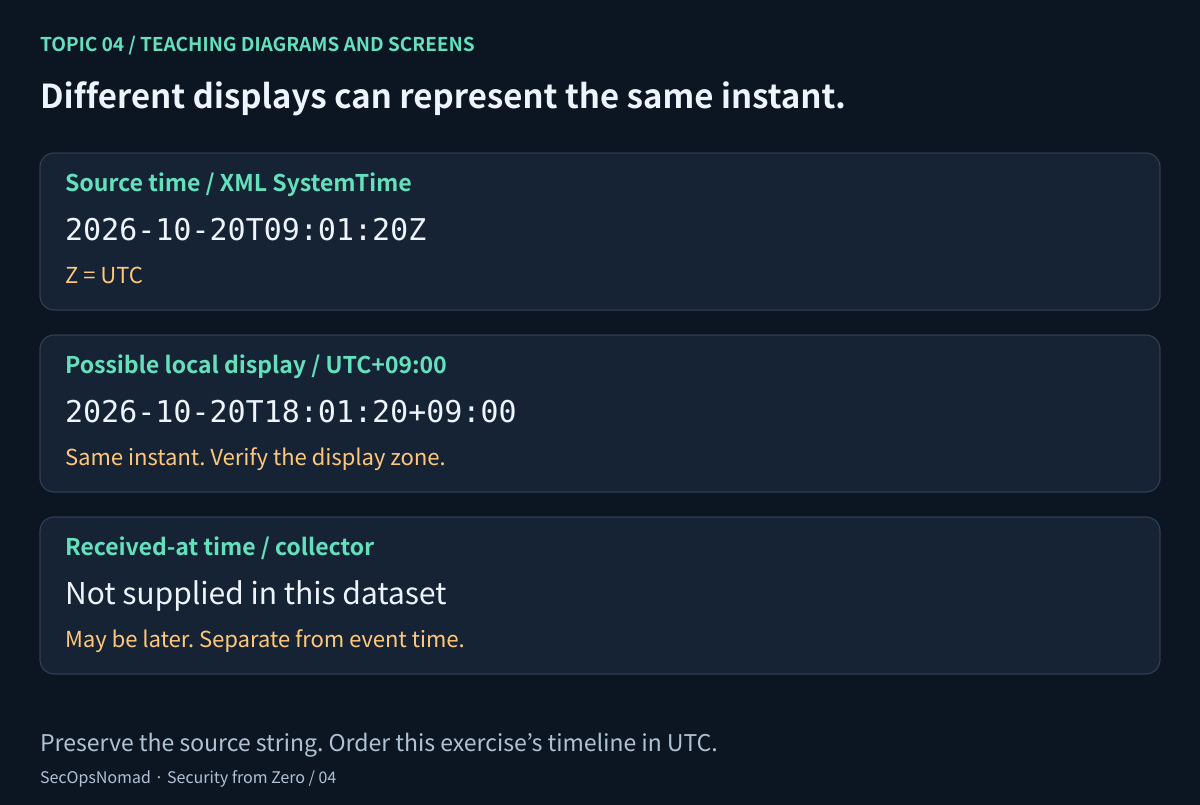
Figure 3. Preserve the original timestamp and record the zone used in your timeline. Display time and collection time answer different questions.
Windows XML exposes TimeCreated with a SystemTime attribute; the event examples in Microsoft’s documentation use UTC timestamps. Event Viewer or another tool may display local time. Verify the display’s zone rather than assuming it matches the source string.
Use UTC for this exercise. Sort by parsed event time, not the download’s line order. Real collectors can receive events late or out of order, and device clocks can drift. Timestamp proximity supports a sequence; it does not prove causation. This sample has no collection timestamps or clock-health evidence.
Checkpoint: explain why the first line in a file is not necessarily the first event that happened.
4. Read the outcome and the logon type
For these Windows events, logon type 2 means interactive logon and type 3 means network logon. Type 10 is remote interactive, commonly used for Remote Desktop; it does not appear in this sample. Type 3 is not enough to claim RDP or identify a particular application.
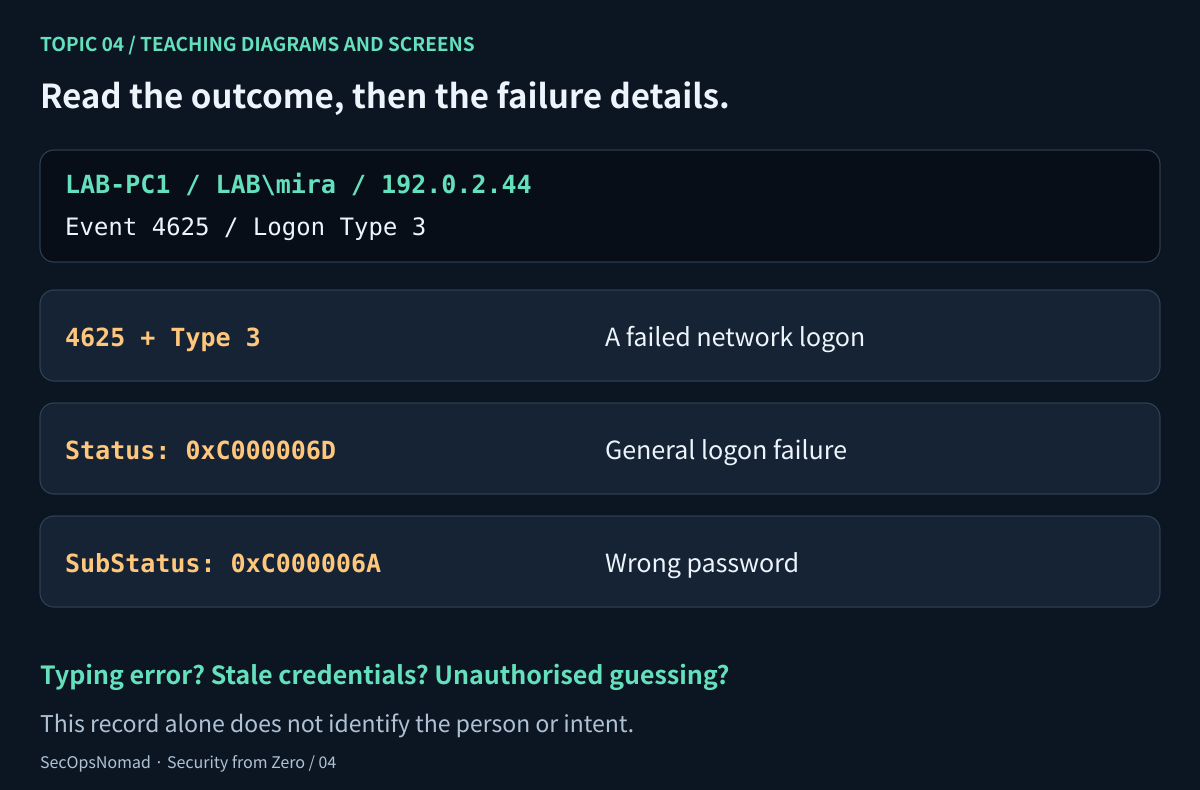
Figure 4. The event ID gives the outcome; the type and failure fields add context.
| Value in this file | Documented meaning | Reading limit |
|---|---|---|
0xC000006D |
General logon failure: bad username or authentication information. | Read the substatus for more detail when supplied. |
0xC000006A |
Wrong password. | A typo, stale saved credential and hostile guessing are possible explanations. |
0xC0000064 |
The specified user does not exist. | It describes this attempt’s account lookup, not every account or environment. |
null means no value is supplied in this file. We use it for the success events’ failure-only fields and the interactive event’s unavailable source IP. It does not mean address 0.0.0.0. Real Windows records may use -, an empty value, loopback or another representation depending on the field and context.
The addresses 192.0.2.44 and 192.0.2.80 are reserved documentation examples. They are not threat indicators to block or look up. Even with real addresses, a recorded source does not by itself identify a person; proxies, NAT, shared devices and other context matter.
5. Lab: build the seven-event timeline
Download the practice log and open it as text. It contains eight rows, deliberately out of time order. One row is an exact repeat from an imagined export. First try the exercise before checking the table below.
- Write down the file name, provider, channel, computers and earliest/latest event times.
- Find the repeated row. Compare computer, channel and record ID, then confirm the entire record matches.
- Keep both records numbered 12001 when their computers differ. Do the same for 12002. Record IDs are not global identifiers across computers or logs.
- Remove only the exact repeated copy from your working timeline. Preserve the original download.
- Sort the seven distinct records by UTC event time. Count failures and successes separately.
- Focus on
LAB-PC1,LAB\mira,192.0.2.44, logon type 3. Describe the sequence, then list two possible explanations and the evidence needed to distinguish them.
For this small file, that comparison is manageable by hand. The key is suitable for this fixed sample; real log resets, source changes and conflicting records need more context before deduplication.
If you want a PowerShell view, open PowerShell in the folder containing the download and run:
$rows = @(Get-Content -LiteralPath .\security-from-zero-topic-04-auth.jsonl |
    ForEach-Object { $_ | ConvertFrom-Json })
$rows | Sort-Object { [DateTimeOffset]::Parse($_.time_utc) } |
    Select-Object time_utc, computer, record_id, event_id, user |
    Format-Table -AutoSize
This sorts all eight input rows; it does not remove the duplicate or produce a security verdict. Read the other fields in the source file. Sorting is a reading aid, not a substitute for checking records.
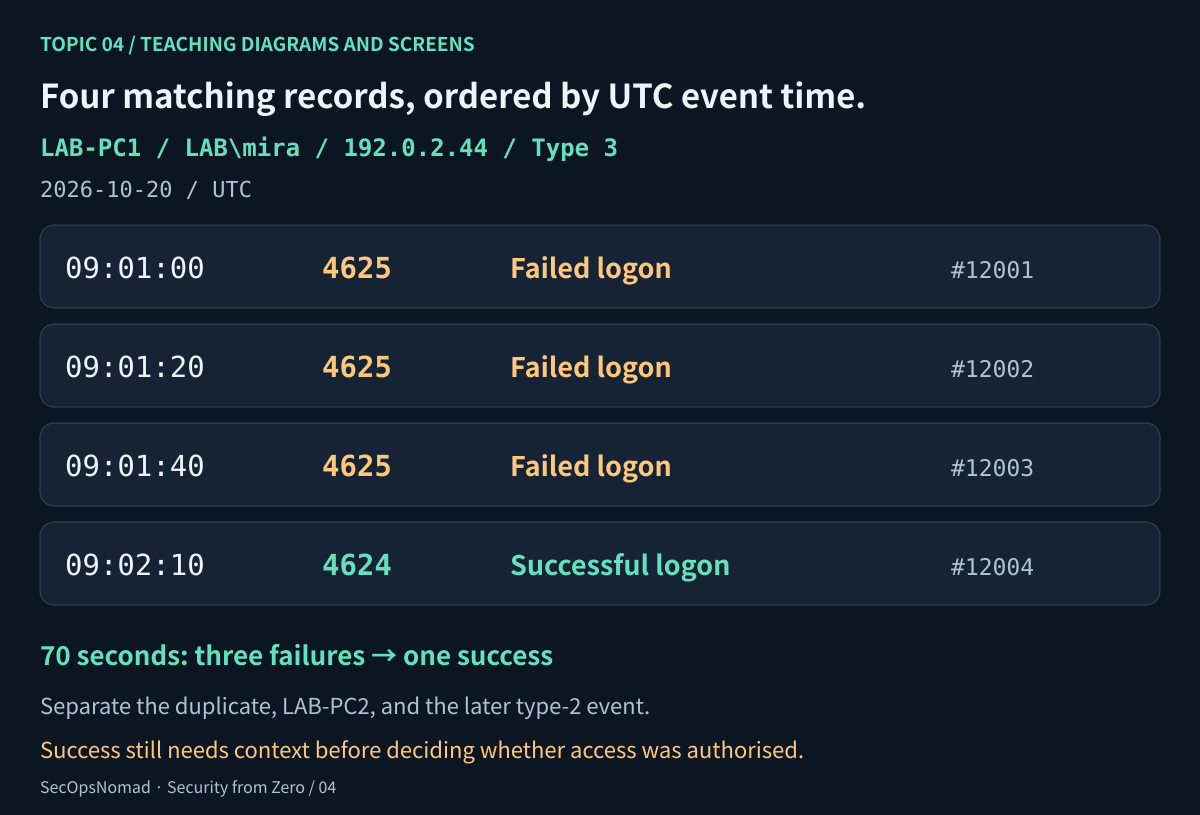
Figure 5. The focused sequence has four distinct records. Keep the wider sample available rather than merging unrelated activity into the same story.
Check your work: all rows below are on 20 October 2026, UTC, with the same provider and Security channel. The duplicate is LAB-PC1 / Security / 12002.
| Time (UTC) | Computer / record ID | Event ID | Target account | Type | Source IP |
|---|---|---|---|---|---|
| 09:01:00 | LAB-PC1 / 12001 | 4625 | LAB\mira | 3 | 192.0.2.44 |
| 09:01:10 | LAB-PC2 / 12001 | 4625 | LAB\backup | 3 | 192.0.2.80 |
| 09:01:20 | LAB-PC1 / 12002 | 4625 | LAB\mira | 3 | 192.0.2.44 |
| 09:01:40 | LAB-PC1 / 12003 | 4625 | LAB\mira | 3 | 192.0.2.44 |
| 09:02:10 | LAB-PC1 / 12004 | 4624 | LAB\mira | 3 | 192.0.2.44 |
| 09:02:20 | LAB-PC2 / 12002 | 4624 | LAB\svc-backup | 3 | 192.0.2.80 |
| 09:02:30 | LAB-PC1 / 12005 | 4624 | LAB\mira | 2 | Not supplied |
The whole file has seven distinct events: four failures and three successes. The focused sequence has three failures and one success over 70 seconds. The later type-2 event is separate context, not another success in that network-logon sequence. The two accounts on LAB-PC2 must also remain distinct.
6. Write a triage note someone can act on
Try this observation: “On LAB-PC1, three distinct type-3 failed logons naming LAB\mira and source 192.0.2.44 were recorded between 09:01:00 and 09:01:40 UTC. A type-3 successful logon with those same fields followed at 09:02:10 UTC. One repeated export row was excluded.”
That wording reports the evidence without inventing an attacker. A user correcting credentials, an application retrying stale credentials, and unauthorised guessing are hypotheses. The file cannot settle which explanation applies or whether every event came from the same actor.
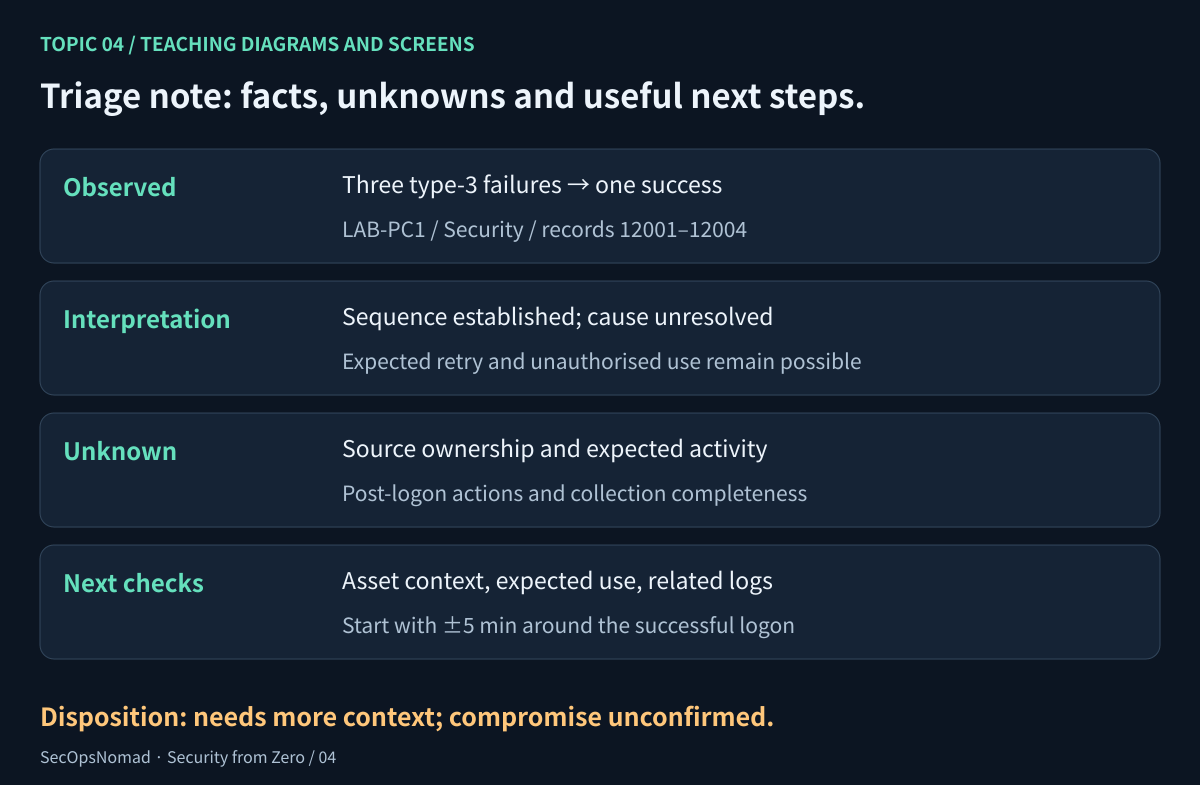
Figure 6. Give the next analyst a question, evidence references and a useful next step.
| Next check | What it helps resolve |
|---|---|
| Identify the real source device through approved asset, DHCP or VPN records for that time. | Whether the recorded address relates to an expected device; an IP alone is not a person. |
| Confirm expected account activity through the approved support or investigation process. | Whether there was a known sign-in, saved-credential problem or scheduled task. |
| Review relevant destination, identity and endpoint records around the success, initially within ±5 minutes. | What session and activity followed; use available logon/session identifiers as well as host and time. |
| Check audit settings, collection health, retention and time synchronisation. | Whether missing records or timing could distort the picture. |
The sample omits SIDs, logon IDs, authentication packages, process details and post-logon activity. Names and IPs help select records, but they do not prove that events belong to a single session. A real investigation would preserve more of the original evidence and follow the team’s escalation criteria.
Use the workbook to produce one page: question and scope, source, timeline, observed facts, possible explanations, unknowns, next checks and disposition. A reasonable disposition here is “needs more context; compromise unconfirmed.” Do not assign a universal severity from three failed logons, or recommend blocking a source solely from this fictional sample.
Once you have completed the exercise, a truthful project bullet is: “Analysed a fictional Windows logon dataset, reconciled a repeated record, built a UTC timeline and documented evidence, uncertainty and follow-up checks.” Claim Event Viewer experience separately only if you completed that lab.
7. Practise the interview explanation
| Question | A sound answer covers |
|---|---|
| What is the difference between 4624 and 4625? | Successful versus failed logon in this provider’s Security events; neither alone decides intent. |
| Why did eight rows become seven events? | One exact export repeat, checked with source context; record ID alone was insufficient. |
| Does type 3 mean Remote Desktop? | It means network logon. Remote interactive is type 10; a service or protocol needs more evidence. |
| Does success after failures prove compromise? | No. Describe the sequence, alternatives and the next evidence needed. |
| Why might your search return no records? | Time range, access, audit policy, retention, collection or genuinely no matching activity. |
| What would you hand to the next analyst? | A scoped UTC timeline, source references, facts, uncertainty and specific follow-up questions. |
You are ready to move on when another person can reproduce your seven-event timeline and understand your decision without asking what the numbers mean. Topic 05, accounts, authentication and access, remains planned in the roadmap.
Sources and execution note
The field meanings were checked on 21 October 2026 against Microsoft’s 4624, 4625, Audit Logon, NTSTATUS values, TimeCreated and EventRecordID documentation. See also Get-WinEvent and FilterHashtable.
The JSON Lines dataset was parsed and its counts, duplicate and time order checked in the publishing environment using Python’s JSON library. All hosts, accounts and events are fictional; address examples follow RFC 5737. Windows UI and PowerShell steps were documentation-reviewed, not executed on Windows. The sample tests do not validate collection or detection in a live environment.
22 October 2026 (JST): first published, in English and Japanese. Return to the roadmap.