“A program ran” leaves several questions unanswered. Where was it stored? Which account ran it? What could that account access? Was it a user application or a service? These details are the operating-system context behind many security alerts.
This topic builds on networking in Topic 02. You will practise Windows basics, read equivalent Linux commands, and produce a small system-observation report. That gives you concrete examples when an interviewer asks about users, file permissions or processes.
You need: your own Windows PC and a normal Windows PowerShell session. The Windows exercises create one uniquely named folder in your temporary directory and read information about your own activity. The Linux exercises are optional: use an existing Ubuntu machine, VM or WSL environment with a regular, non-root account. If you only have Windows, complete that track and mark Linux as a skill to practise next. You do not need to install a second operating system to finish the Windows work.
Download the Topic 03 workbook. Budget about four hours for both tracks and the write-up. The figures are annotated teaching illustrations, not screenshots from an incident. Select a figure to open the full-size image.
1. Build the operating-system picture
The operating system manages resources and access: files, memory, running processes, devices and user accounts. A shell accepts commands. Command Prompt, PowerShell and Bash are different shells; their syntax is not interchangeable. A terminal application is the window hosting a shell, not a separate operating system.
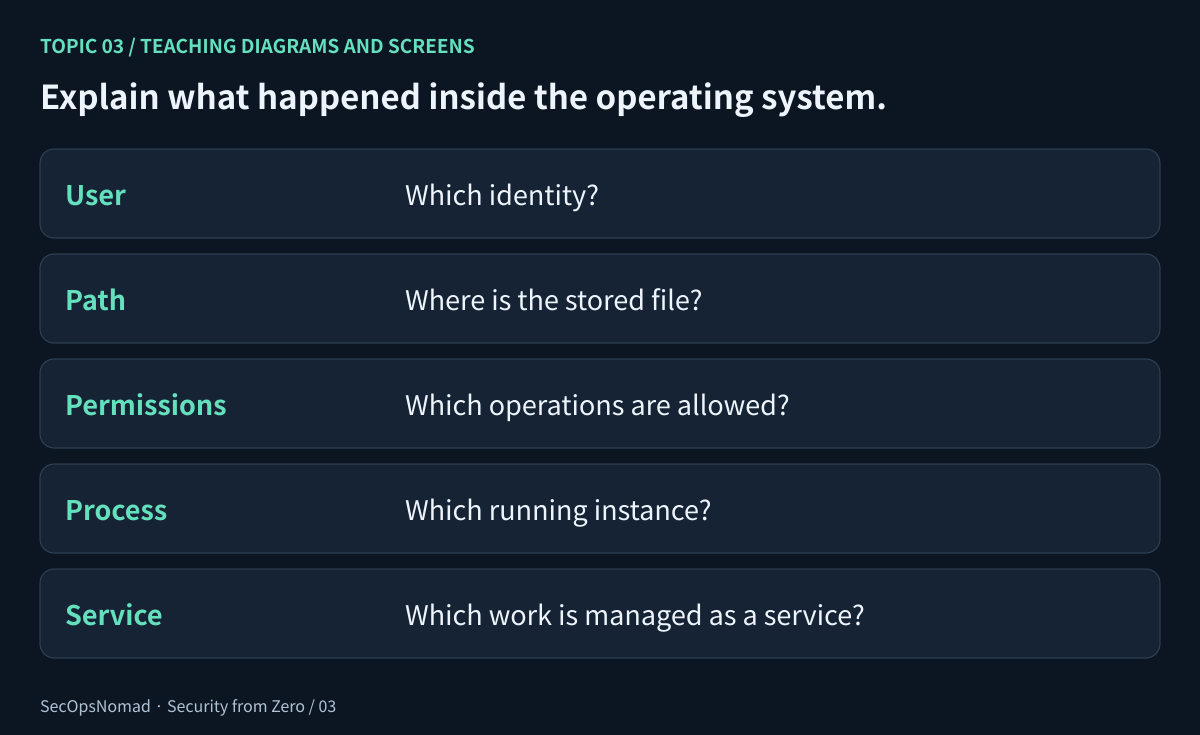
Figure 1. Five facts to collect before interpreting an endpoint observation.
| Concept | Windows example | Ubuntu example |
|---|---|---|
| User identity | LAB\learner, plus group membership and token context. |
learner, with numeric UID and group IDs. |
| File path | C:\Users\learner\Documents\note.txt |
/home/learner/note.txt |
| Shell | Windows PowerShell or Command Prompt. | Commonly Bash. |
| Permissions | Access control entries for users and groups. | Owner/group/other mode bits, sometimes extended by ACLs and other controls. |
| Process | A running Notepad instance with a PID. | A running Bash instance with a PID. |
| Service manager | Windows Service Control Manager. | Commonly systemd on Ubuntu; some environments use something else. |
A program stored on disk can start several processes. A background process is not automatically a service. A service is managed through a service manager and may use one or more processes; a process can also host multiple services. Do not expect a one-to-one mapping.
2. Lab A: navigate a practice folder on Windows
Open Windows PowerShell, without choosing “Run as administrator”. Run the following block there:
$lab = Join-Path $env:TEMP ('secops-zero-' + [guid]::NewGuid().ToString('N'))
New-Item -ItemType Directory -Path $lab | Out-Null
Set-Location -LiteralPath $lab
Set-Content -LiteralPath .\note.txt -Value 'baseline'
Get-Location
Get-ChildItem
Get-Content -LiteralPath .\note.txt
The first line makes a unique path under your temporary directory. $lab is a variable holding that path; the random suffix avoids reusing someone else’s file. New-Item creates the folder, Set-Location enters it, and Set-Content writes the test file. Get-Location, Get-ChildItem and Get-Content let you inspect the result.
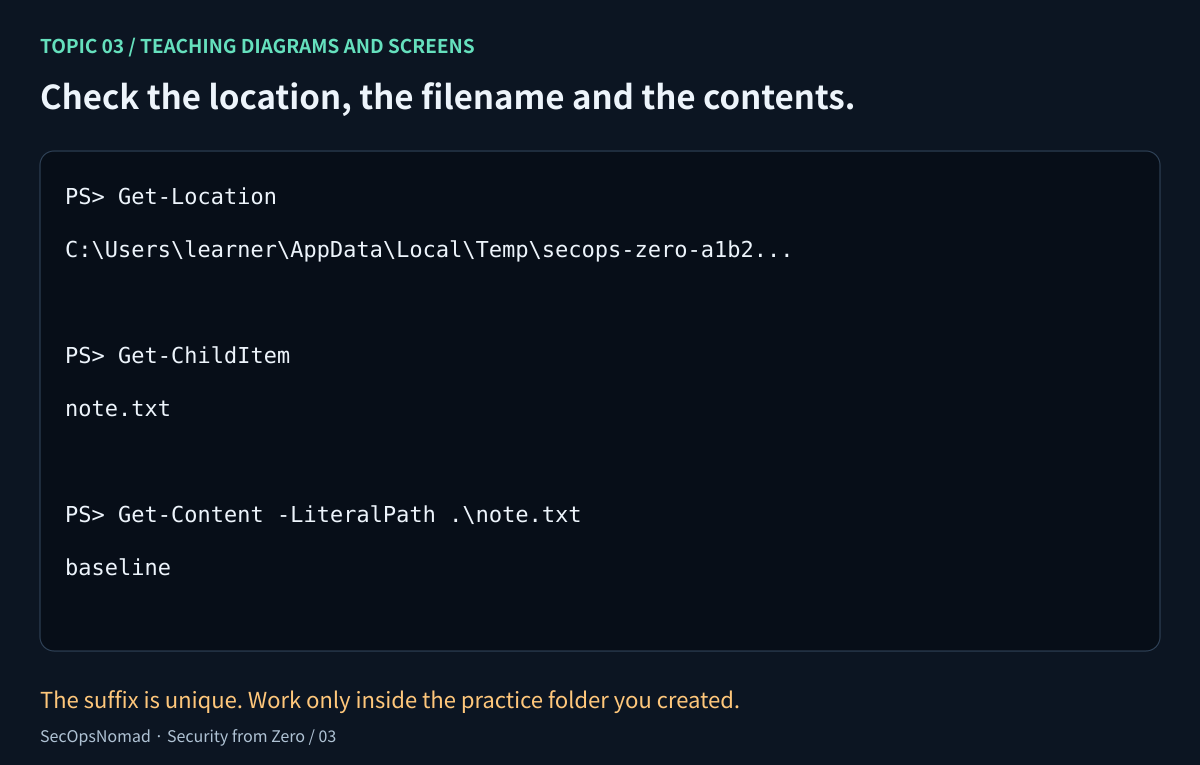
Figure 2. Know where you are before running a file command. A successful command in the wrong folder can still be a mistake.
An absolute path names a location from a root, such as C:\Users\learner\.... A relative path is interpreted from the current location. Here, .\note.txt means the file in the current directory. .. refers to the parent directory.
PowerShell supports cd and dir as familiar aliases, but the explicit cmdlet names make the exercise easier to explain. In Ubuntu, paths normally use /; in Windows examples they commonly use \. Linux filesystems are usually case-sensitive, while typical Windows paths are not; filesystem settings and mounted drives can change that behaviour.
Checkpoint: show the full practice-folder path, the file’s name and its contents as three separate observations. Keep the original path private in a public write-up. After the exercise, you can remove your specific practice folder through File Explorer once you have saved your notes.
3. Lab B: read Windows identity and permissions
Stay in the practice folder and run:
whoami
Get-Acl -LiteralPath .\note.txt | Format-List Owner, AccessToString
icacls .\note.txt
whoami identifies the current account. Get-Acl displays the security descriptor’s owner and access entries. Used here without change options, icacls displays the file’s discretionary access control list, or DACL.
Common icacls abbreviations include F for full access, M for modify, RX for read and execute, and R for read. (I) marks an inherited entry. The exact accounts and entries depend on the folder’s configuration. A file’s owner is an important fact, but ownership alone is not a list of the operations allowed by the DACL.
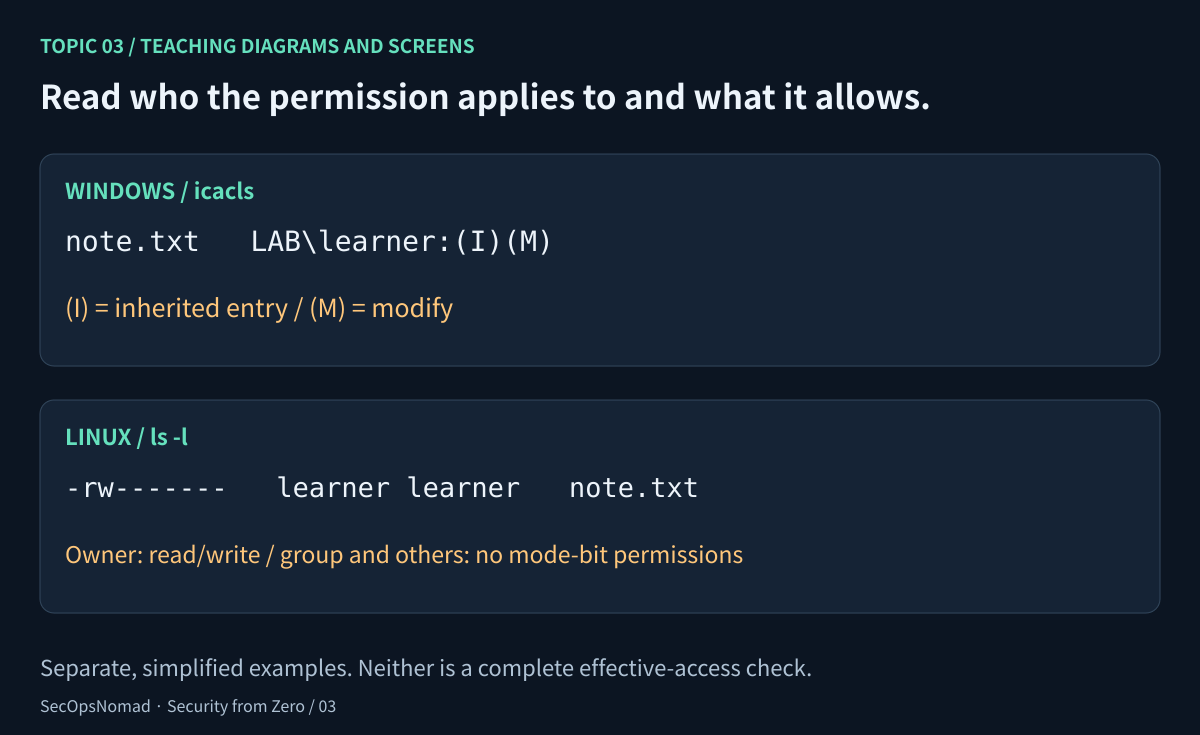
Figure 3. Read who an entry applies to, what it allows, and where it came from. These examples are deliberately small.
Effective access is the access that applies to a particular user in a particular situation. Group membership, inherited and explicit entries, deny entries, privileges and other controls can affect it. Network-share access adds another layer. A displayed allow entry for one account is therefore not a complete effective-access assessment.
For this exercise, describe the entries you see and the operations you performed successfully. Do not change permissions on system folders, a shared drive or somebody else’s files. The next Linux exercise demonstrates a controlled permission change on a newly created test file.
Checkpoint: explain what an inherited permission is and why “I own the file” is not enough information to describe all access to it.
4. Lab C: practise Linux permissions on one test file
Use this section only in an existing Ubuntu Bash session as a non-root user. The command id shows your identity. If it shows uid=0, use a regular account for this exercise; root can bypass many ordinary file-permission checks. These are Bash commands, not PowerShell commands.
id
lab_dir="$(mktemp -d /tmp/secops-zero.XXXXXX)"
cd "$lab_dir"
printf 'baseline\n' > note.txt
pwd
ls -ld .
ls -l note.txt
cat note.txt
mktemp -d creates a unique private directory. Quoting "$lab_dir" keeps its path together. The > operator writes to a file; it can overwrite an existing one, which is why this exercise uses a new directory. ls -l shows metadata, while cat reads the file’s contents.
Now change only the test file and try an append:
chmod 400 note.txt
printf 'second line\n' >> note.txt
For a regular owner on an ordinary writable Linux filesystem, the append should fail with a permission error because mode 400 grants the owner read access but no write access. Record your actual result. If it succeeds, check the account and environment rather than copying the expected answer.
Restore owner read/write access, then try again:
chmod 600 note.txt
printf 'second line\n' >> note.txt
cat note.txt
stat -c '%a %U:%G %n' note.txt
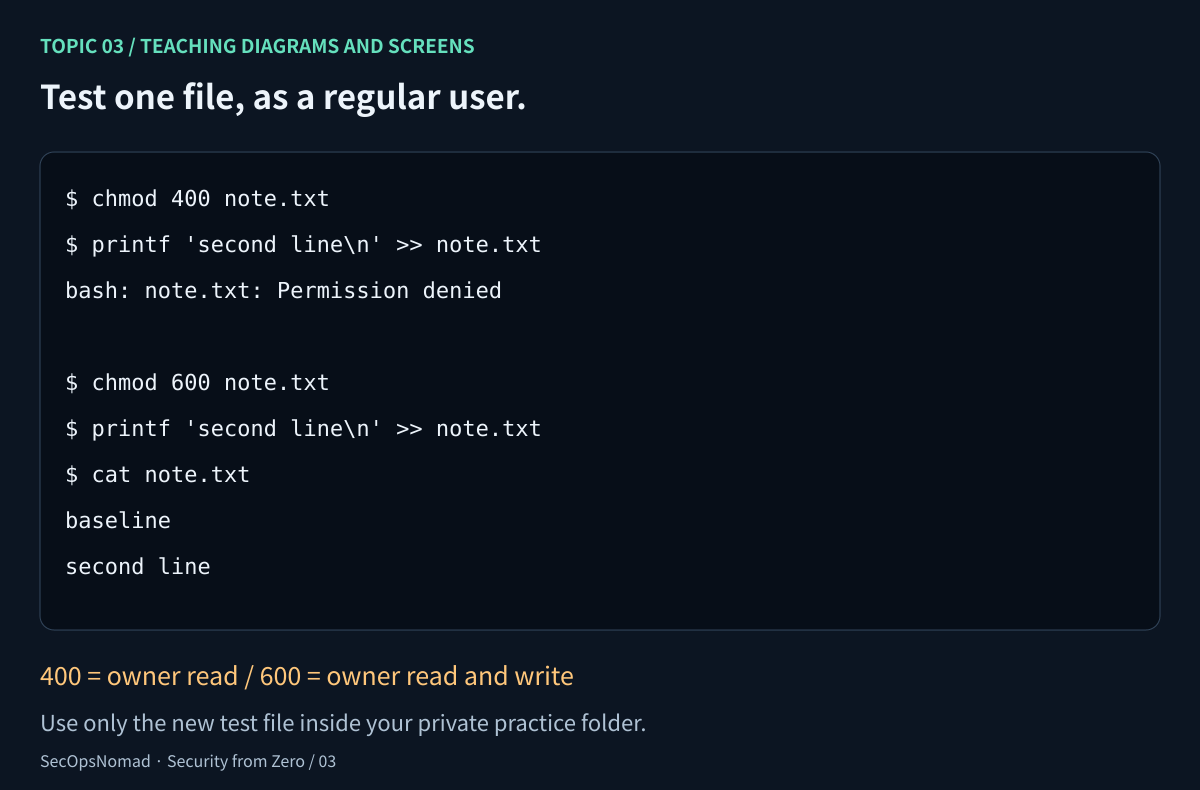
Figure 4. Change one variable on one disposable file, then compare the result. Keep this folder until the report is finished.
In a mode such as -rw-------, the first character identifies the file type. The next three positions describe the owner, then the group, then others. r is read, w is write and x is execute. The numeric values are 4, 2 and 1, so owner read/write is 6.
Directory permissions have different practical effects: read lists names, execute permits traversal, and write permits changes to entries when the required other permissions are present. A read-only file can still be removable by someone allowed to modify its containing directory. ACLs, mounts and additional security controls can also affect access. Mode bits are one part of the picture.
Checkpoint: explain the change from 400 to 600, the difference between > and >>, and why a file’s write bit does not settle every question about deleting it. If you could not run the Linux exercise, mark it “not executed”.
5. Lab D: separate a process from a service
On Windows, open Notepad normally. Find it under Task Manager → Details and record its PID and time. Substitute that PID below:
Get-Process -Id 4280 | Select-Object Id, ProcessName, StartTime, Path
Get-Service -Name EventLog | Select-Object Name, Status
The first command reads one process. Some properties may be unavailable because of access rights or because the process exited. The second asks the service manager about the Windows Event Log service; it does not stop or start it. Record the status you see, not the value in an illustration.
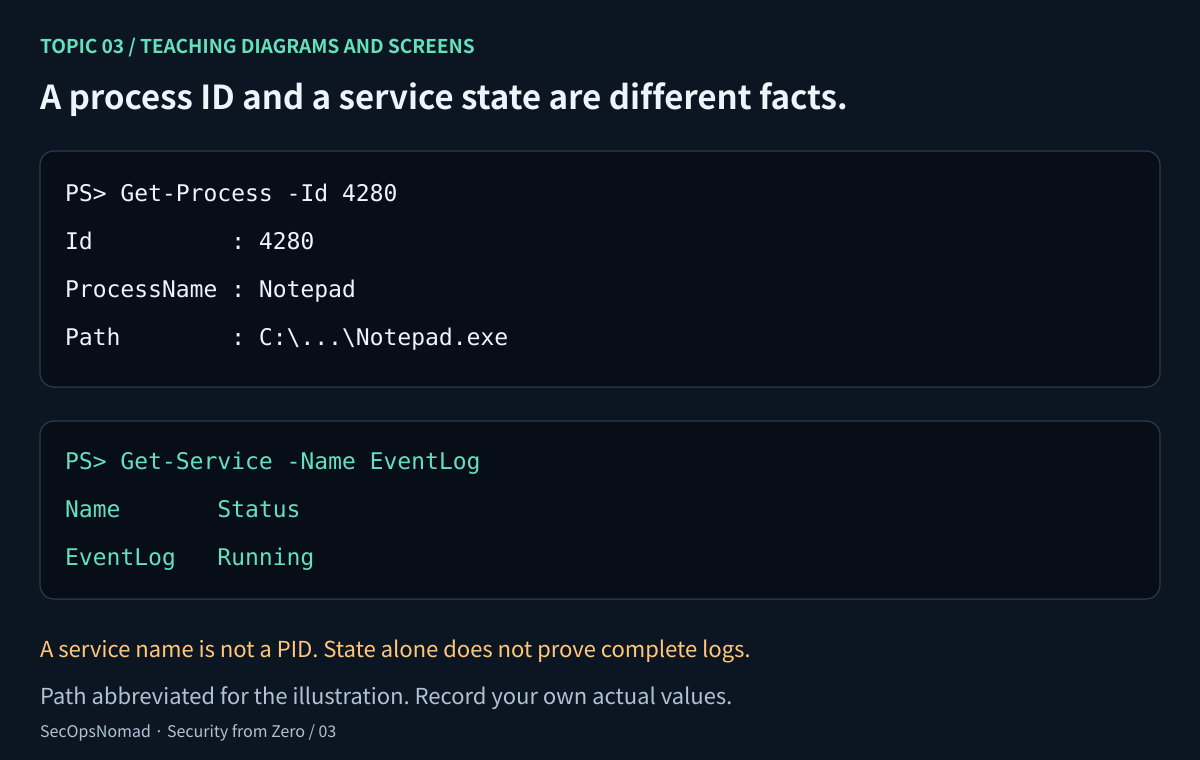
Figure 5. A process snapshot and a service-status query answer different questions.
In Ubuntu Bash, inspect your current shell and the system’s first process:
ps -p $$ -o pid,ppid,user,comm
ps -p 1 -o comm=
$$ expands to the current shell’s PID. PPID is the parent process ID. If PID 1 is systemd, you can ask it for one service’s status:
systemctl status systemd-journald --no-pager
Some containers and WSL configurations do not run systemd as PID 1. In that case, skip the systemctl step and record that limitation. An unavailable service manager does not, on its own, prove logging is disabled. Similarly, a service’s Running or active state does not prove every needed event is being collected.
Checkpoint: describe one process and one service without using their names interchangeably. Close the Notepad window normally when finished. You do not need to stop a service to learn how to inspect it.
6. Turn the observations into analyst work
Imagine a fictional alert saying an executable was started from a temporary folder. The folder name alone is not a verdict. You would ask which account and process were involved, the exact path and time, what access applied, what launched the process, and what other evidence supports the case. Software installers and attackers can both use temporary locations.
| Observation to capture | Why it matters | What remains unresolved |
|---|---|---|
| User and relevant groups | Establishes identity context. | Whether the activity was authorised. |
| Exact file path | Locates the object being discussed. | Its content, origin or trustworthiness. |
| Permission entries or mode bits | Describes part of the access configuration. | Complete effective access in every situation. |
| PID, process name and observation time | Identifies a running instance at that time. | Intent, full ancestry or all past activity. |
| Service name and observed status | Describes a managed service’s current state. | Complete logging coverage or security health. |
Write a one-page system-observation report using the workbook. Include the environment, commands, time zone, three annotated observations, interpretation and limits. Keep Windows and Linux results separate. Mark any track or command you did not execute.
After completing the work, an accurate project bullet might be: “Created isolated practice folders, read Windows access entries and tested Linux owner permissions; documented process and service observations with reproducible steps.” Omit the Linux claim if you did not run that track.
7. Prepare to explain it in an interview
| Question | A sound answer covers |
|---|---|
| What is the difference between a terminal and a shell? | A terminal hosts interaction; the shell interprets commands. Name the shell used. |
| What is an absolute path? | A location described from a root; a relative path depends on the current location. |
| What does Linux mode 600 mean? | Owner read/write; no group or other mode-bit permissions. Other controls may still matter. |
| Why did the append fail after chmod 400? | The regular user lacked write permission on that test file under the stated conditions. |
| Is every background process a service? | No. A service is managed through a service manager, and mappings to processes can vary. |
| Does a running logging service prove complete logs? | No. Check configuration, required sources, delivery, retention and actual records. |
You are ready for the next topic when you can repeat the Windows exercise, interpret a small permission example, and distinguish a file, process and service. Continue with Topic 04: read your first security logs.
Sources and execution note
The Windows commands were reviewed against Microsoft documentation on 21 October 2026: New-Item, Get-Acl, icacls, Get-Process and Get-Service. Windows execution was not available in the publishing environment.
For Linux, see Ubuntu’s command-line tutorial, GNU’s file permissions, chmod and mktemp, plus the upstream systemctl manual. The file-permission exercise was checked in the publishing environment using a regular Linux user. This does not validate every Ubuntu, filesystem or WSL configuration. The Windows EventLog and Linux journald status examples are illustrative.
21 October 2026: first published, in English and Japanese. 22 October 2026 (JST): linked the published Topic 04. Return to the roadmap.