A leaked key works for whoever finds it first
A cloud access key, an application secret or an API token is a password that works without a person. When it lands in a public repository, a build log, a container image or a stolen laptop, anyone who finds it can act as your workload: list your data, start machines, create new users and keys, or read the secrets that unlock everything else. Automated scanners look for exposed keys continuously.
This reusable leaked cloud keys playbook has 36 decisions, with yes/no actions, evidence checks and named owners. It is an original SecOpsNomad workflow, not a report of a new breach. It is written for AWS access keys and Microsoft Entra application credentials, and the same logic applies to other providers and tokens. If the key was taken from a device, run the account compromise playbook and an endpoint investigation as well; if it was taken from a supplier, add the supplier breach playbook.
Disable first, investigate second, delete last. A disabled key can be restored if a critical workload breaks; a deleted one cannot. Disabling the key also does not undo what it may already have started, such as new users, new keys or running machines, and temporary credentials obtained with it must be invalidated as a separate step. The investigation continues after the key is off.
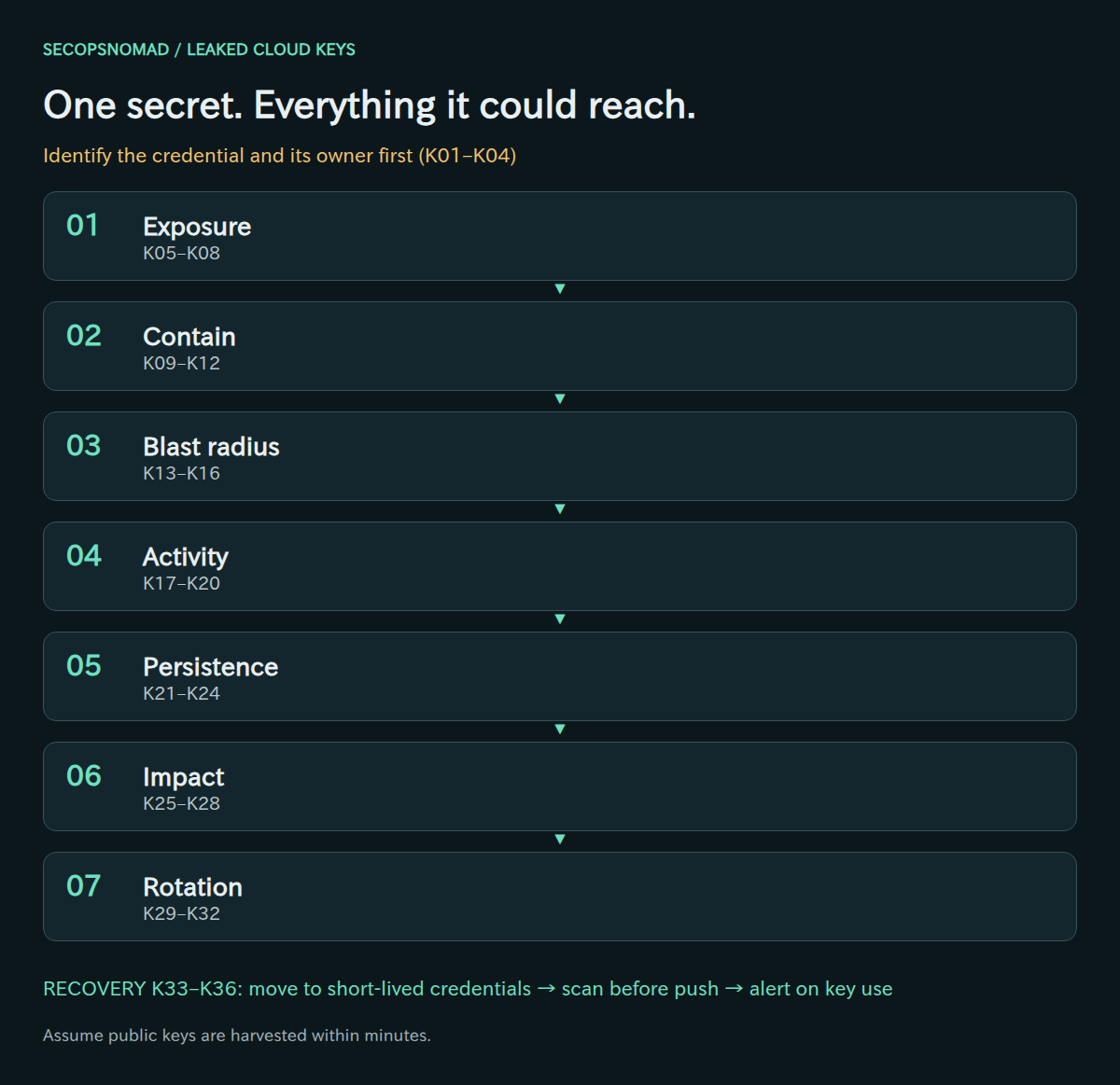
Overview. Exposure → contain the credential → blast radius → activity → persistence → impact → rotation. Triage comes first and recovery is gated. Every visual decision has an equivalent table below.
Start here: the first hour
New to this? Work down this list in order, then use the stages below for the full investigation. Every step is reversible except the last one marked as such, and none of them needs the leaked secret itself.
- Minute 0–5: do not test the key. Write down where you saw it (URL, file, commit, message), when, and who reported it. Take a screenshot with the secret part covered. Never paste the secret into a scanner, chat or ticket.
- Minute 5–10: identify it. An AWS key ID starting with
AKIAis a long-term IAM user key;ASIAis a temporary one. From your own admin session, runaws sts get-access-key-info(which account) andaws iam get-access-key-last-used(which user, when last used). Commands are in stage 0. - Minute 10: open a case. Name an incident lead and the person who owns the AWS account or Entra tenant. Start a timeline in UTC.
- Minute 10–15: ask one question. "What breaks if this key stops working?" Give the owner five minutes. If nobody knows, carry on: deactivating a key can be undone in one click.
- Minute 15: deactivate the key (set it to Inactive) and, for an Entra application, remove the secret. See stage 2.
- Minute 20: end sessions made with it. Attach the "deny tokens issued before now" policy in stage 2. Deactivating the key alone does not end temporary credentials already issued.
- Minute 25: check the same identity. Other access keys, a console password, other secrets of the same app. Contain those too.
- Minute 30: save the evidence. Download CloudTrail Event history for the key from every region it used (stage 4), and an IAM snapshot (stage 3), before anyone starts cleaning up.
- Minute 40: look for leftovers. New users, new access keys, new roles or policy changes in the events you saved (stage 5). Anything new is a priority.
- Minute 50: check the bill. Billing and Cost Management → Cost Explorer, daily view, grouped by Region. Unexpected Regions or instance types mean someone is spending your money.
- Minute 60: send the first status update using the template near the end of this page, and set the next update time.
Do not: delete the key in the first hour (you lose the link to its history and may break production before you know it), push a "fix" commit and call it done (history and forks still hold the key), or announce that "nothing happened" before the logs have been read.
Preparation and decision rules
Before an incident, keep an inventory of long-lived credentials: provider, identity, owner, workloads that use it, where it is stored and when it was last rotated. Make sure audit logging covers every account and region, and know whether data-access events are logged for your sensitive stores. Agree who may disable a production key without waiting for approval.
- Yes: perform the action and continue every other relevant check.
- No: record the evidence, scope and time window supporting the answer. No alert alone is not enough.
- Unknown: keep an open task with an assigned owner and next review time. Use proportionate containment while investigating.
- Not applicable: state why and name the reviewer. Do not use it for missing logs.
Record case ID, provider and credential identifier (the key ID, never the secret), owning identity, first known exposure time, UTC review window, answer/rationale, evidence location, action/result, assigned owner and review time. Never paste the secret value into tickets, chat, search engines or online checkers.
Download the English decision register (CSV). The blank working columns are for your private case records; treat text added to a spreadsheet as untrusted input.
Owners: the cloud platform team disables credentials and restricts sessions; IAM reviews permissions and persistence; SOC/SIEM builds the activity timeline; the repository owner or DevOps cleans the exposure source; application owners move workloads to new credentials; DFIR handles devices and evidence; FinOps or Finance tracks unexpected cost; Legal/Privacy decides notification; the incident lead approves restoration and closure.
Words used in this playbook
| Term | Plain meaning |
|---|---|
| Access key | A pair of values that lets a program call AWS as an IAM user: the access key ID (AKIA…, safe to share in a ticket) and the secret access key (never share). |
| IAM user / IAM role | A user is a long-lived identity that can hold access keys. A role is an identity that programs "put on" for a short time and gets temporary credentials. |
| Temporary credentials | Short-lived keys (ASIA…) plus a session token, issued by AWS STS. They keep working until they expire, typically 15 minutes to 36 hours, even if the original key is disabled. |
| CloudTrail / Event history | AWS's activity log. Event history shows the last 90 days of management events, one Region at a time, at no extra cost. |
| Management vs data events | Management events are configuration actions (create user, start server). Data events are reads and writes of data (download a file from S3). Data events are only recorded if you turned them on beforehand. |
| Region | One of AWS's geographic locations. Attackers often use Regions you never use, hoping you will not look there. |
| Blast radius | Everything the key could reach: its permissions, the roles it can assume and the secrets it can read. |
| Persistence | Something an attacker creates to get back in later, such as a new user or access key. |
| Quarantine policy | AWSCompromisedKeyQuarantineV3, a policy AWS may attach automatically when it finds your key in public. It limits some actions; it does not end the incident. |
| App registration / client secret | In Microsoft Entra ID, an application's identity and its password. Programs use the secret to sign in as the application. |
| Secret scanning / push protection | GitHub features that find secrets in code and block pushes that contain them. |
| Least privilege | Giving a credential only the permissions its job needs, so a leak does less damage. |
No security team? Who does what
The roles in the tables above are jobs, not job titles. In a small company one person often holds several. Try to keep one rule: the person who makes a change should not be the only person who checks that it worked.
| Role in this playbook | In a small company, usually | What they need ready |
|---|---|---|
| Incident lead | CTO, head of engineering or the founder | Authority to break a service and to spend money on outside help |
| Cloud platform owner / IAM | Whoever has AWS administrator or Entra Application Administrator access | An admin login protected by MFA, from a device that was not exposed |
| SOC / SIEM | The same admin, or a managed service provider (MSP) | CloudTrail access; your SIEM if you have one |
| Repository owner / DevOps | The developer who committed the key, plus a repository admin | Admin rights on the repository and CI system |
| Application owner | The developer who runs the service that used the key | Ability to deploy a configuration change |
| FinOps / Finance | Whoever pays the AWS bill | Billing console access |
| Legal / Privacy | Outside counsel, or the person handling personal-data questions | The facts confirmed so far, in plain language |
| Outside help | AWS Support, your MSP, an incident response firm; in Japan, JPCERT/CC accepts incident reports | Your account ID, case summary and timeline (never the secret) |
0. Triage: identify the credential and its owner
- Identify the credential from its format and location without using it: provider, key ID, owning identity and the workloads that depend on it.
- Check its status in the provider’s console or API from a trusted administrator session, not by trying the secret from your laptop.
- Open a case, assign the platform owner and the identity owner, and record the first known exposure time.
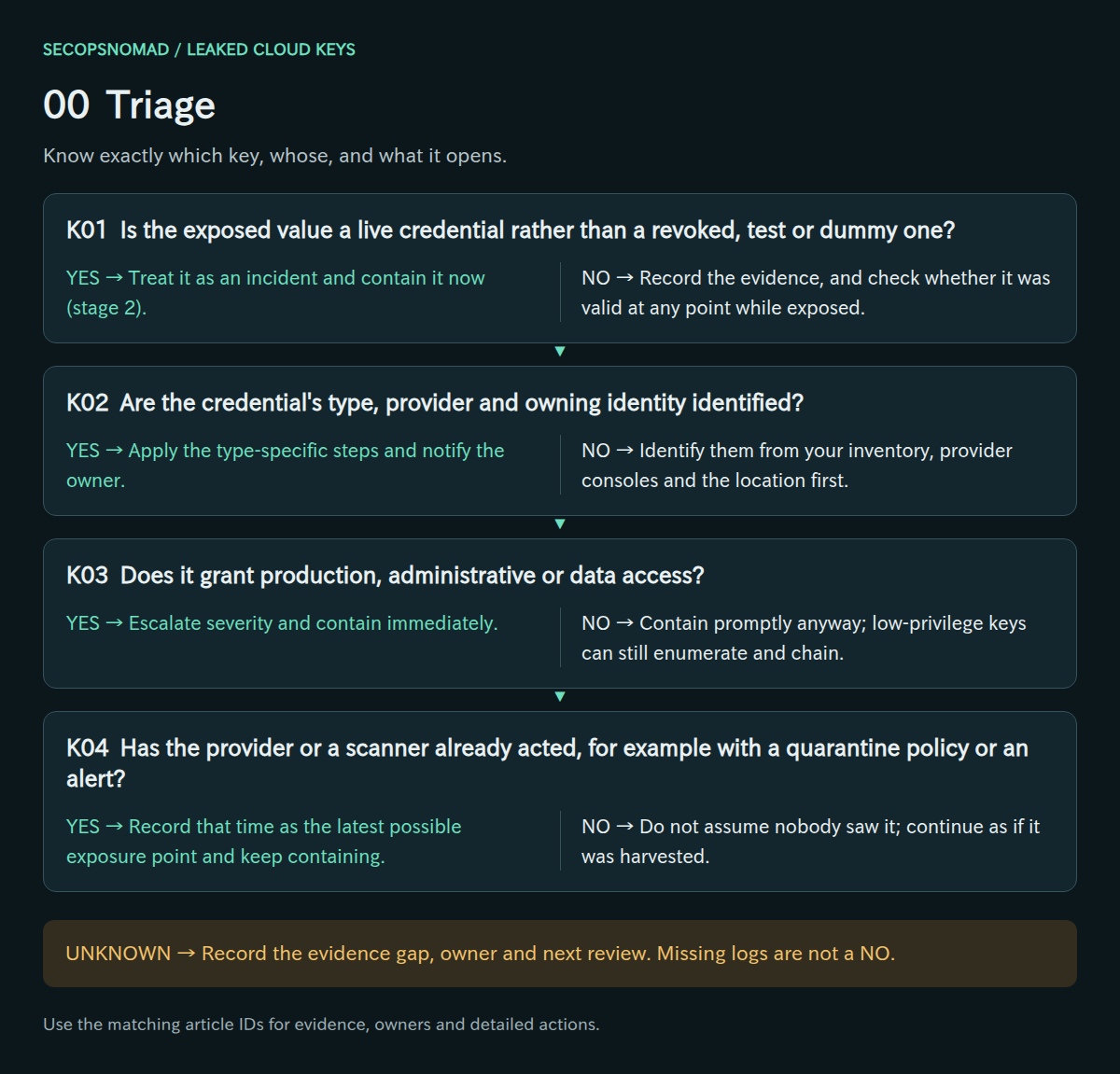
Original decision map. Check each branch independently; unknown answers remain open.
| Decision | Yes | No | Evidence / resolve unknowns | Lead owner |
|---|---|---|---|---|
| K01. Is the exposed value a live credential rather than a revoked, test or dummy one? | Treat it as an incident and contain it now (stage 2). | Record the evidence, and check whether it was valid at any point while exposed. | Credential status, creation and last-used dates, exposure location. | Cloud platform + SOC |
| K02. Are the credential’s type, provider and owning identity identified? | Apply the type-specific steps and notify the owner. | Identify them from your inventory, provider consoles and the location first. | Key ID, identity ARN or application ID, owner, dependent workloads. | Cloud platform + IAM |
| K03. Does it grant production, administrative or data access? | Escalate severity and contain immediately. | Contain promptly anyway; low-privilege keys can still enumerate and chain. | Attached policies, roles, data stores reachable. | IAM + incident lead |
| K04. Has the provider or a scanner already acted, for example with a quarantine policy or an alert? | Record that time as the latest possible exposure point and keep containing. | Do not assume nobody saw it; continue as if it was harvested. | Provider notices, support cases, scanner alerts, policy attachments. | Cloud platform + SOC |
When AWS detects an access key exposed in a public location, it may attach a version of the AWSCompromisedKeyQuarantine managed policy to the IAM user and open a support case. The policy denies a set of high-risk actions, such as creating users and keys or starting instances and functions, but not every action. Treat it as a head start, not as containment. AWS managed policy; Unit 42 analysis.
How to do it: step by step
Sign in to the AWS console with your own administrator account, not with the leaked key. Use a device that was not involved.
Console: IAM → Users → search for the user → Security credentials tab → Access keys. Note the status, creation date and "Last used" details.
CLI (AWS CloudShell or your admin terminal): the example key ID and account number below are AWS's documentation placeholders; replace them with yours.
# Which AWS account owns this key ID? (uses your credentials, not the leaked secret)
aws sts get-access-key-info --access-key-id AKIAIOSFODNN7EXAMPLE

# Run in that account: which IAM user owns it, and when, where and for which service was it last used?
aws iam get-access-key-last-used --access-key-id AKIAIOSFODNN7EXAMPLE

# Every key of that user and its status
aws iam list-access-keys --user-name example-user
Entra application secret: Entra admin center → Entra ID → App registrations → All applications → open the app → Certificates & secrets → Client secrets. The "Value" column shows only the first characters of each secret; match them to the leaked value to find which one it is, and note its Secret ID.
Record in the case: provider, account or tenant ID, key ID or Secret ID, owning identity, last-used time and the workloads the owner says depend on it.
Check it worked: you can answer K01–K04 with evidence, not guesses.
1. Exposure: where the key was and for how long
- Find the first exposure: the commit, upload, log line or message that contained the key, and its timestamp.
- List every copy: forks, clones, caches, build artifacts, container layers, backups, tickets and chat.
- If the key came from a device, treat the device as compromised. Other secrets on it are exposed too.
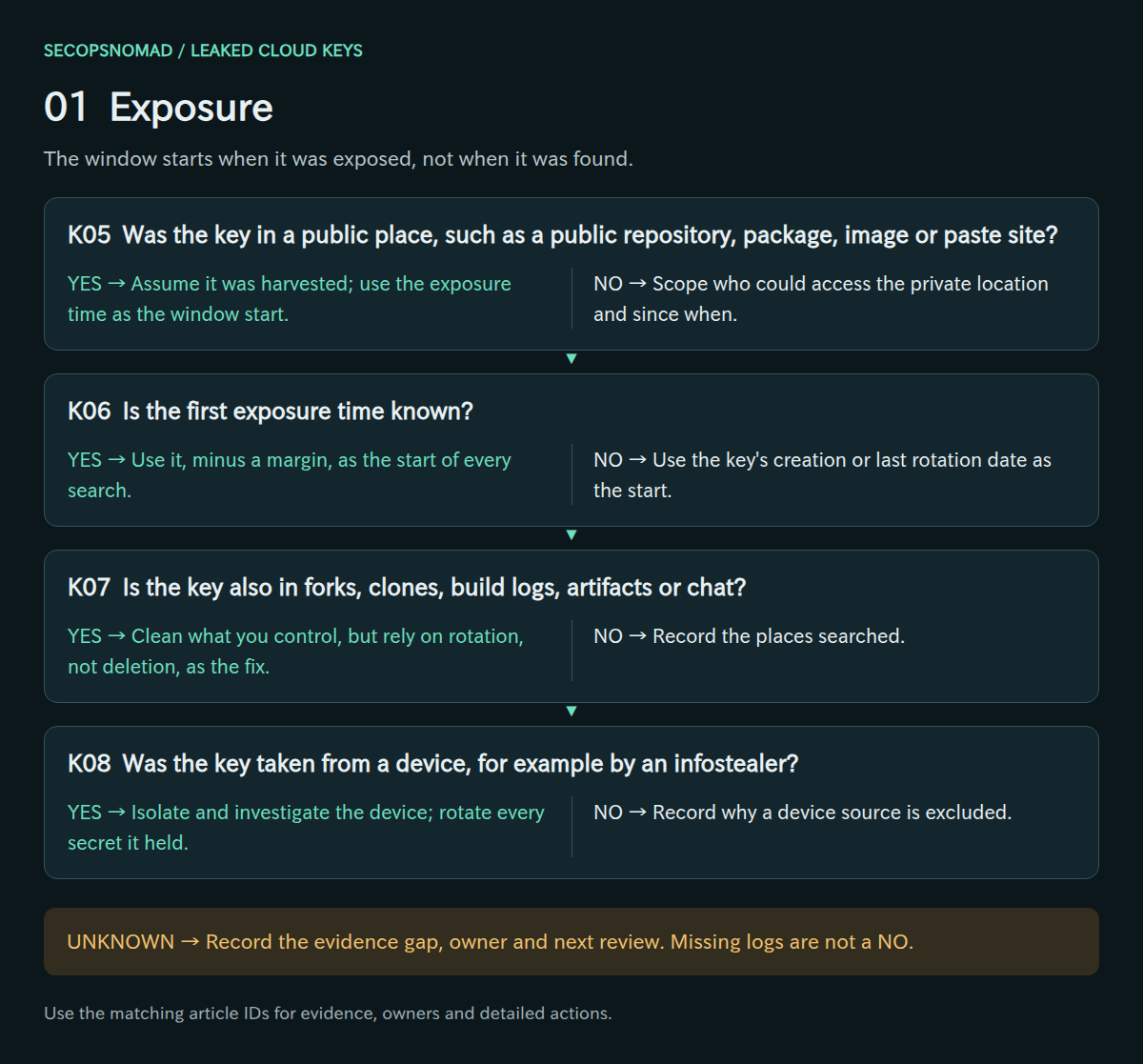
Original decision map. Check each branch independently; unknown answers remain open.
| Decision | Yes | No | Evidence / resolve unknowns | Lead owner |
|---|---|---|---|---|
| K05. Was the key in a public place, such as a public repository, package, image or paste site? | Assume it was harvested; use the exposure time as the window start. | Scope who could access the private location and since when. | Repository visibility, commit history, package and image registries. | Repository owner / DevOps + SOC |
| K06. Is the first exposure time known? | Use it, minus a margin, as the start of every search. | Use the key’s creation or last rotation date as the start. | Commit timestamps, upload logs, key creation date. | SOC + Repository owner / DevOps |
| K07. Is the key also in forks, clones, build logs, artifacts or chat? | Clean what you control, but rely on rotation, not deletion, as the fix. | Record the places searched. | Secret-scanning results, artifact stores, log searches. | Repository owner / DevOps |
| K08. Was the key taken from a device, for example by an infostealer? | Isolate and investigate the device; rotate every secret it held. | Record why a device source is excluded. | EDR alerts, process and file events, user report. | EDR + DFIR |
How to do it: step by step
Find the first commit that contained the key (run inside a clone of the repository; it searches all branches):
git log -S 'AKIAIOSFODNN7EXAMPLE' --all --date=iso-strict --format='%H %ad %an %s'Check how public it was. On GitHub, the repository page shows whether it is Public and how many forks it has. A public repository is scanned by attackers within minutes; assume the key was copied.
Search the other places: CI logs (open recent workflow runs and search the log for the key ID), container images (
docker history --no-trunc <image>shows build steps and environment values), package registries, wikis, tickets and chat. Search for the key ID, not the secret.If the key came from a laptop or server, for example found by infostealer malware, open the account compromise playbook for that device and its owner as well.
Write a table: location, first-seen time (UTC), who can see it, who will clean it. The earliest time is the start of your investigation window.
Check it worked: every copy has an owner, and your window starts at the earliest exposure, not the time you noticed.
2. Contain the credential and its sessions
- Disable the credential: set the AWS access key to inactive, or remove the Entra application secret. Delete it only after the investigation and the workload migration.
- Invalidate temporary credentials and sessions created with it as a separate step. AWS treats this separately from disabling the key.
- Contain the other credentials of the same identity: second keys, console passwords and other secrets of the same application.
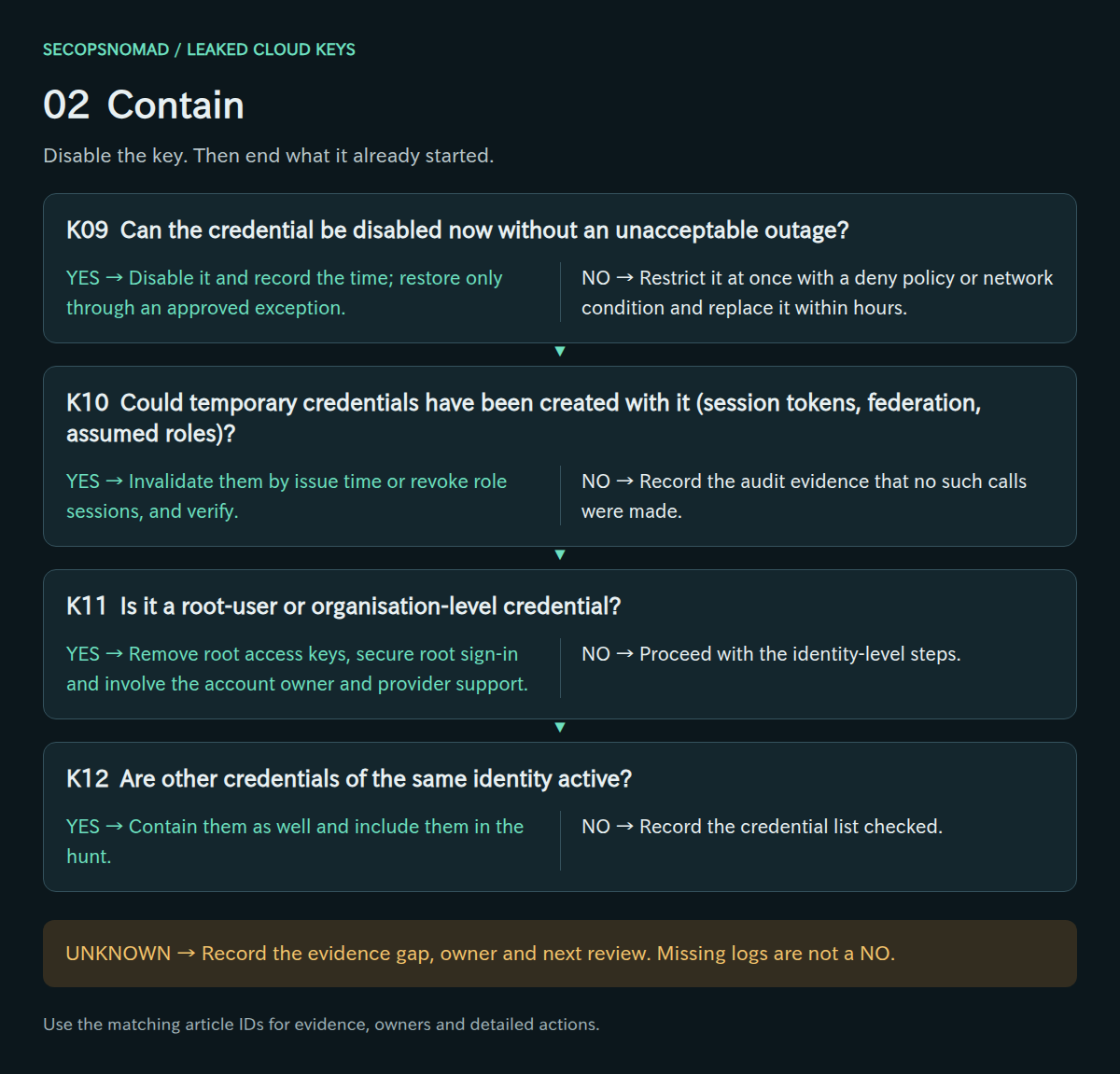
Original decision map. Check each branch independently; unknown answers remain open.
| Decision | Yes | No | Evidence / resolve unknowns | Lead owner |
|---|---|---|---|---|
| K09. Can the credential be disabled now without an unacceptable outage? | Disable it and record the time; restore only through an approved exception. | Restrict it at once with a deny policy or network condition and replace it within hours. | Key status change, workload health, exception approval. | Cloud platform + application owner |
| K10. Could temporary credentials have been created with it (session tokens, federation, assumed roles)? | Invalidate them by issue time or revoke role sessions, and verify. | Record the audit evidence that no such calls were made. | GetSessionToken, GetFederationToken and AssumeRole events. | Cloud platform + SOC |
| K11. Is it a root-user or organisation-level credential? | Remove root access keys, secure root sign-in and involve the account owner and provider support. | Proceed with the identity-level steps. | Credential report, root key status, organisation structure. | Cloud platform + incident lead |
| K12. Are other credentials of the same identity active? | Contain them as well and include them in the hunt. | Record the credential list checked. | IAM user credentials, application secrets and certificates. | IAM |
AWS recommends disabling an exposed credential before deleting it, because a disabled credential can be restored if an application breaks. AWS notes that rotating an IAM user’s key does not invalidate temporary credentials already obtained with it; those last between 15 minutes and 36 hours. Their permissions are evaluated on every request, so stop them by deleting the user where practical, by attaching a deny policy for tokens issued before a set time, or, for roles, with Revoke active sessions. AWS: exposed access key; AWS: disabling permissions for temporary credentials; AWS: revoke role sessions.
How to do it: step by step
Deactivate the AWS key. Console: IAM → Users → user → Security credentials → Access keys → Actions → Deactivate. Or:
aws iam update-access-key --user-name example-user --access-key-id AKIAIOSFODNN7EXAMPLE --status InactiveEnd temporary credentials issued before now. Save this file, setting the time to the moment you contained the key (UTC):
{
  "Version": "2012-10-17",
  "Statement": [{
    "Sid": "DenyCredentialsIssuedBeforeContainment",
    "Effect": "Deny",
    "Action": "*",
    "Resource": "*",
    "Condition": { "DateLessThan": { "aws:TokenIssueTime": "2026-10-06T09:30:00Z" } }
  }]
}
Then attach it to the user as an inline policy:
aws iam put-user-policy --user-name example-user --policy-name deny-sessions-before-containment --policy-document file://deny-sessions-before-containment.jsonRoles the key could assume: IAM → Roles → role → Revoke sessions tab → Revoke active sessions. This denies every session of that role issued before now, including your own workloads' sessions; they must obtain new credentials, so warn the service owner and test critical services afterwards.
Same user, other ways in: deactivate the user's second key if it has one, and remove console access if it has a password (IAM → user → Security credentials → Console sign-in → Manage → disable). CLI:
aws iam delete-login-profile --user-name example-user.Entra application secret: remove it in Certificates & secrets, or with Azure CLI:
az ad app credential list --id <application-client-id>
az ad app credential delete --id <application-client-id> --key-id <secret-id>
Check it worked: aws iam list-access-keys shows the key as Inactive; the inline policy appears on the user's Permissions tab; and any new CloudTrail event signed by the key after this time is treated as an alarm, not noise. AWS: revoking temporary credentials.
3. Blast radius: what the key could do
- Calculate effective permissions: identity policies, groups, permission boundaries, organisation guardrails and session policies.
- Follow trust: roles the identity can assume, including in other accounts, and resource policies that name it directly.
- List the secrets, keys and parameters it could read. Each one may open another system.
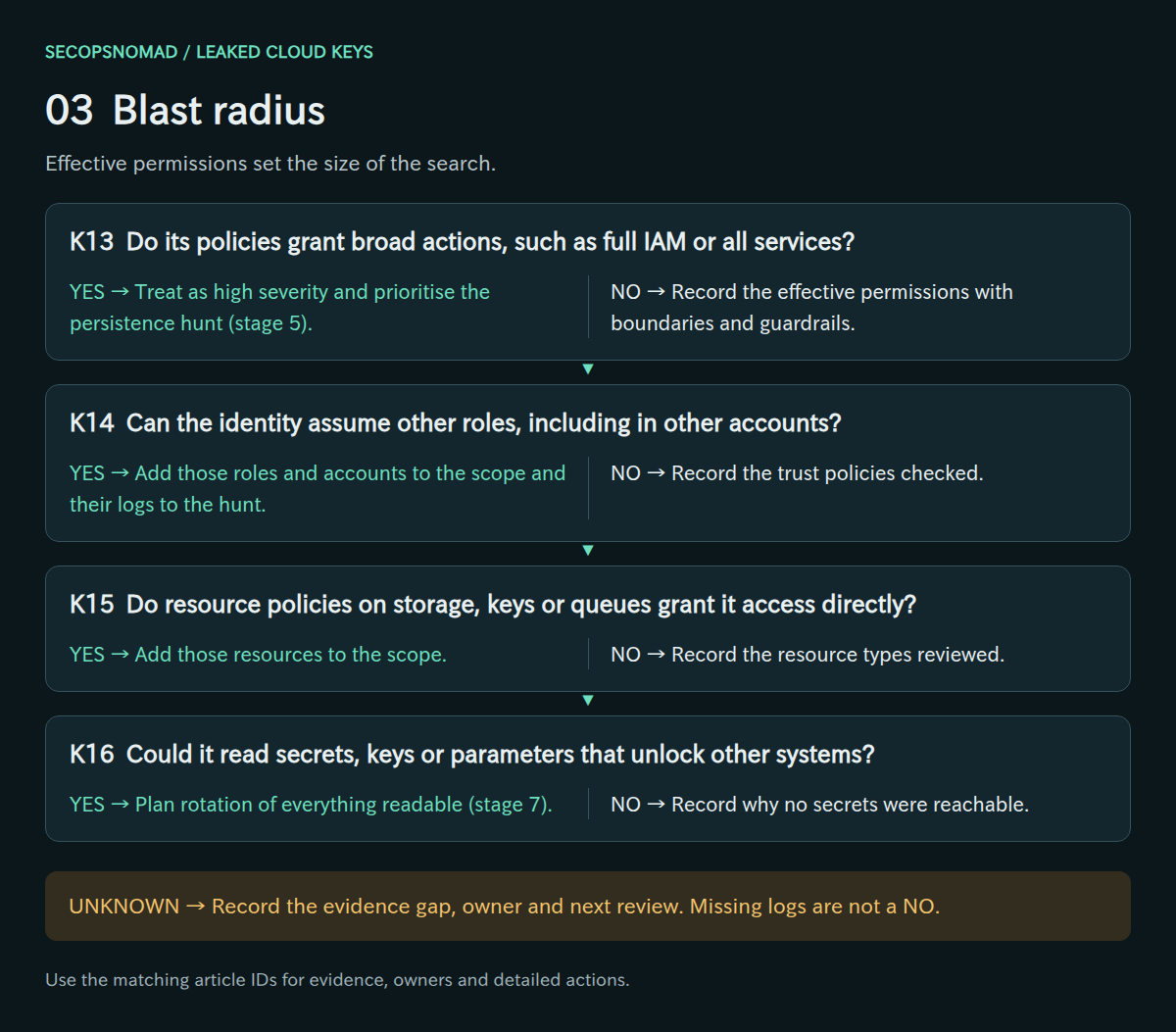
Original decision map. Check each branch independently; unknown answers remain open.
| Decision | Yes | No | Evidence / resolve unknowns | Lead owner |
|---|---|---|---|---|
| K13. Do its policies grant broad actions, such as full IAM or all services? | Treat as high severity and prioritise the persistence hunt (stage 5). | Record the effective permissions with boundaries and guardrails. | Policy documents, access analysis, boundary and guardrail settings. | IAM |
| K14. Can the identity assume other roles, including in other accounts? | Add those roles and accounts to the scope and their logs to the hunt. | Record the trust policies checked. | Role trust policies, cross-account relationships. | IAM + Cloud platform |
| K15. Do resource policies on storage, keys or queues grant it access directly? | Add those resources to the scope. | Record the resource types reviewed. | Bucket, key and queue policies naming the identity. | IAM + data owner |
| K16. Could it read secrets, keys or parameters that unlock other systems? | Plan rotation of everything readable (stage 7). | Record why no secrets were reachable. | Secrets manager and parameter store permissions. | Cloud platform + application owner |
How to do it: step by step
Save a snapshot of IAM first, so you can compare later and prove what the key could reach:
aws iam get-account-authorization-details --output json > iam-snapshot-$(date -u +%Y%m%dT%H%MZ).jsonList the user's permissions: console IAM → user → Permissions tab (policies, groups and any permissions boundary), or:
aws iam list-groups-for-user --user-name example-user
aws iam list-attached-user-policies --user-name example-user
aws iam list-user-policies --user-name example-user
Test the dangerous actions with the policy simulator. "allowed" means the key could have done it:
aws iam simulate-principal-policy \
  --policy-source-arn arn:aws:iam::111122223333:user/example-user \
  --action-names iam:CreateUser iam:CreateAccessKey sts:AssumeRole s3:GetObject secretsmanager:GetSecretValue ssm:GetParameter ec2:RunInstances
Find what trusts this user: search the snapshot for its ARN. Matches in role trust policies or bucket and key policies are extra doors.
grep -n 'user/example-user' iam-snapshot-*.jsonTreat the simulator as a guide, not proof: it cannot see every control, such as policies in other accounts. Ask the owner of each linked account to check too.
Check it worked: a written list of high-risk actions marked allowed or denied, roles it can assume, and secrets it could read (K13–K16).
4. Activity: what the key actually did
- Pull every audit event signed by the key and by its identity, in every account and region, from the window start until after containment.
- Separate your workloads’ normal calls from new sources, user agents and actions.
- Note what the logs cannot show, such as data reads without data-access logging.
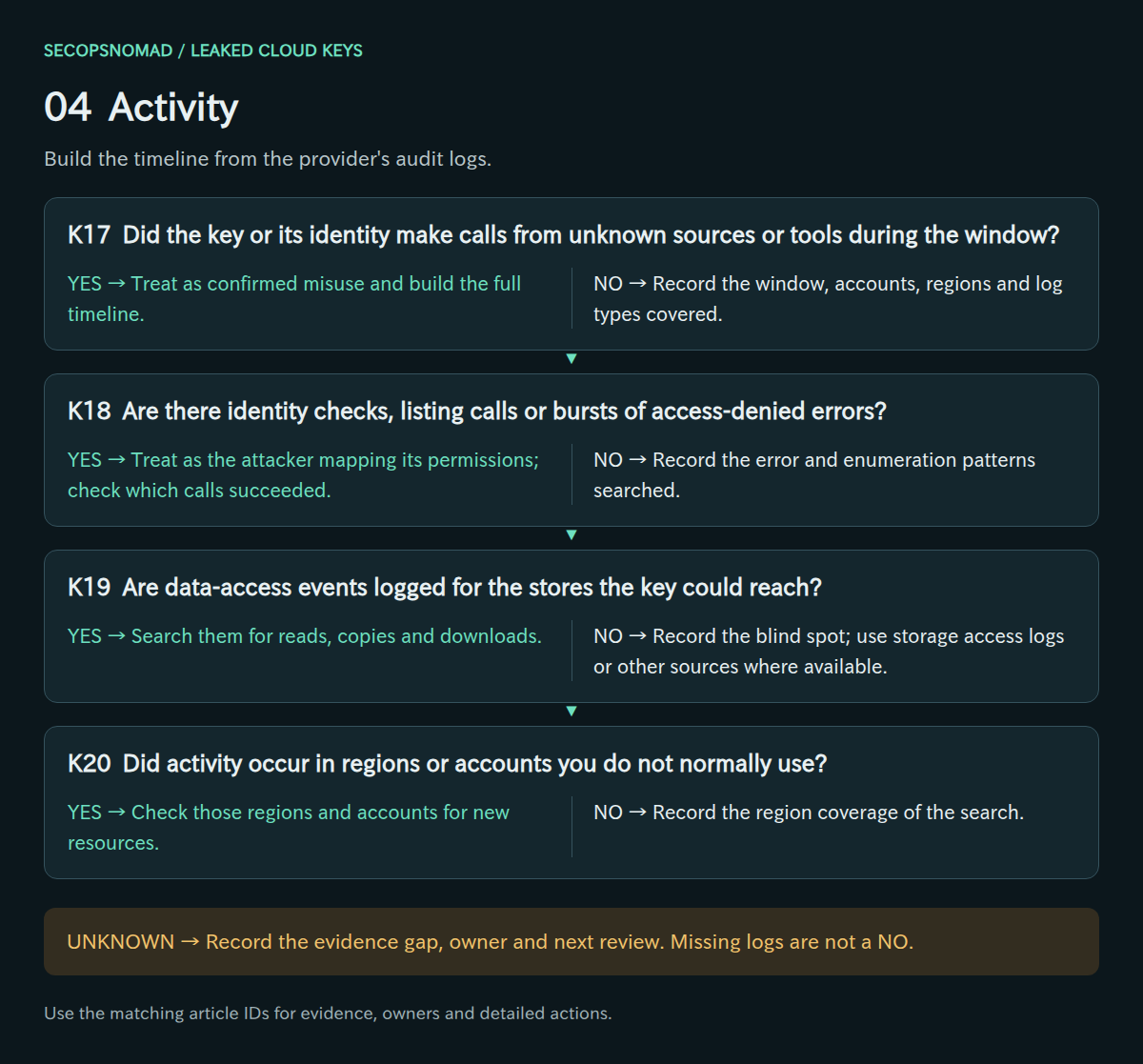
Original decision map. Check each branch independently; unknown answers remain open.
| Decision | Yes | No | Evidence / resolve unknowns | Lead owner |
|---|---|---|---|---|
| K17. Did the key or its identity make calls from unknown sources or tools during the window? | Treat as confirmed misuse and build the full timeline. | Record the window, accounts, regions and log types covered. | Audit events with source address, user agent and action. | SOC / SIEM |
| K18. Are there identity checks, listing calls or bursts of access-denied errors? | Treat as the attacker mapping its permissions; check which calls succeeded. | Record the error and enumeration patterns searched. | GetCallerIdentity, List and Describe calls, error codes. | SOC / SIEM |
| K19. Are data-access events logged for the stores the key could reach? | Search them for reads, copies and downloads. | Record the blind spot; use storage access logs or other sources where available. | Data-event settings, storage access logs. | Cloud platform + SOC |
| K20. Did activity occur in regions or accounts you do not normally use? | Check those regions and accounts for new resources. | Record the region coverage of the search. | Region of each event, resource inventories. | Cloud platform |
How to do it: step by step
Console: CloudTrail → Event history → lookup attribute AWS access key → paste the key ID → set the time range from your window start → Download events (CSV or JSON). Event history shows one Region at a time, so repeat for each Region; IAM and other global-service events appear in US East (N. Virginia).
CLI, all Regions at once (adjust the start time to your window):
KEY=AKIAIOSFODNN7EXAMPLE
for r in $(aws ec2 describe-regions --query 'Regions[].RegionName' --output text); do
  aws cloudtrail lookup-events --region "$r" \
    --lookup-attributes AttributeKey=AccessKeyId,AttributeValue="$KEY" \
    --start-time 2026-09-01T00:00:00Z --output json > "events-$KEY-$r.json"
done
Turn the files into one sorted timeline (time, action, service, source IP, user agent):
jq -r '.Events[] | (.CloudTrailEvent | fromjson) as $e | [.EventTime, .EventName, .EventSource, $e.sourceIPAddress, $e.userAgent] | @tsv' events-*.json | sort > timeline.tsvMark every source as "ours" (your office, CI runner or server addresses and tools) or "unknown".
GetCallerIdentityand listing calls from unknown sources are the attacker checking what the key can do.Follow temporary credentials: if the timeline shows
GetSessionToken,GetFederationTokenorAssumeRole, the response contains a newASIA…key ID. Search for that key ID the same way.Know the limits: Event history keeps 90 days of management events only. Reads of S3 objects and similar data access appear only if a trail recorded data events; search those in your trail's storage, Athena or SIEM with the hunting queries below. AWS: Event history.
Check it worked: a timeline with every unknown source explained or escalated, and a written note of what the logs could not show (K17–K20).
5. Persistence: find what the attacker left behind
- Look for new identities and credentials first: users, access keys, login profiles, application secrets and identity providers.
- Check changes to trust and permissions: role trust policies, attached policies and new policy versions.
- Check compute and logging: new instances, functions and key pairs, opened network rules, and any change to audit logging or threat detection.
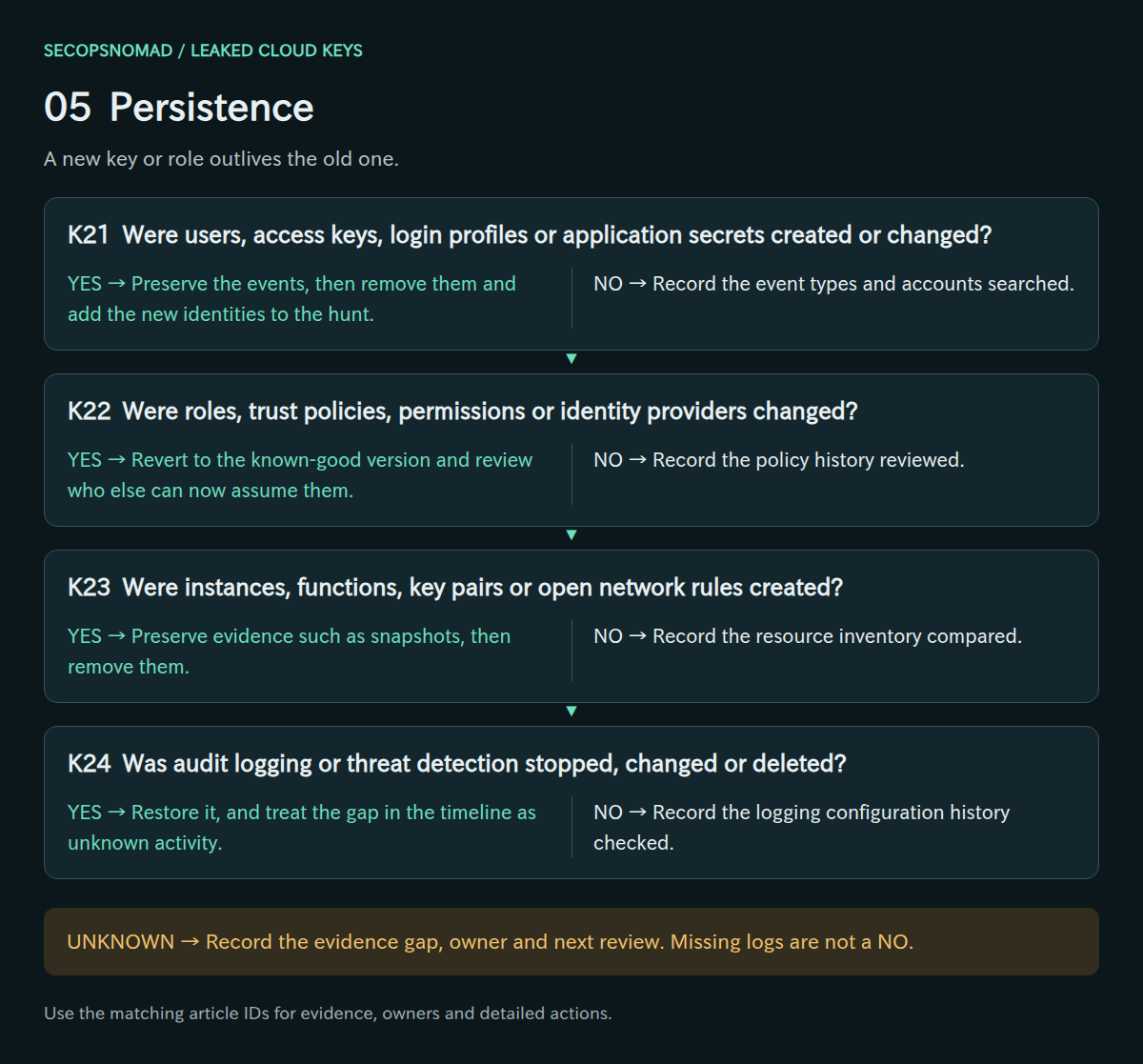
Original decision map. Check each branch independently; unknown answers remain open.
| Decision | Yes | No | Evidence / resolve unknowns | Lead owner |
|---|---|---|---|---|
| K21. Were users, access keys, login profiles or application secrets created or changed? | Preserve the events, then remove them and add the new identities to the hunt. | Record the event types and accounts searched. | CreateUser, CreateAccessKey, CreateLoginProfile and credential events. | IAM + SOC |
| K22. Were roles, trust policies, permissions or identity providers changed? | Revert to the known-good version and review who else can now assume them. | Record the policy history reviewed. | Policy versions, trust policy changes, identity provider events. | IAM |
| K23. Were instances, functions, key pairs or open network rules created? | Preserve evidence such as snapshots, then remove them. | Record the resource inventory compared. | RunInstances, CreateFunction, CreateKeyPair and security group events. | Cloud platform + DFIR |
| K24. Was audit logging or threat detection stopped, changed or deleted? | Restore it, and treat the gap in the timeline as unknown activity. | Record the logging configuration history checked. | StopLogging, trail and event-selector changes, detector events. | Cloud platform + SOC |
How to do it: step by step
Search your saved events for the classic leftovers:
jq -r '.Events[] | select(.EventName | test("^(Create(User|AccessKey|LoginProfile|Role|PolicyVersion|SAMLProvider|OpenIDConnectProvider|KeyPair)|UpdateLoginProfile|UpdateAssumeRolePolicy|(Attach|Put)(User|Role|Group)Policy|RunInstances|CreateFunction.*|ImportKeyPair|AuthorizeSecurityGroupIngress|StopLogging|DeleteTrail|UpdateTrail|PutEventSelectors|DeleteDetector)$")) | [.EventTime, .EventName, .Username] | @tsv' events-*.json | sortLook at the whole account, not just the key's events: download the IAM credential report and look for users or keys created during the window.
aws iam generate-credential-report
aws iam get-credential-report --query Content --output text | base64 --decode > credential-report.csv
For each item you did not create: save its details (screenshot,
aws iam get-user,aws iam get-role, policy JSON) into the case, then disable it. Deactivate new keys, remove new console passwords, detach new policies, revert trust policies from your IAM snapshot.Check compute and logging: new instances, functions or key pairs in every Region, security groups opened to
0.0.0.0/0, and whether CloudTrail and GuardDuty are still on (CloudTrail → Trails: status "Logging"; GuardDuty → Settings).
Check it worked: every create, attach or change event in the window is explained by your own team or reversed, and logging is confirmed on (K21–K24).
6. Impact: data, money and damage
- Assess data access: reads, copies, shared snapshots or images, and exports to accounts you do not own.
- Assess cost: new resources for mining or spam, large instances and quota requests. Bills arrive after the damage.
- Assess integrity: deletions, overwrites, encryption with attacker keys and scheduled key deletions.
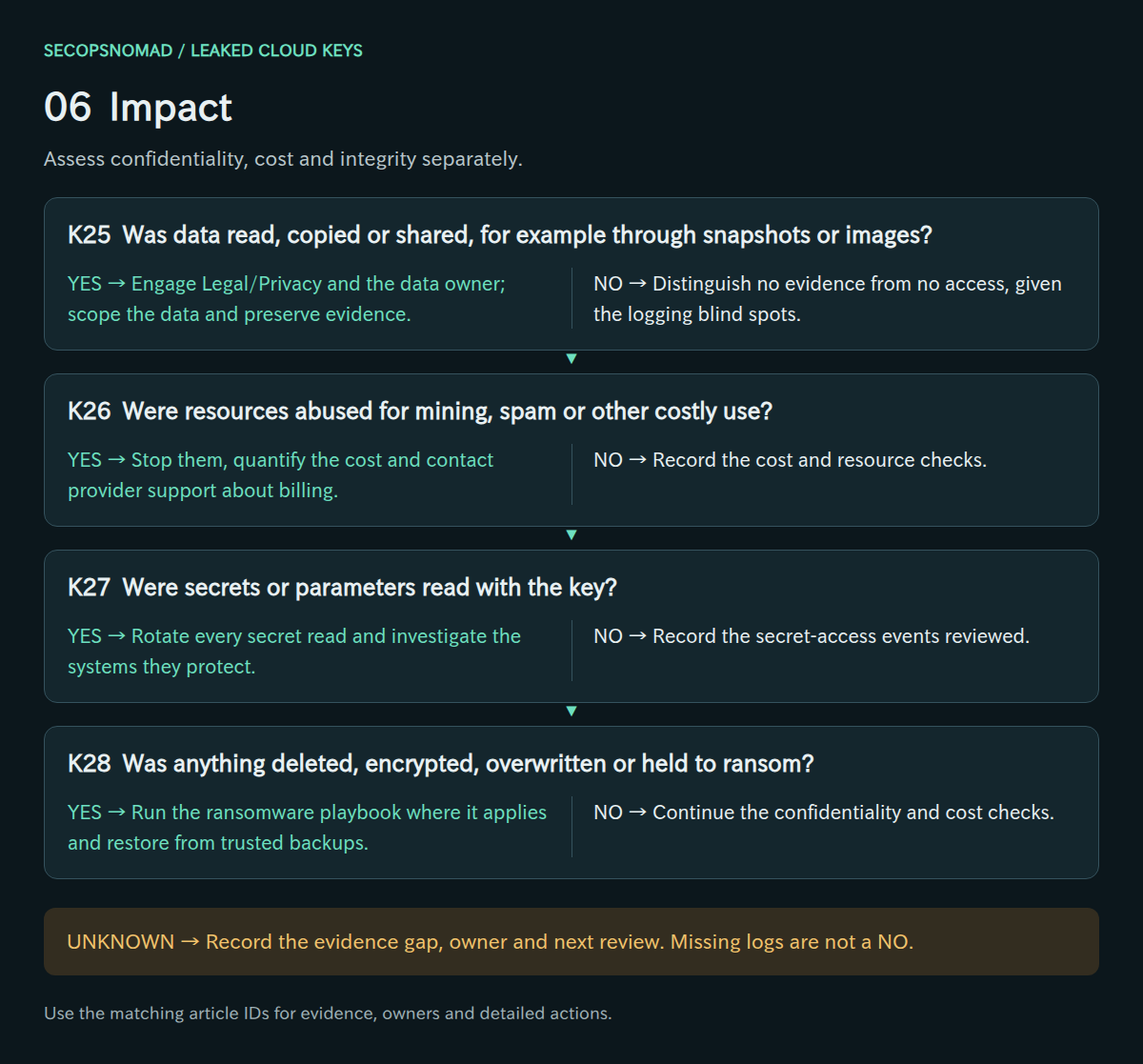
Original decision map. Check each branch independently; unknown answers remain open.
| Decision | Yes | No | Evidence / resolve unknowns | Lead owner |
|---|---|---|---|---|
| K25. Was data read, copied or shared, for example through snapshots or images? | Engage Legal/Privacy and the data owner; scope the data and preserve evidence. | Distinguish no evidence from no access, given the logging blind spots. | Data events, snapshot and image sharing, export destinations. | DFIR + Legal / Privacy |
| K26. Were resources abused for mining, spam or other costly use? | Stop them, quantify the cost and contact provider support about billing. | Record the cost and resource checks. | Cost reports, new resources, quota requests. | FinOps / Finance + Cloud platform |
| K27. Were secrets or parameters read with the key? | Rotate every secret read and investigate the systems they protect. | Record the secret-access events reviewed. | GetSecretValue and parameter read events. | Cloud platform + application owner |
| K28. Was anything deleted, encrypted, overwritten or held to ransom? | Run the ransomware playbook where it applies and restore from trusted backups. | Continue the confidentiality and cost checks. | Delete and overwrite events, key deletion schedules, ransom notes. | Incident lead + Cloud platform |
How to do it: step by step
- Data: look in the timeline for
ModifySnapshotAttribute,ModifyImageAttribute,CopySnapshot,PutBucketPolicy,PutBucketAclandDeletePublicAccessBlock; these can share or expose data. If S3 data events were recorded, searchGetObjectby the key in your trail storage or SIEM. If they were not, record that you cannot rule out reads. - Cost: Billing and Cost Management → Cost Explorer → granularity Daily → group by Region, then by Service and instance type. GPU instances or Regions you never use are typical signs of cryptocurrency mining.
- Integrity: look for deletions and
ScheduleKeyDeletion(KMS). A KMS key scheduled for deletion can be rescued during its waiting period:aws kms cancel-key-deletion --key-id <key-id>. - Tell AWS: open a support case (template below) describing the unauthorized activity. Ask about charges caused by it; adjustments are at AWS's discretion, so do not promise anyone a refund. AWS: unauthorized activity in an account.
Check it worked: one line per impact type (data, cost, integrity, secrets) marked confirmed, possible with reason, or not observed with the logs you searched (K25–K28).
7. Rotation: replace the key and clean the source
- Issue a replacement with least privilege, or better, move the workload to short-lived credentials from a role or federation.
- Move every dependent workload to the new credential, verify it works, then delete the old key.
- Remove the secret from the source and its history, knowing that copies already taken cannot be recalled.
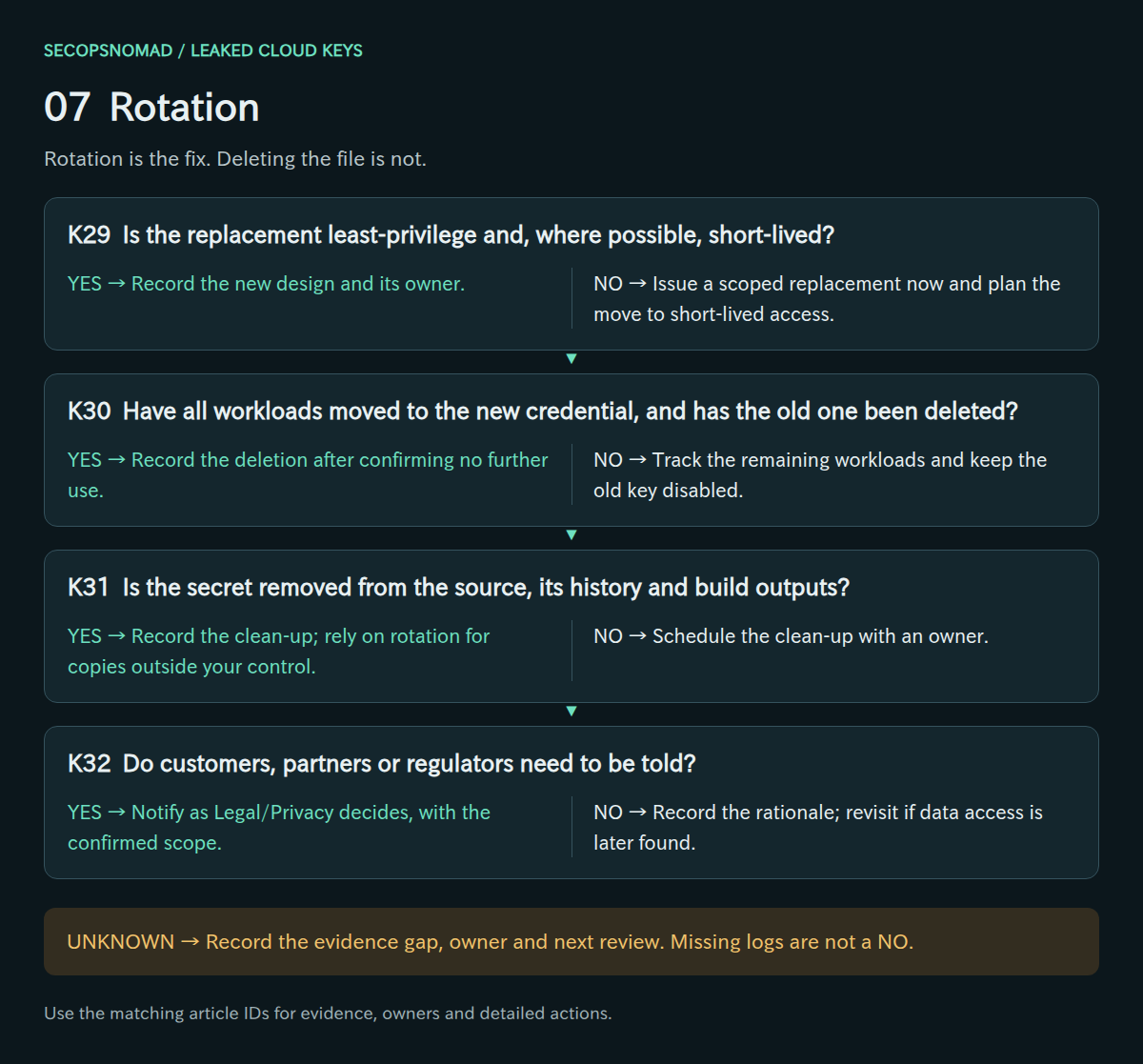
Original decision map. Check each branch independently; unknown answers remain open.
| Decision | Yes | No | Evidence / resolve unknowns | Lead owner |
|---|---|---|---|---|
| K29. Is the replacement least-privilege and, where possible, short-lived? | Record the new design and its owner. | Issue a scoped replacement now and plan the move to short-lived access. | New policy, credential type, rotation schedule. | Cloud platform + IAM |
| K30. Have all workloads moved to the new credential, and has the old one been deleted? | Record the deletion after confirming no further use. | Track the remaining workloads and keep the old key disabled. | Workload list, last-used data, deletion record. | Application owner + Cloud platform |
| K31. Is the secret removed from the source, its history and build outputs? | Record the clean-up; rely on rotation for copies outside your control. | Schedule the clean-up with an owner. | Commits, history rewrite record, artifact purge. | Repository owner / DevOps |
| K32. Do customers, partners or regulators need to be told? | Notify as Legal/Privacy decides, with the confirmed scope. | Record the rationale; revisit if data access is later found. | Legal assessment, data scope, notice records. | Legal / Privacy |
How to do it: step by step
Prefer no key at all. Move the workload to a role: an EC2 instance profile, ECS task role or Lambda execution role, or for GitHub Actions, OpenID Connect federation to AWS.
If a key is truly needed, create the replacement with least privilege and put the secret straight into your secret store, not into code or chat. An IAM user can have two keys; delete an unused one first if needed.
aws iam create-access-key --user-name example-userDeploy, then verify that the service works with the new credential and that
get-access-key-last-usedshows the new key in use.Delete the old key only now (this is the step you cannot undo):
aws iam delete-access-key --user-name example-user --access-key-id AKIAIOSFODNN7EXAMPLEClean the source after rotating: remove the file or line, then rewrite history if the repository is shared, following GitHub's guide to removing sensitive data. Rewriting does not reach forks or clones that already exist; that is why rotation comes first. AWS: update access keys.
Check it worked: the old key no longer exists, every workload runs on the new credential or a role, and the secret is gone from the files and build outputs you control (K29–K31).
8. Recovery: make the next leak harmless
- Turn on secret scanning and push protection for your repositories, and scan build logs and images too.
- Replace long-lived keys with roles, managed identities and federation for CI pipelines wherever possible.
- Alert on key use from new places, provider quarantine notices and persistence actions, then close with residual risk accepted.
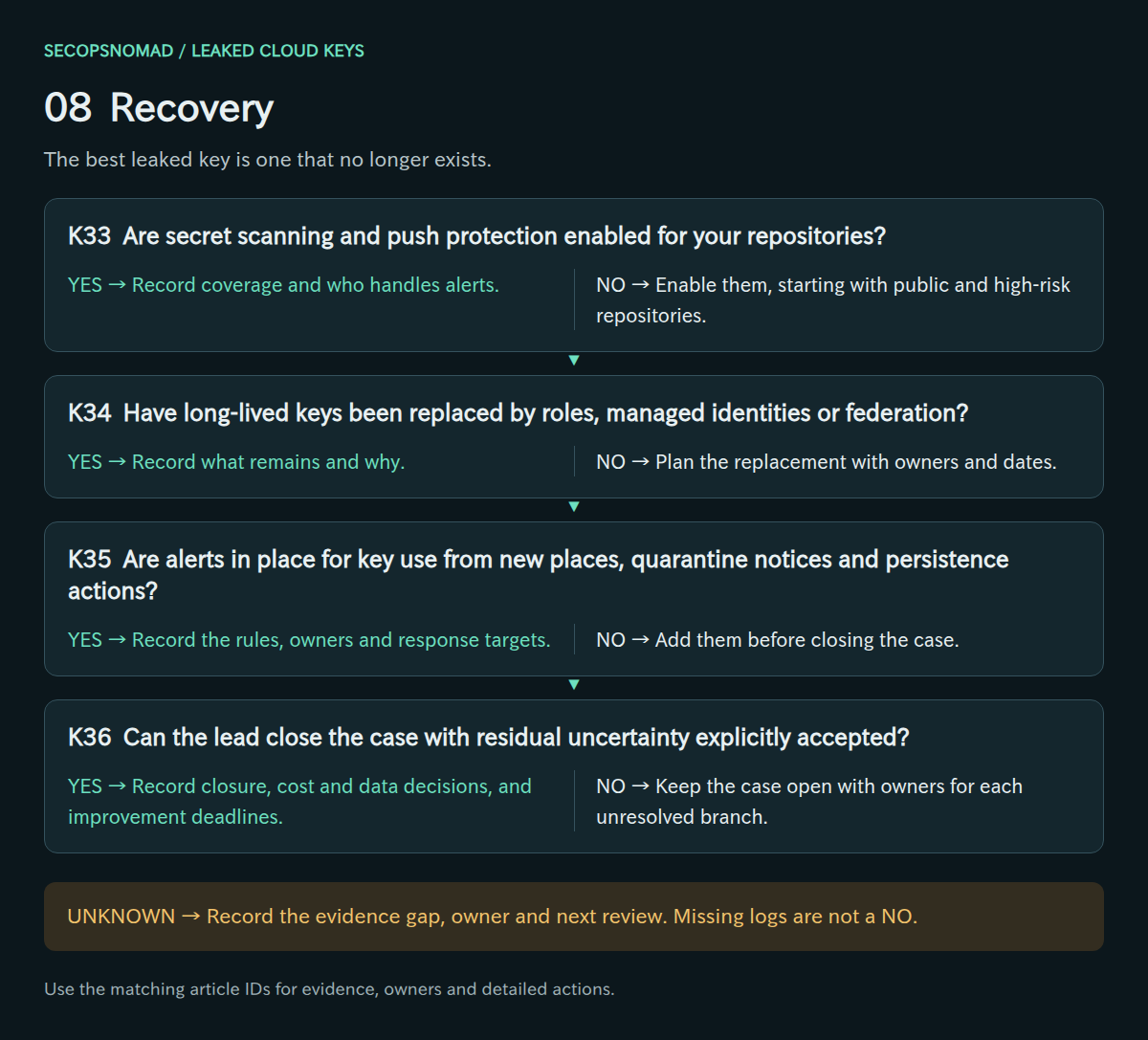
Original decision map. Check each branch independently; unknown answers remain open.
| Decision | Yes | No | Evidence / resolve unknowns | Lead owner |
|---|---|---|---|---|
| K33. Are secret scanning and push protection enabled for your repositories? | Record coverage and who handles alerts. | Enable them, starting with public and high-risk repositories. | Repository settings, alert routing, scan results. | Repository owner / DevOps |
| K34. Have long-lived keys been replaced by roles, managed identities or federation? | Record what remains and why. | Plan the replacement with owners and dates. | Credential inventory, federation setup, remaining keys. | Cloud platform + IAM |
| K35. Are alerts in place for key use from new places, quarantine notices and persistence actions? | Record the rules, owners and response targets. | Add them before closing the case. | Alert rules, test results, notification routing. | SOC / SIEM + Cloud platform |
| K36. Can the lead close the case with residual uncertainty explicitly accepted? | Record closure, cost and data decisions, and improvement deadlines. | Keep the case open with owners for each unresolved branch. | Final timeline, scope, cost, notices, sign-off. | Incident lead + Legal / Privacy |
How to do it: step by step
- GitHub: repository Settings → Advanced Security → enable Secret Protection, then Push protection. Organization owners can enable it for all repositories at once. GitHub: enable push protection.
- Remove long-lived keys: list them in the IAM credential report (stage 5) and plan a role or federation for each. Any key older than 90 days needs an owner and a reason.
- Alert on the signals from this incident: create an EventBridge rule or SIEM alert for
CreateUser,CreateAccessKeyandCreateLoginProfile; enable GuardDuty; and route AWS Health notifications and AWS emails about exposed credentials to a monitored mailbox, not one person's inbox. - Hold a short review: how the key got into the code, how long it took to notice, what was missing (data events, an owner list, alerts), and who will fix each gap by when.
Check it worked: a test push containing a dummy AWS key is blocked, and a test CreateAccessKey raises an alert someone sees (K33–K35).
Hunting: key-scoped KQL and Splunk starters
No live IOC is supplied. Use the exposed key ID, the owning identity’s ARN or application ID, and the first possible exposure time from your case record. All four examples are read-only, documentation/schema-reviewed and not executed in a live environment.
The KQL examples target Microsoft Sentinel / Azure Monitor Log Analytics with the AWS CloudTrail connector (AWSCloudTrail) and Microsoft Entra ID logs. Confirm the tables are populated for every AWS account and region the key could reach, and that retention covers the window. Each example caps displayed results at 500.
1. Everything the key and its user did. Filters AWSCloudTrail by the exposed UserIdentityAccessKeyId or by the owning user’s UserIdentityArn. The second condition matters: temporary credentials obtained with GetSessionToken keep the user’s ARN but sign requests with a new key ID. Activity after an AssumeRole call appears under the role’s session ARN instead; follow those calls by their RequestParameters and ResponseElements.
2. Persistence, privilege and evasion. Keeps actions an attacker uses to stay or hide: new users, keys, login profiles and policies, role and trust changes, identity providers, compute and key pairs, secret reads and logging changes. Lambda function creation is logged with a version suffix in the event name, hence startswith. An event in this list is not malicious by itself; compare it with your change records.
3. Sign-ins with an exposed Entra application credential. AADServicePrincipalSignInLogs records the ServicePrincipalCredentialKeyId of the secret or certificate used. Take the key ID from the application’s certificates-and-secrets page. Sign-ins with other credentials of the same application are included for comparison.
4. Everything the key and its user did, in Splunk. Splunk Add-on for AWS, sourcetype aws:cloudtrail, with the JSON fields userIdentity.accessKeyId, userIdentity.arn, eventSource, eventName, sourceIPAddress and errorCode. Set the index and the time range to the exposure window.
KQL: everything the key and its IAM user did
Download cloud-key-activity.kql
// Microsoft Sentinel / Log Analytics. Read-only; not live-tested.
// CloudTrail events signed by the exposed key, or by its IAM user
// (temporary credentials from GetSessionToken keep the user's ARN).
let ExposedKeyId = "REPLACE_WITH_ACCESS_KEY_ID";
let KeyOwnerArn = "REPLACE_WITH_IAM_USER_ARN";
let WindowStart = datetime(2026-01-01T00:00:00Z);  // REPLACE: first possible exposure, UTC
AWSCloudTrail
| where TimeGenerated between (WindowStart .. now())
| where UserIdentityAccessKeyId == ExposedKeyId or UserIdentityArn =~ KeyOwnerArn
| project TimeGenerated, UserIdentityAccessKeyId, UserIdentityType, UserIdentityArn,
    EventSource, EventName, ReadOnly, AWSRegion, SourceIpAddress, UserAgent,
    ErrorCode, RecipientAccountId
| order by TimeGenerated asc
| take 500
KQL: persistence, privilege and evasion actions
Download cloud-key-persistence.kql
// Microsoft Sentinel / Log Analytics. Read-only; not live-tested.
// Actions an attacker uses to stay, escalate or hide, by the key owner's identity.
let KeyOwnerArn = "REPLACE_WITH_IAM_USER_ARN";
let WindowStart = datetime(2026-01-01T00:00:00Z);  // REPLACE: first possible exposure, UTC
let Watched = dynamic(["CreateUser", "CreateAccessKey", "CreateLoginProfile",
    "UpdateLoginProfile", "AttachUserPolicy", "PutUserPolicy", "AddUserToGroup",
    "CreateRole", "UpdateAssumeRolePolicy", "AttachRolePolicy", "PutRolePolicy",
    "CreatePolicyVersion", "CreateOpenIDConnectProvider", "CreateSAMLProvider",
    "GetSessionToken", "GetFederationToken", "AssumeRole", "RunInstances",
    "CreateKeyPair", "ImportKeyPair", "AuthorizeSecurityGroupIngress",
    "PutBucketPolicy", "GetSecretValue", "StopLogging", "DeleteTrail", "UpdateTrail",
    "PutEventSelectors", "DeleteDetector", "LeaveOrganization"]);
AWSCloudTrail
| where TimeGenerated between (WindowStart .. now())
| where UserIdentityArn =~ KeyOwnerArn
| where EventName in (Watched) or EventName startswith "CreateFunction"
| project TimeGenerated, EventSource, EventName, ErrorCode, AWSRegion,
    SourceIpAddress, UserIdentityAccessKeyId, RequestParameters, ResponseElements
| order by TimeGenerated asc
| take 500
KQL: sign-ins with an exposed Entra application credential
Download cloud-key-entra-app-signins.kql
// Microsoft Sentinel / Log Analytics. Read-only; not live-tested.
// Service principal sign-ins for one application, flagging the exposed credential.
let TargetAppId = "REPLACE_WITH_APPLICATION_CLIENT_ID";
let ExposedCredentialKeyId = "REPLACE_WITH_SECRET_OR_CERTIFICATE_KEY_ID";
let WindowStart = datetime(2026-01-01T00:00:00Z);  // REPLACE: first possible exposure, UTC
AADServicePrincipalSignInLogs
| where TimeGenerated between (WindowStart .. now())
| where AppId =~ TargetAppId
| extend UsedExposedCredential = ServicePrincipalCredentialKeyId =~ ExposedCredentialKeyId
| project TimeGenerated, ServicePrincipalName, AppId, ServicePrincipalCredentialKeyId,
    UsedExposedCredential, ClientCredentialType, IPAddress, ResourceDisplayName,
    ResultType
| order by TimeGenerated asc
| take 500
Splunk: everything the key and its IAM user did
Download cloud-key-activity.spl
index="REPLACE_WITH_AWS_INDEX" sourcetype="aws:cloudtrail" earliest=-30d latest=now (userIdentity.accessKeyId="REPLACE_WITH_ACCESS_KEY_ID" OR userIdentity.arn="REPLACE_WITH_IAM_USER_ARN")
| table _time userIdentity.accessKeyId userIdentity.type userIdentity.arn eventSource eventName readOnly awsRegion sourceIPAddress userAgent errorCode recipientAccountId
| sort 0 _time
| head 500
Copy-paste templates
Replace everything in [square brackets]. Never paste a secret, password or token into these messages; a key ID is fine. Have Legal or Privacy review anything that goes outside the company.
Internal status update
Use for engineering and management, at every agreed update time.
Subject: [INCIDENT case-ID] Exposed cloud key – status [number] at [time UTC]

Status: [Contained / Investigating / Recovering]
What happened: An AWS access key ([key ID]) belonging to [user or application] was exposed in [location] from [first exposure time UTC].
Done so far:
- Key deactivated at [time]; sessions issued before [time] blocked.
- Activity logs saved for [Regions] from [start] to [end].
What we know: [e.g. calls from unknown IP addresses at times; no new users found / new user found and disabled]
What we do not know yet: [e.g. whether files in bucket X were read; data-access logging was off]
Impact on services: [none / service Y paused until time]
Next steps and owners: [action – owner – due time]
Next update: [time UTC]
Contact: [incident lead name and channel]
Request to the repository or workload owner
Use to get the facts you need in stage 0 and stage 1 quickly, without blame.
Subject: Urgent: key [key ID] – need 3 answers within 30 minutes

Hi [name],
We are handling a security incident: the key [key ID] was found in [location]. This is about fixing it quickly, not about blame.
Please reply with:
1. Which services, scripts or pipelines use this key? What breaks if it stops working?
2. Where else has this key been stored (other repositories, CI variables, laptops, wikis, chat)?
3. When was it added to [location], and was it ever in a public repository, fork or image?
Please do not delete the key, change history or push fixes yet; we will coordinate the clean-up with you.
Thank you, [incident lead]
AWS Support case
Use in stage 6. Choose the account and billing or technical category your support plan allows.
Subject: Unauthorized activity using a compromised access key – account [account ID]

We identified unauthorized use of the IAM access key [key ID] (IAM user [user name]) in account [account ID].
Exposure: the key was publicly exposed in [location] from [time UTC].
Actions taken: key deactivated at [time UTC]; sessions issued before [time UTC] denied; unauthorized resources [list] [disabled/removed] after evidence was saved.
Observed activity: [e.g. RunInstances in Regions X and Y; CreateUser "name" at time].
We request: [review of the account for further unauthorized activity / guidance on charges resulting from this activity / anything else].
Contact: [name, phone, time zone]
Management briefing (five lines)
Use for the executive or board summary after the first hours.
1. What happened: a cloud access key for [system] was exposed in [location] for [duration].
2. Current state: the key is disabled; the attacker's access [is blocked / is still being verified].
3. Confirmed impact so far: [e.g. servers started in unused Regions, estimated cost ¥X; no evidence of data access, but data-access logs were not enabled].
4. Decisions needed: [e.g. approve outside forensic support; accept service Y downtime; notify customer Z].
5. Next update: [time]. Lead: [name].
Worked example: a key pushed to a public repository
Fictional scenario. The company, people, times and numbers are invented to show how the decisions connect.
The situation: a 40-person software company. At 08:47 UTC a developer pushes a test script to a personal public GitHub repository. The script contains a production access key used by a nightly backup job.
- 09:05 – the alert. AWS emails the account owner that the key was found in public and that a quarantine policy was attached (K04). Nobody treats the email as the end of the matter: quarantine limits some actions only.
- 09:12 – triage. The CTO becomes incident lead.
get-access-key-infoconfirms the production account;get-access-key-last-usedshows use at 08:53 from an unfamiliar address (K01–K03). The case is opened with a UTC timeline. - 09:20 – containment. The owner says only the nightly backup uses the key, so stopping it costs one backup run (K09). The key is set to Inactive, the deny-by-issue-time policy is attached, and the user's console password is removed (K10, K12).
- 09:40 – activity. The Event history download across all Regions shows
GetCallerIdentityandListBucketsat 08:52, thenCreateUserandCreateAccessKeyfor a user named like a real service account at 08:55, before the quarantine, and failedRunInstancescalls in two Regions the company never uses (K17, K18, K20, K21). - 10:10 – persistence removed. The new user's details and policy are saved to the case; its key is deactivated and the user is denied all actions. A credential report confirms no other new users (K21).
- 10:40 – impact. The key could read a bucket of customer exports. S3 data events were never enabled, so reads can be neither confirmed nor ruled out (K19, K25). Legal is told that day, with exactly that wording (K32). Cost Explorer shows no new spend (K26).
- 14:00 – rotation. The backup job moves to an IAM role; the old key and the attacker's user are deleted after the evidence is stored. The developer removes the repository and the history is cleaned (K29–K31).
- Day 2 – recovery. Push protection is enabled for the organization; alerts are created for new users and keys; data events are turned on for the customer-export bucket (K33–K35). The lead closes the case with one accepted residual risk: possible reads of the export bucket during a 30-minute window (K36).
What made the difference: the key was disabled 15 minutes after the alert; the team looked for new users before declaring containment; and nobody claimed "no data accessed" when the logs could not show it.
Open questions and post-incident improvement
Audit logs answer “which API calls were made”, not always “which data was read”. Without data-access logging, reads from storage may leave no record. Sessions created before containment, copies of the key in forks or caches, and accounts or regions without logging are further gaps. Record them explicitly. Completing every row is not a guarantee of exhaustive coverage.
At closure, ask why a long-lived key existed and why it could reach where it was found. Replace it with short-lived, federated access where possible, turn on secret scanning before code is pushed, and test the response with a deliberately exposed, permissionless test key in a sandbox account.
References and revision history
References checked on 2026-10-06. Product capabilities, licensing and telemetry configuration can change; confirm your environment before using the operational examples.
- AWS Security Blog: what to do if you inadvertently expose an AWS access key
- AWS IAM: disabling permissions for temporary security credentials
- AWS IAM: revoke IAM role temporary security credentials
- AWS managed policy: AWSCompromisedKeyQuarantine
- Unit 42: how AWS neutralizes compromised IAM credentials
- Microsoft: compromised and malicious applications investigation
- AWSCloudTrail schema (Microsoft Sentinel)
- AADServicePrincipalSignInLogs schema
- Splunk: AWS CloudTrail data source fields
2026-10-06: first edition. Published with matching decision IDs and query text in English and Japanese.