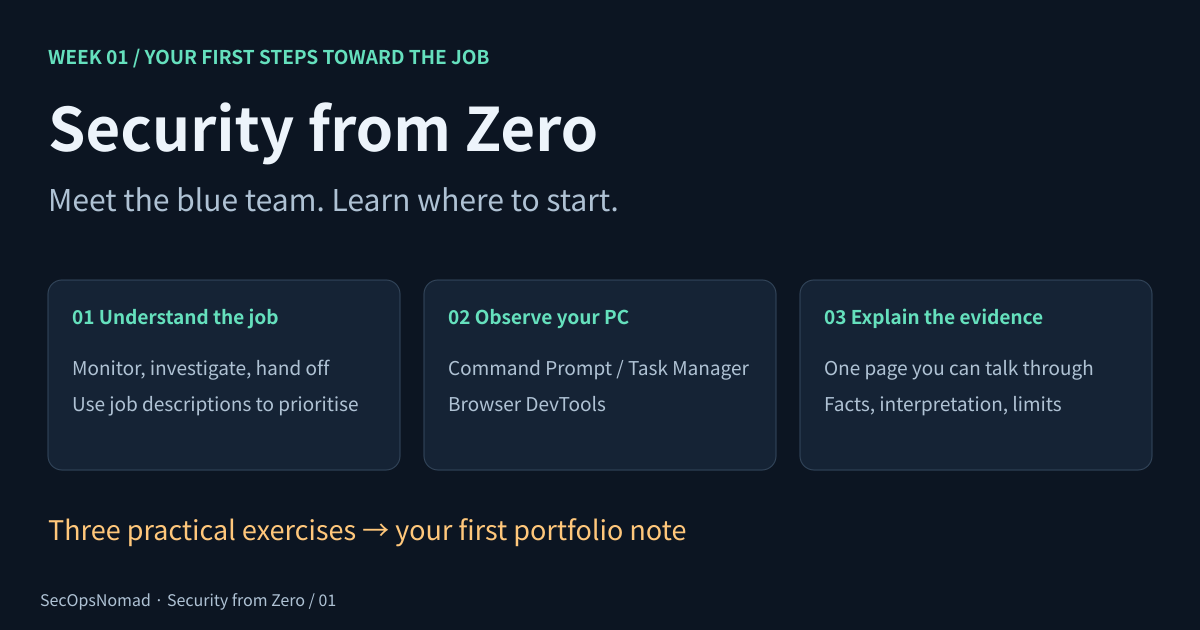
You do not need to begin with a rack of servers or a long list of certifications. Begin with a question: can you explain what your own computer is doing, and show how you know? A junior analyst asks that question about other people’s computers, accounts and applications every day.
This week is for someone starting from scratch and aiming for a SOC analyst, junior security analyst or security operations trainee role. You will learn what the job involves, practise with tools already on your computer, and finish with a short piece of work you can explain in an interview.
You need: your own Windows 11 PC, Chrome or Edge, and somewhere to keep notes. The screenshots below are annotated teaching illustrations, not captures from a real incident. Names, addresses, PIDs and timings are examples. On macOS or Linux you can follow the concepts, but the commands and Task Manager steps here are for Windows. Budget about five hours across the week.
Download the Week 1 workbook. Keep it open as you go.
1. What is blue team?
The blue team helps an organisation prevent, detect and respond to attacks. “Blue team” is an umbrella term. Depending on the organisation, it includes security operations, detection engineering, incident response, threat hunting and security engineering. You do not need to master all of those jobs to apply for your first one.
A SOC, or security operations centre, watches for signs of trouble. A junior SOC analyst often starts by reviewing alerts, gathering context, keeping accurate case notes and escalating findings through the team’s process. Some teams work shifts. Some analyst roles also include vulnerability management, access reviews or awareness work. Read the actual job description: titles vary.
| A term in a job description | What it means in everyday work |
|---|---|
| Monitoring | Watch incoming signals and recognise what needs attention. |
| Alert triage | Decide what an alert means, how urgent it is and what evidence is missing. |
| Investigation | Answer a question using logs, account activity and computer behaviour. |
| Escalation | Pass the right facts and unanswered questions to the person authorised to act. |
| Incident response | Coordinate investigation, containment, recovery and follow-up under a plan. |
An event is something that happened, such as a failed sign-in. An alert is a tool or rule asking someone to review activity. An incident is an occurrence judged to threaten security and handled through the organisation’s incident process. An alert is a starting point for a decision; it is not proof of a breach.
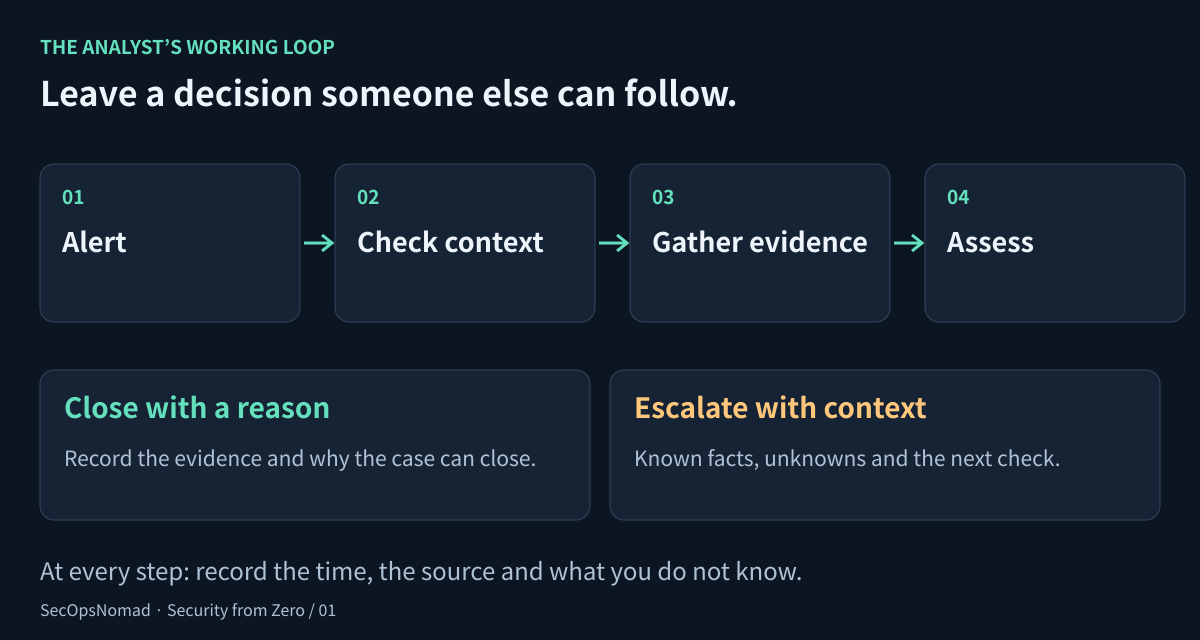
Figure 1. The analyst’s working loop. A good handoff explains what you know and what you still need.
Imagine an alert for repeated failed sign-ins followed by a successful one. An analyst checks the account, timestamps and time zone, source address, device, MFA result and the account’s usual activity. A forgotten password and an attacker may produce similar early signals. The useful question is: what evidence would distinguish them? A junior analyst follows the playbook and escalates when required; authority to disable an account or isolate a device depends on the role.
2. Study in an order that helps you get hired
First, collect five recent entry-level job descriptions in the region where you can work. Search titles such as “SOC analyst L1”, “junior security analyst” and “security operations trainee”. Save the source URL and date. Record repeated skills, language requirements, shift expectations, location or work-authorisation requirements, and whether a certification is required or preferred. You are building a local picture, not assuming every employer wants the same thing.
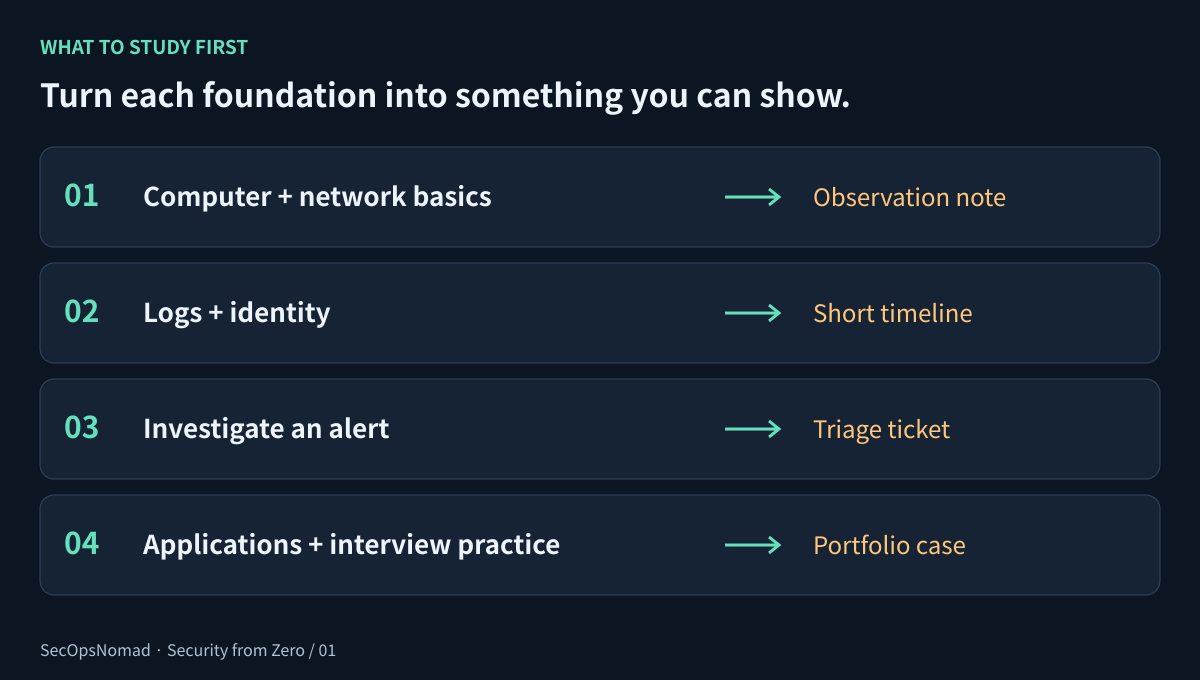
Figure 2. Learn the foundations, then use them to produce evidence of your skills.
| Learn first | Why an analyst needs it | Something you can show |
|---|---|---|
| Networking: IP addresses, ports, DNS, HTTP and HTTPS | Explain which computer contacted which service. | An annotated web request and a connection-to-process mapping. |
| Windows and Linux: files, users, permissions, processes, services | Understand what ran, under which account, and with what access. | A process observation with a timestamp and a stated limitation. |
| Logs and identity: timestamps, sign-ins, MFA, least privilege | Reconstruct activity and identify missing context. | A short timeline with sources and time zones. |
| SIEM and EDR fundamentals | Search collected events and examine endpoint activity. | A bounded search and a reasoned alert-triage note. |
| Clear writing and escalation | Help another person make a decision. | A one-page note separating evidence, interpretation and next steps. |
A SIEM collects and searches logs from multiple systems. EDR records and analyses activity on endpoints, such as laptops and servers. This week, learn what they are for. You do not need to install either one yet. Basic PowerShell or Python becomes useful once you understand the manual task you want to automate.
If your target roles repeatedly name a certification, compare its official objectives with your gaps, cost and timetable. Certification requirements vary. A certificate and a lab project answer different questions: one shows an assessed syllabus; the other lets you explain how you worked. Keep both claims accurate.
3. Lab A: ask your PC four basic questions
Open Start → type “cmd” → Command Prompt. A normal user session is enough. Run these commands one at a time:
whoami
hostname
ipconfig
nslookup example.com
| Command | The question it answers | What to write down |
|---|---|---|
whoami |
Which account is this session using? | Domain or computer name, then username. |
hostname |
What is this computer called? | The device name. |
ipconfig |
How is this device connected? | The active adapter’s IPv4 address and default gateway. |
nslookup example.com |
Which DNS server answered, and which address records did it return? | DNS server, returned address or addresses, and time checked. |
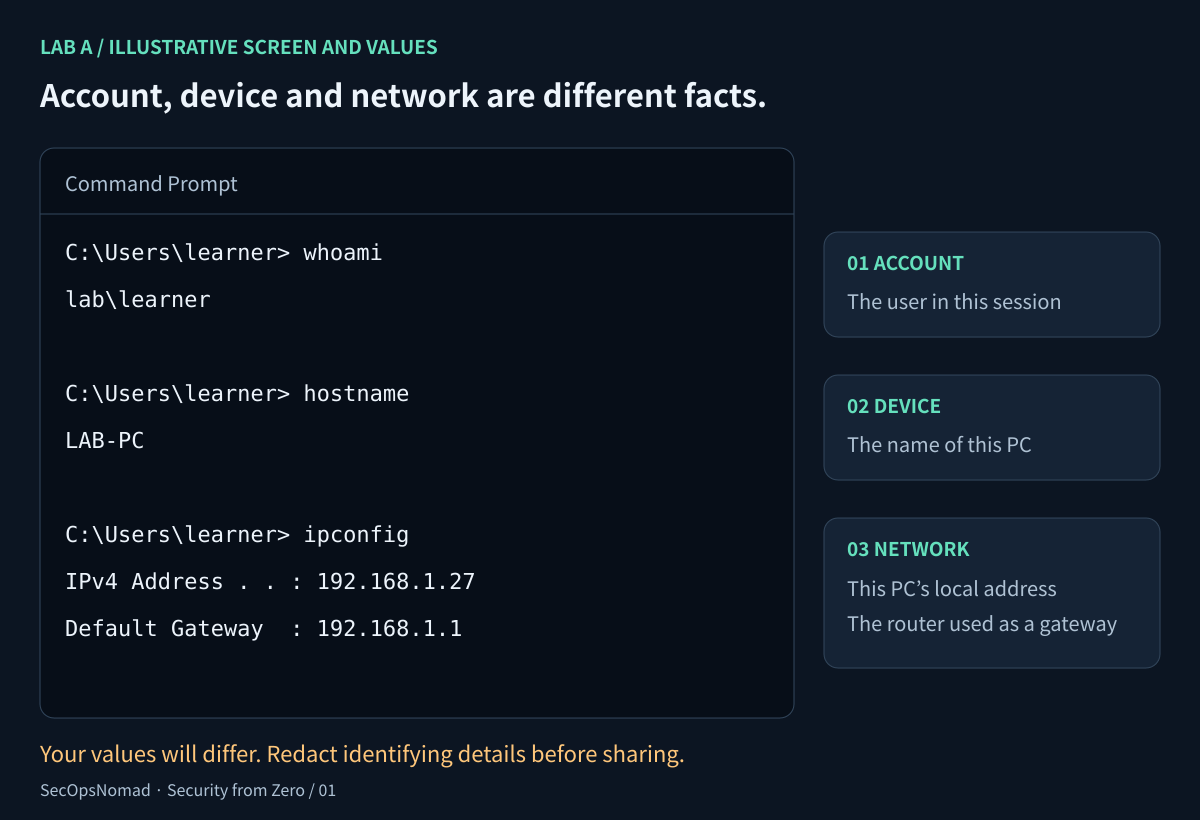
Figure 3. Read the output as answers to questions. Your names and addresses will differ.
An IP address identifies a network interface within a network context; it does not identify a person. 192.168.1.27 is a private address in this illustration. A default gateway is the router used for destinations without a more specific route. DNS helps translate names into records, often addresses. Your PC’s local address and the address returned for a website are different facts.
If you have several adapters, identify the one you are actually using. A VPN or virtual machine can add others. If DNS lookup fails, record the failure and check connectivity; do not invent a result. Resolving a name does not prove the website is safe or reachable over HTTPS.
Your checkpoint: explain, in your own words, the difference between your device’s address, your gateway and a website’s resolved address. Keep raw account and network details private; use consistent placeholders in a public write-up.
4. Lab B: connect an application to a process
A program is software stored on disk. A process is a running instance of software. Windows gives it a process ID, or PID. A browser normally uses many processes for tabs, rendering and other work.
- Open Task Manager with Ctrl + Shift + Esc. On Windows 11, choose Processes in the left navigation. On older layouts, use the Processes tab.
- Open Notepad yourself. Find it in Task Manager and note the time and memory use. Close it normally, then observe what changes.
- Choose Details. Find a browser process and record its name and PID. If the PID column is hidden, right-click a column heading and enable it.
- In Command Prompt, list running processes. Replace the example PID below with one you just observed.
tasklist
tasklist /fi "PID eq 4280"
netstat -ano
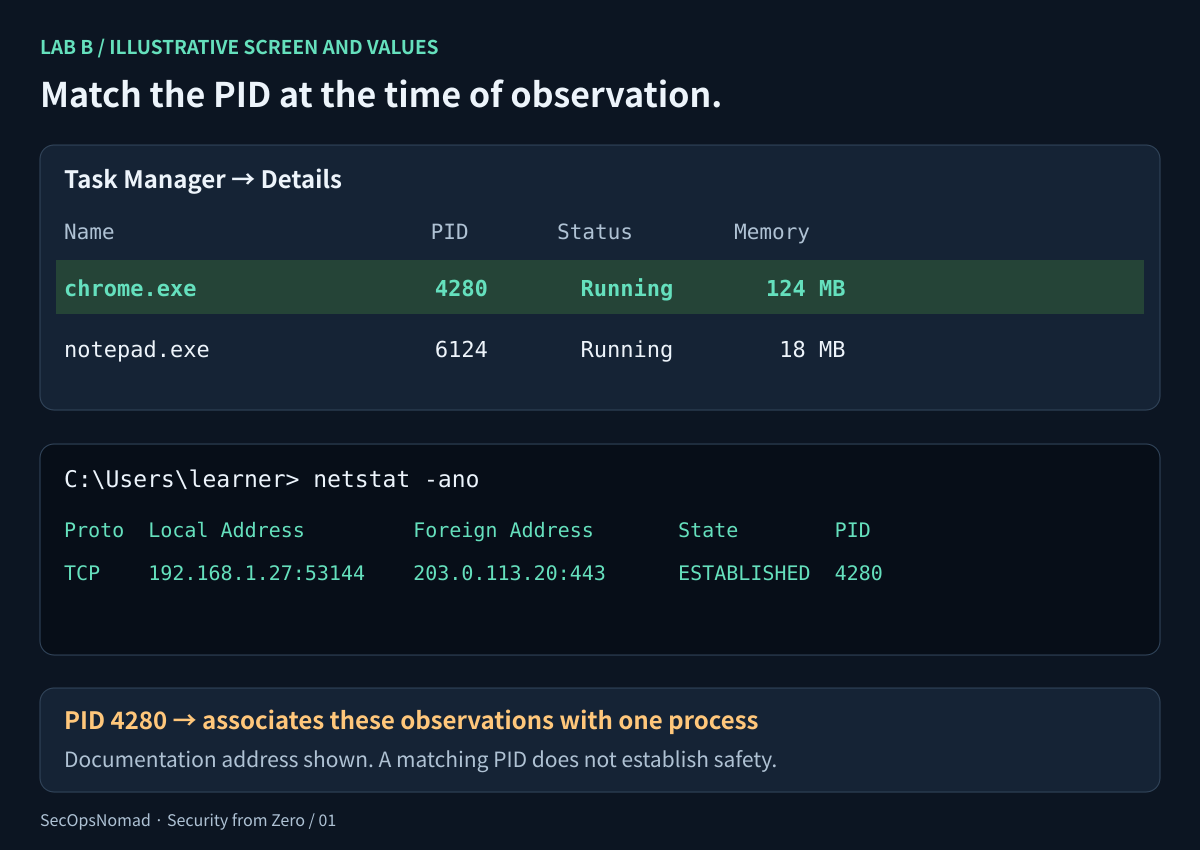
Figure 4. Match the PID across two views. The destination 203.0.113.20 is reserved for documentation; this is a schematic example.
In netstat -ano, -a includes connections and listening ports, -n keeps addresses and ports numeric, and -o adds the PID. A port is a numbered network endpoint used by a service or connection. 443 commonly carries HTTPS, but the number alone does not prove the protocol or that the traffic is trustworthy. LISTENING means a socket is waiting for connections; ESTABLISHED describes an active TCP connection.
Look for a PID that appears in both outputs. If your browser has no matching TCP row, choose another browser process or record that no match was observed. Browsers can use QUIC over UDP, connections change quickly, and cached pages may need no new connection. netstat does not show the full page URL or the content of encrypted traffic.
Your checkpoint: record a timestamp and time zone, a process name and PID, and one observation from netstat. PIDs can be reused after a process exits, so compare observations close together. A familiar name, several browser processes or high CPU use does not establish whether something is malicious. This exercise is observation only; close your test app normally.
5. Lab C: inspect a web request in your browser
The browser’s Elements panel shows the page’s document structure. Its Network panel shows requests and responses. For this exercise, use Network.
- Open a new tab and visit
https://example.com. Use this public demonstration page without signing in. - Right-click the page and choose Inspect, or use Ctrl + Shift + I. Select Network.
- Reload the page while Network is open. It records activity from that point; an empty panel before reloading is normal.
- Select the main request, usually named
example.com. Under Headers, find Request URL, Request Method and Status Code. Look forcontent-typein Response Headers. - Record the values you actually see. A response may come from cache, and status codes or timings can differ from the illustration.
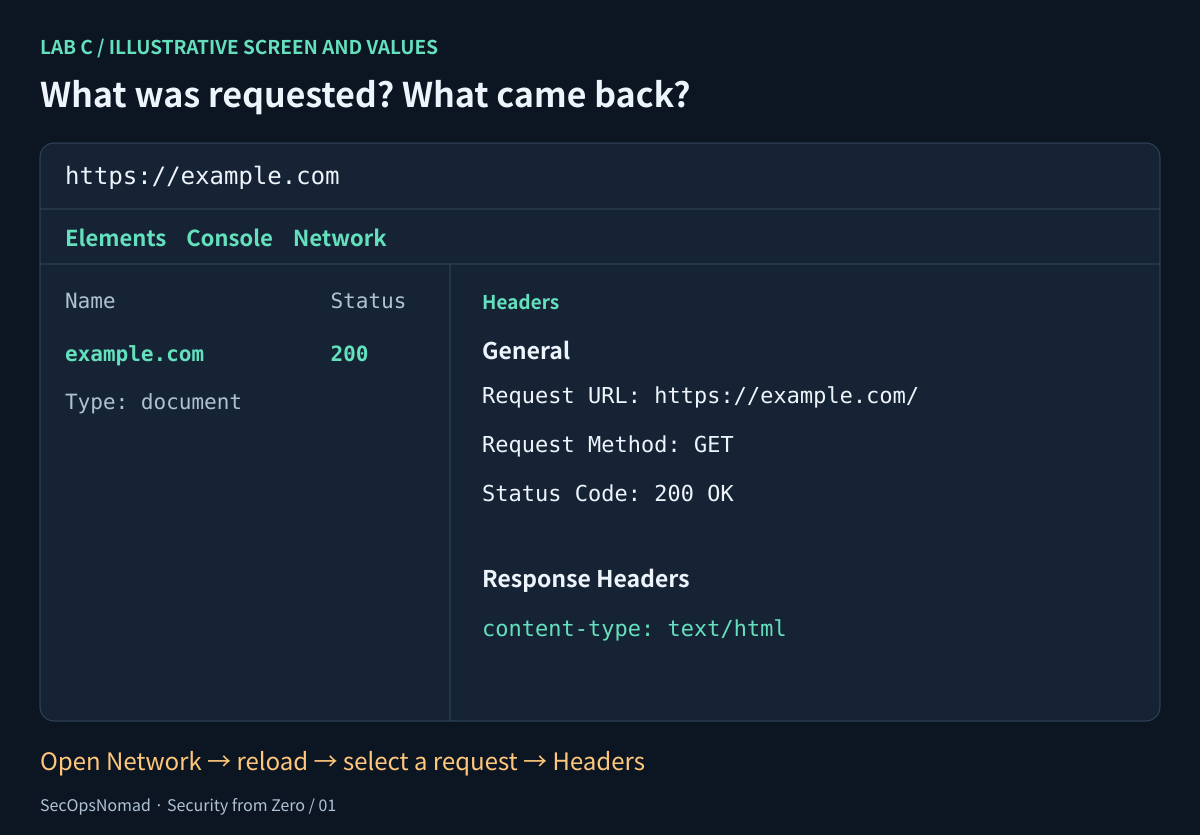
Figure 5. Inspect → Network → reload → select a request → Headers. You can enlarge the image to read the fields.
HTTP defines how clients request resources and servers respond. HTTPS protects that exchange with TLS. A GET request asks for a resource. 200 reports a successful HTTP response; 404 means the resource was not found; 401 concerns missing or invalid authentication, and 403 means the server refuses the request. None of these status codes alone establishes whether an attack occurred. HTTPS protects the connection; a malicious site can also use it.
For an analyst, a useful question is: “What was requested, when, and what response came back?” DevTools is a local view of your browser’s activity. It is not an organisation-wide security monitor. Avoid publishing cookies, authorisation headers, tokens or exported HAR files from signed-in sessions.
Your checkpoint: explain the difference between an IP address, a port, a URL and an HTTP status code. A strong answer connects them: a browser requests a URL, resolves a hostname to an address, contacts a service, and receives an HTTP response.
6. Turn the exercises into your first portfolio note
Write one page, titled “Observing normal activity on my Windows PC”. A hiring manager should be able to follow what you did without guessing. Use the workbook to separate:
- Question: what did you set out to understand?
- Environment and method: Windows version, browser, date, time zone and steps taken.
- Evidence: two or three annotated observations, with consistent redacted values.
- Interpretation: what the observations support, and why.
- Limits and next step: what you could not establish and what you would check next.
For example: “At 14:10 UTC I observed process PID 4280 in Task Manager and a TCP connection with that PID in netstat. This associates the connection with that process at that time. It does not establish whether the destination is safe.” Replace the example with your own observations. If no connection matched, report that accurately instead.
This is a learning exercise, not professional incident-response experience. Do not claim you detected malware or secured a company. Once you have completed and documented the work, an honest project bullet might be: “Documented a Windows baseline exercise linking process IDs, network connections and browser requests; recorded findings, redactions and investigation limits.”
7. Your seven-day plan
| Day | Work | Time | Finish with |
|---|---|---|---|
| 1 | Read sections 1–2; collect five relevant job descriptions. | 45 min | A list of repeated skills and actual role requirements. |
| 2 | Run Lab A and explain each output. | 35 min | A private account, device and network note. |
| 3 | Run Lab B; compare a process with a connection. | 45 min | A timestamped observation and its limits. |
| 4 | Run Lab C; inspect one request. | 40 min | An annotated request and response. |
| 5 | Draft your one-page note. | 45 min | A clear account of what you did and learned. |
| 6 | Compare your work with the job descriptions. | 30 min | Your next three study priorities. |
| 7 | Answer the questions below aloud; revise your note. | 30 min | An explanation you can give without reading it. |
8. Check that you can explain it
Cover the answer column and try explaining each idea aloud:
| Interview practice | What a sound answer covers |
|---|---|
| What does a junior SOC analyst do? | Reviews alerts, gathers context, documents findings and escalates through the team’s process. |
| Is an alert a confirmed incident? | No. It needs assessment using evidence and the organisation’s criteria. |
| What is the difference between a process and a program? | Stored software versus a running instance; a PID identifies a process at a point in time. |
| What does a matching PID tell you? | It associates observations with a process at that time. It does not prove intent or safety. |
| Does HTTPS mean a website is safe? | It protects the connection with TLS. It does not guarantee the site’s intentions. |
| What would you do if you could not explain an observation? | State the uncertainty, collect the missing context and ask or escalate according to the playbook. |
You are ready for the next topic when you can explain these ideas, repeat the exercises, and show a note that distinguishes facts from assumptions. If a step is still unclear, repeat it. The aim is to build understanding you can use under questioning.
Sources and next steps
The command behaviour and Network panel steps were checked against the following vendor documentation on 21 October 2026. The illustrations use teaching data; these exercises have not been run on your device.
- Microsoft Learn: whoami, hostname, ipconfig, nslookup, tasklist and netstat.
- Chrome DevTools: Inspect network activity.
- The full Security from Zero roadmap. Continue with Topic 02: networking and Topic 03: operating systems.
21 October 2026: first published. Week 1 covers foundations and a personal learning exercise. Job descriptions, hiring requirements and screen layouts vary.
21 October 2026, course links: linked the published Topics 02 and 03. Week 1 exercises are unchanged.