An alert says a laptop connected to an unfamiliar address on port 443. What would you ask next? Start with the time, device, process and destination. Then ask what the application requested and why that activity deserves attention.
This is the networking foundation for that conversation. You will trace one ordinary web request and leave with a connection note that separates facts from assumptions. In an interview, explaining this small investigation clearly is more useful than reciting a list of port numbers.
Before you begin: complete Week 1. Use your own Windows PC, a normal Windows PowerShell session and Chrome or Edge. Windows PowerShell is a different shell from Command Prompt: open Start and search for Windows PowerShell. Commands marked powershell go there. None of these exercises requires changing network settings. The screen examples are teaching illustrations, with sample values rather than incident evidence. Select a figure to open the full-size image.
Download the Topic 02 workbook. Allow about three hours, including the write-up.
1. Follow a request through the layers
When you enter https://example.com/, several different things happen. The browser identifies a hostname, obtains an address if needed, establishes or reuses a connection, and exchanges HTTP messages. Caches and existing connections can mean some steps do not produce fresh network activity.
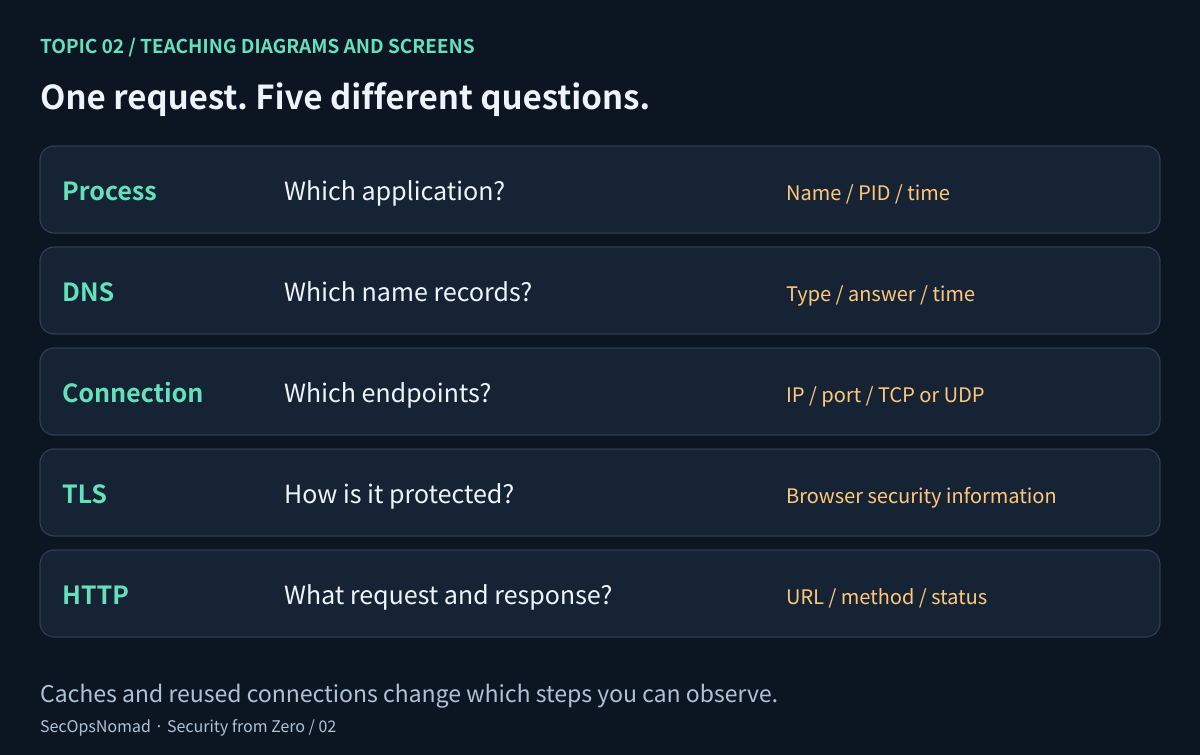
Figure 1. A useful map for investigation, rather than a promise that every page load creates a new connection.
| Layer | The question it answers | Example evidence |
|---|---|---|
| Process | Which running application was involved? | Process name, PID and observation time. |
| DNS | Which records were returned for this name? | Hostname, record type, answer and time. |
| Network and transport | Which endpoints communicated, and using what transport? | Source/destination address and port; TCP or UDP. |
| TLS | How was the connection protected? | Browser security information or appropriate network telemetry. |
| HTTP | What resource was requested, and what response came back? | URL, method, status and headers. |
These views complement each other. A DNS answer does not prove a connection happened. A connection row does not contain the full URL. A browser request does not describe every other process on the computer.
2. Addresses, names and ports are different facts
An IP address identifies an interface in a network context. An IPv4 address looks like 192.168.1.27; an IPv6 address might look like 2001:db8::27. The IPv6 example is reserved for documentation. Your real machine may have several IPv4 and IPv6 addresses.
An adapter is an interface such as Wi-Fi, Ethernet or a VPN interface. The default gateway is used when there is no more specific route to a destination. A DNS server answers name queries; it does not have to be the gateway, even when both happen to use the same address on a home network.
Private IPv4 ranges include 10.0.0.0/8, 172.16.0.0/12 and 192.168.0.0/16. The suffixes /8, /12 and /16 describe how many leading address bits identify the network block. These private ranges are reused on many networks, so 192.168.1.27 does not identify one unique device across the Internet. NAT can translate addresses, and often ports, between networks. An external service may see a shared public address rather than the laptop’s private address. Proxies and VPNs can change the visible path too. IPv6 does not necessarily follow the same translation model.
A hostname, such as example.com, is a name. DNS can return A records for IPv4, AAAA records for IPv6 and other record types. A name can return several addresses; many names can share infrastructure. An address you looked up later may differ from the one used earlier. Keep the lookup time.
A port helps distinguish transport endpoints. In a browser connection, a temporary local port might contact a service on remote port 443. Do not confuse the two directions.
| Common convention | What to recognise | What the port does not prove |
|---|---|---|
| TCP 80 | Commonly HTTP. | The identity or intentions of the application. |
| TCP 443 | Commonly HTTPS using HTTP/1.1 or HTTP/2. | That the site is trustworthy. |
| UDP 443 | Commonly QUIC, used by HTTP/3. | That every UDP 443 packet is HTTP/3. |
| UDP or TCP 53 | Conventional DNS transport. | That all DNS uses port 53; encrypted DNS can use other transports. |
| TCP 22 | Commonly SSH remote access. | That an SSH session was authorised. |
TCP provides an ordered, reliable byte stream between endpoints and tracks connection state. UDP sends datagrams without built-in guarantees of delivery or ordering. Applications can add those features: QUIC provides reliable streams over UDP. Neither transport is a safety verdict. The choice matters because a TCP-only view cannot describe every application’s traffic.
Learn the port conventions as clues, then verify the context.
3. Lab A: read your network configuration and DNS answers
In Windows PowerShell, run:
Get-NetIPConfiguration
Resolve-DnsName example.com -Type A
Resolve-DnsName example.com -Type AAAA
Identify the active adapter, its local address, default gateway and DNS server. If you see several adapters, explain which one you believe is carrying the browser’s traffic and what supports that choice. By default, this cmdlet shows non-virtual connected interfaces. If a VPN or other interface is missing, use Get-NetIPConfiguration -All, which also includes virtual and disconnected interfaces. Identify which entries are actually connected.
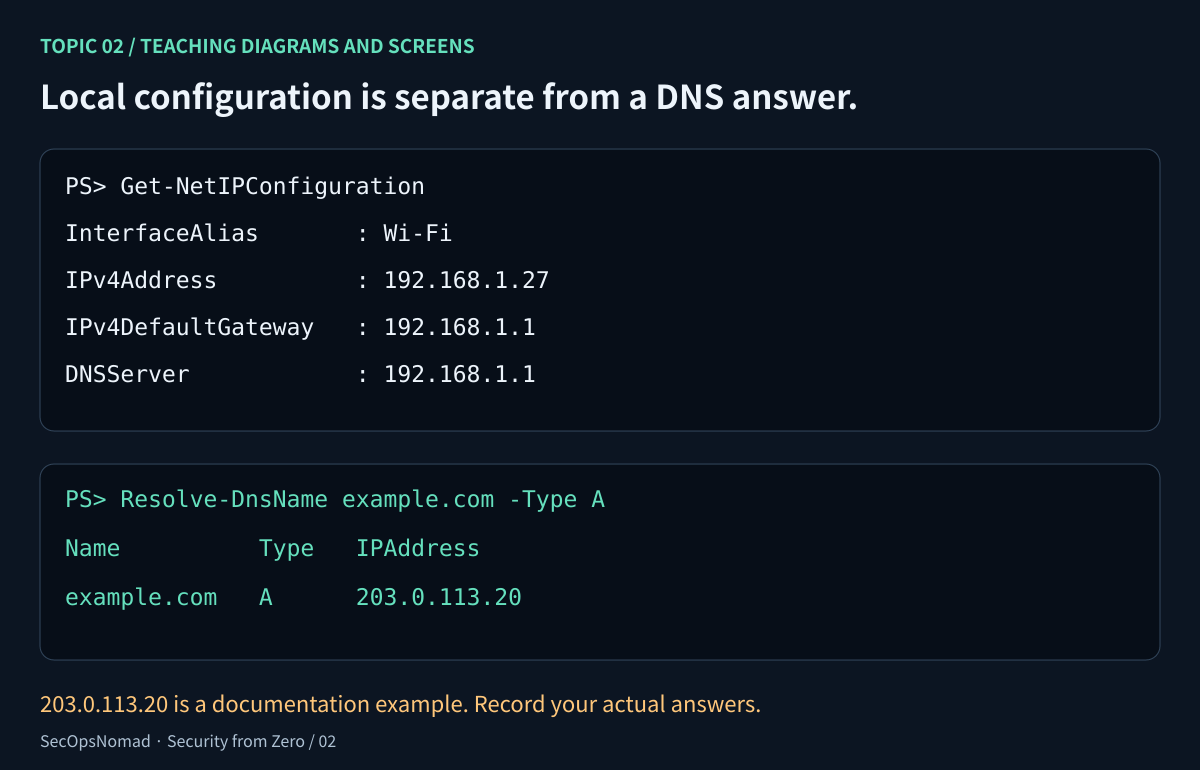
Figure 2. Keep local configuration and DNS answers in separate rows of your notes. The pictured DNS address is illustrative.
Write down the actual A and AAAA results, including any error or absence of records. Do not copy the address in the picture. An AAAA response shows that a record was returned; it does not show that your browser used IPv6 or that the path works. A timeout is an observation to investigate, not proof that the domain is malicious.
On a machine where those PowerShell cmdlets are unavailable, the following Command Prompt commands provide a basic alternative. nslookup output formats and the record types returned can differ:
ipconfig /all
nslookup -type=A example.com
nslookup -type=AAAA example.com
Checkpoint: explain the difference between your device’s address, the configured DNS server and an address returned for the website. Redact identifying details before sharing your notes.
4. Lab B: read one browser request
- Open
https://example.com/in Chrome or Edge. Open Inspect → Network before reloading. - If you want a fresh resource fetch, tick Disable cache while DevTools is open. This does not clear the machine’s DNS cache. Untick it when you finish.
- Right-click the request table’s column headings and enable Protocol. Reload and select the main document request.
- Under Headers, record the full Request URL, Request Method and Status Code. Note the Remote Address if shown. Record the Protocol column too.
- Record the observation time and time zone. If a field is unavailable, write that rather than guessing.
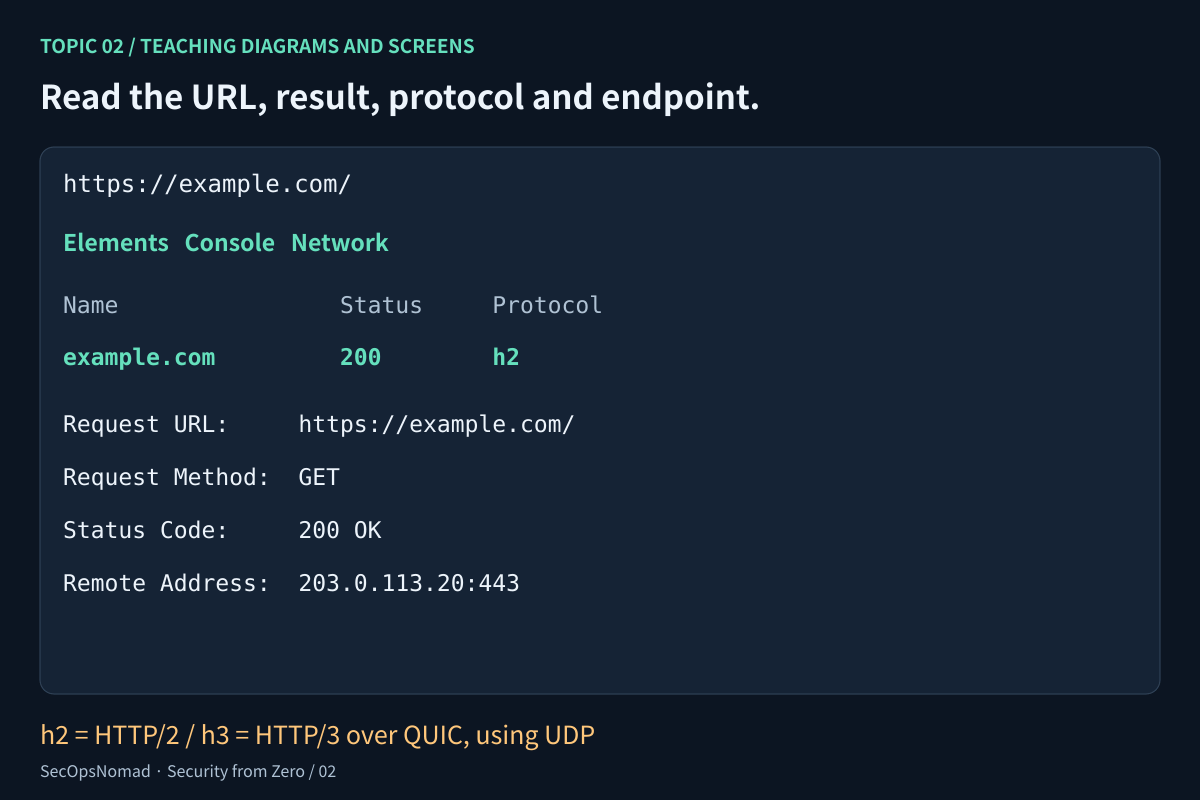
Figure 3. Read the URL, HTTP result and protocol as separate observations. h2 means HTTP/2; h3 means HTTP/3.
A URL includes more than a hostname: it can include a scheme, port, path and query. For https://example.com/, https is the scheme, example.com is the hostname and / is the path. The conventional port is 443 when none is written explicitly.
HTTP methods describe the request action: GET retrieves a resource, for example. Status codes describe the HTTP result. A 200 is a successful HTTP response; a 404 means the requested resource was not found; 401 concerns authentication and 403 means the server refused the request. None of these codes, by itself, establishes an attack. A successful HTTP response also does not mean a business transaction or a security check succeeded.
TLS protects HTTPS traffic in transit. It does not certify the operator’s intentions. Typical connection telemetry can show endpoints without exposing the encrypted path, query or response body. DevTools sees application details inside your browser, which is why it can show more than a connection list.
Checkpoint: describe your selected request in two sentences without replacing the hostname with an IP address or treating status 200 as a safety verdict. Use this public, signed-out page for the exercise; authenticated headers, cookies, URLs and HAR exports can contain secrets.
5. Lab C: associate a TCP connection with a process
Run this in PowerShell while the browser is open:
Get-NetTCPConnection -State Established |
    Select-Object -First 12 LocalAddress, LocalPort, RemoteAddress, RemotePort, OwningProcess
This example displays at most 12 rows, so it may omit your browser. To inspect one browser PID you already identified in Task Manager, use Get-NetTCPConnection -OwningProcess 4280 with your own PID.
Choose one observed row. In Task Manager → Details, look up its PID, or use Get-Process below. Replace 4280 with the OwningProcess value from your own row. The two observations should be close in time; a process may exit and its PID can later be reused.
Get-Process -Id 4280 | Select-Object Id, ProcessName
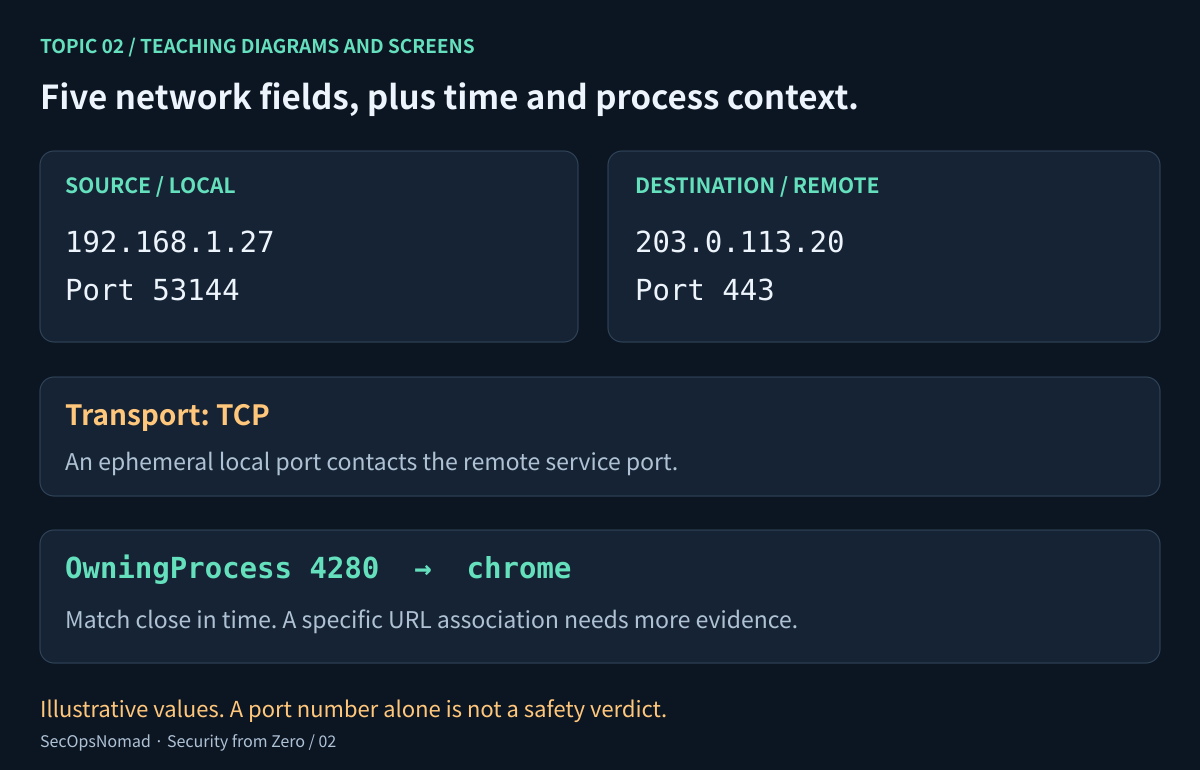
Figure 4. A five-tuple is source address, source port, destination address, destination port and transport. Add time and process context to make it useful.
In a host view, local and remote are relative to your PC; those labels alone do not establish which side initiated a connection. The source and destination in Figure 4 describe the outgoing browser example.
You have associated a TCP row with a process at an observation time. You have not yet proved it belongs to the particular browser request selected in DevTools. Compare the address, port, transport and time, and record whether the evidence is sufficient. Browsers share and reuse connections across activity.
If the selected request uses HTTP/3, its QUIC traffic uses UDP, so a TCP-only listing cannot show that connection. If a TCP row is missing, the connection might also have closed or been reused. Missing rows are a limitation of this snapshot, not evidence of safety. An exited PID or denied process lookup should be recorded as such.
The Command Prompt alternative is netstat -ano, introduced in Week 1. Its TCP rows include PIDs; UDP rows have different fields and no TCP connection state. Do not force them into the same format.
6. Practise the analyst’s next question
These are fictional training observations, not findings about a real device:
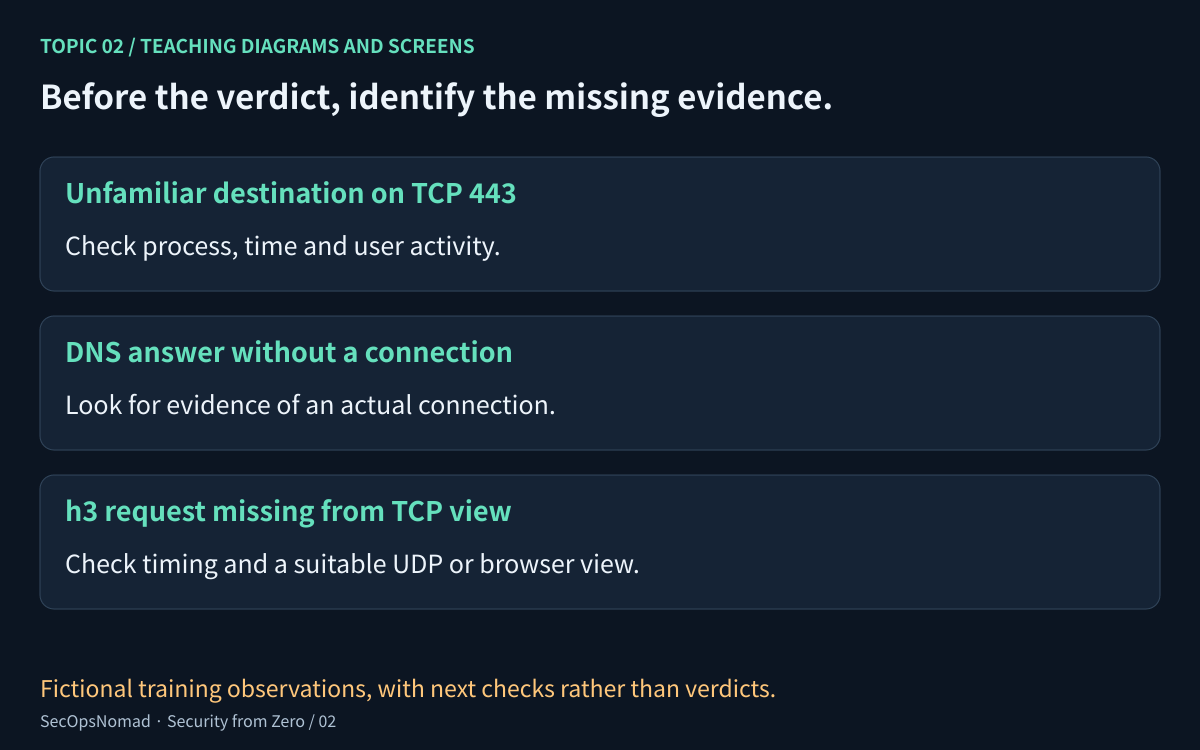
Figure 5. Good triage identifies the next useful evidence source.
| Observation | A reasonable next check | Avoid concluding |
|---|---|---|
| A browser contacted a new address on TCP 443. | Which request, process, timestamp and user activity explain it? | “443 means safe” or “unfamiliar means malicious.” |
| A name returned three A records. | Which address was actually contacted at the relevant time? | Every returned address was contacted. |
| The browser shows h3; the TCP snapshot has no matching row. | Confirm the timing and inspect suitable UDP or browser evidence. | No network communication happened. |
| A request returned 403. | Check the requested resource, authentication context and expected policy. | The server must be under attack. |
In a SOC, you would use the organisation’s approved telemetry and playbook to collect that context. This personal exercise develops the reasoning that comes before the tool-specific query.
7. Build your connection note
Use the workbook to make one page containing: the question, device and software context, time zone, DNS result, browser request, one connection/process observation, your interpretation, and the remaining gap. Label any association you could not establish.
An honest conclusion might be: “I observed a GET request using h3 and recorded its HTTP response. My separate TCP listing does not describe that QUIC connection. I would need an appropriate UDP or browser view to investigate that path.” Use your actual results, even if they differ.
When the exercise is complete, a project bullet can describe what you did: “Traced a browser request across DNS, HTTP and host connection views; documented timestamps, process context and gaps in correlation.” Describe it as a personal lab, with redacted evidence you can show.
| Interview question | What your answer should cover |
|---|---|
| What is the difference between DNS and HTTP? | Name records versus application requests and responses. |
| Why are there two ports in a connection row? | The local endpoint and the remote endpoint have separate port numbers. |
| Does a DNS answer prove a connection? | No; collect connection evidence at the relevant time. |
| Why might HTTP/3 be absent from a TCP listing? | QUIC uses UDP; also check the observation timing. |
| What makes an IP address useful in an investigation? | Its timestamp, source, role, transport and surrounding activity. |
You are ready to continue when you can annotate one request, explain the five-tuple, and identify one thing your evidence cannot establish. Topic 03 turns to the operating system behind the process.
Sources and publication note
Command syntax and browser steps were checked on 21 October 2026 against Get-NetIPConfiguration, Get-NetTCPConnection, Resolve-DnsName, Get-Process, Microsoft’s ipconfig, nslookup and netstat, and Chrome’s Network tutorial. See also MDN’s HTTP overview, status codes, and RFC 9114 for HTTP/3. The transport definitions follow TCP, RFC 9293 and UDP, RFC 768.
The illustrated IPv4 destination is reserved by RFC 5737. Windows commands were reviewed against documentation, not executed on a Windows device in the publishing environment. Your own observations are the exercise results.
21 October 2026: first published, in English and Japanese. Return to the roadmap.