Something happened on a Windows machine, and someone has to say what. Was a file copied out? Did a program run that should not have? Is the attacker still there? Digital forensics and incident response (DFIR) is the work of answering those questions with evidence that would stand up if someone checked it.
This is the first part of a twelve-part course that takes you from no forensics knowledge to running a Windows investigation on your own. Each part asks one investigator’s question, shows the evidence that answers it, uses two tools that must agree, and ends with an exercise whose answer you can check. The last part is a full case published by the US National Institute of Standards and Technology (NIST), which you investigate alone and mark against NIST’s own answer key. The full syllabus is on the DFIR course page.
By the end of this part you will be able to:
- run an investigation as questions and evidence rather than as a tour of a tool;
- handle evidence without changing it, and prove that you did not;
- choose between the free and paid tools, knowing what each licence allows;
- build a safe two-machine lab;
- find activity you created yourself in Autopsy and confirm it with a second tool.
If you are in the middle of a real incident right now, stop here and use our ransomware response playbook or account compromise playbook instead. This course is for learning before the day you need it.
What DFIR is, in one page
Digital forensics answers what happened, when and how, with evidence. Incident response stops the damage and gets the organization running again. In practice they run together: responders need forensic answers to decide what to contain, and investigators need responders not to destroy the evidence while containing it.
Two NIST publications frame the work. SP 800-86 breaks forensics into four phases: collection, examination, analysis and reporting. SP 800-61 Revision 3, published in April 2025, places incident response inside the six functions of NIST’s Cybersecurity Framework 2.0 rather than treating it as a separate cycle. In Japan, the Institute of Digital Forensics (デジタル・フォレンジック研究会) publishes the evidence preservation guideline (証拠保全ガイドライン), 10th edition, dated 15 March 2025, the reference most Japanese practitioners and lawyers work from.
Real cases come in two modes, and beginners usually learn only the second:
- Triage: many machines, little time. Which machines are involved? Is it still happening? What do we isolate first? Answers come from small, fast collections.
- Deep dive: one machine, full detail. What exactly happened, in what order, and how sure are we? Answers come from a full image and a timeline.
Most incidents start with triage and deep-dive only the machines that matter. This course teaches both: parts 2 and 5 are triage skills; parts 4 and 6 to 9 go deep.
The method: questions first, then evidence
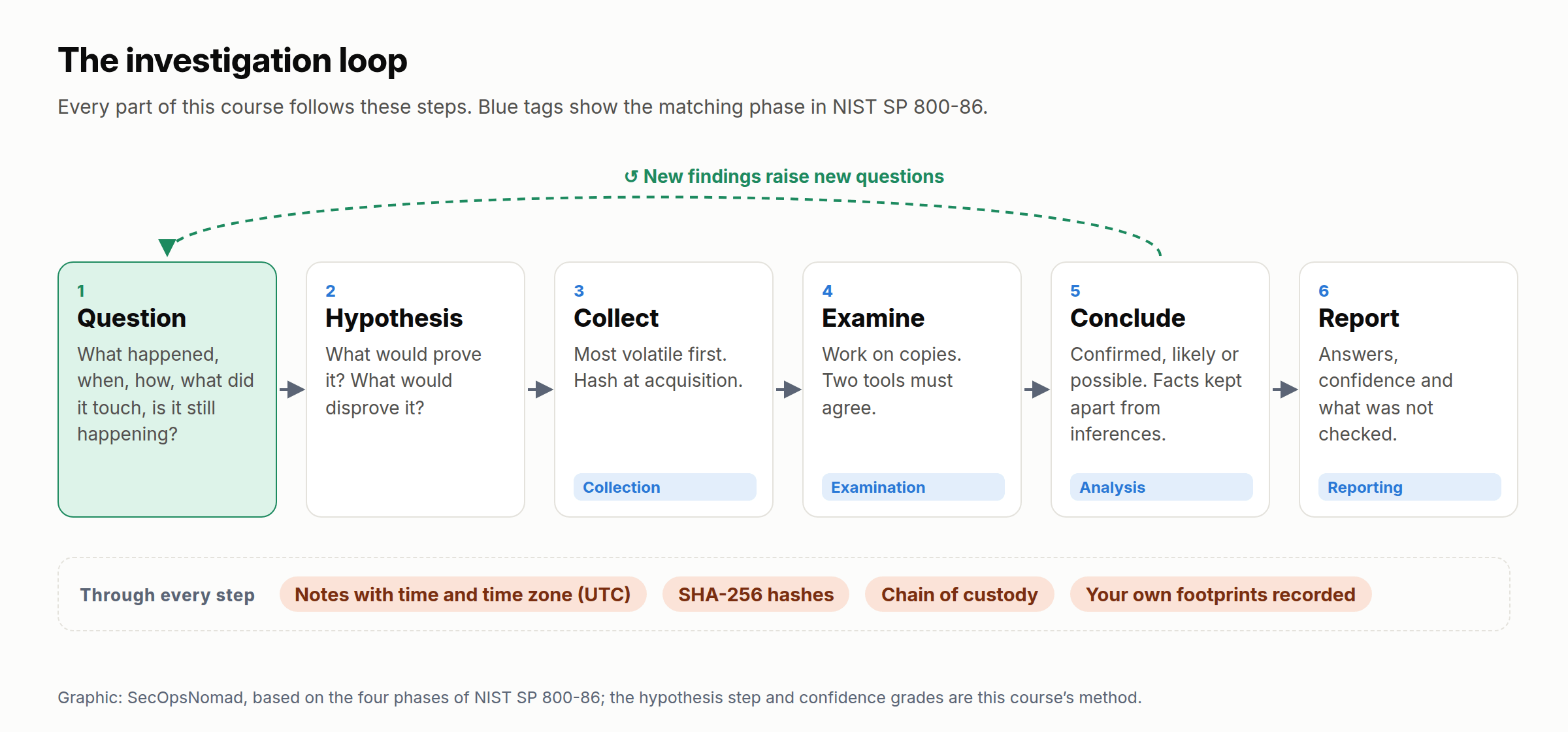
Figure 1. The investigation loop. Based on the four phases of NIST SP 800-86; the hypothesis step and the confidence grades are how this course applies them.
A tool shows you thousands of artifacts. Without a question, you will drown in them. Every investigation in this course starts with five questions:
- What happened? Data copied out, a program run, an account misused, files encrypted?
- When? The first and last evidence of the activity, with the time zone.
- How? How did they get in, and what did they run?
- What did it touch? Which accounts, machines and data. This is the scope, and it decides who must be told.
- Is it still happening? Anything that survives a reboot, any session still open.
Turn each question into a hypothesis you can test, then list the evidence that would prove or disprove it. For example: a user says they never ran invoice.exe. The hypothesis is that it ran. If it did, Windows would usually leave a Prefetch file, an Amcache entry, a process-creation event if auditing was on, and a record in the EDR. Check each. If all are absent, the honest conclusion is not “it never ran”. It is “no evidence of execution in Prefetch, Amcache, the Security log or the EDR, which together cover the period from X to Y”.
Grade every conclusion:
- Confirmed: two independent artifacts agree.
- Likely: one artifact, consistent with everything else.
- Possible: fits the facts, but nothing shows it directly.
In your notes, keep three columns apart: facts (what an artifact shows), inferences (what you conclude from it) and unknowns (what you could not check). Readers of your report will act on the difference.
Evidence discipline: the rules from day one
Courts, regulators, insurers and your own management may all ask how you know. These rules are what let you answer. Learn them now, while the stakes are low.
1. Authority before access
Get written permission that says which machines, accounts and data you may examine, and for what purpose. Two Japanese laws matter on day one:
- The Unauthorized Computer Access Act (不正アクセス禁止法) does not stop applying because you are investigating. Logging in to an attacker’s server or a cloud account with credentials you found in the evidence is still using someone else’s credentials without permission. Investigate what your client owns; hand the rest to the police.
- Evidence is full of personal information, so the Act on the Protection of Personal Information applies to your copies too. If personal data may have leaked, the company must report to the Personal Information Protection Commission: a preliminary report promptly (about three to five days, according to the guidelines) and a final report within 30 days, or 60 days if an improper purpose such as an attack may be involved. Your findings feed both reports, so record when you learned each fact.
If the case may go to the police, preserve before you restore. The National Police Agency’s single online contact point forwards reports to the prefectural police you choose.
2. Most volatile first
Some evidence disappears when the machine is switched off or simply keeps running. RFC 3227, the long-standing guidance on evidence collection, orders it from most to least volatile:
| Order | Evidence | Lost when |
|---|---|---|
| 1 | Registers and cache | Microseconds later |
| 2 | Routing and ARP tables, process table, kernel statistics, memory | The machine is switched off |
| 3 | Temporary file systems | Reboot or clean-up |
| 4 | Disk | Overwritten over days or weeks |
| 5 | Remote logging and monitoring data | Retention runs out |
| 6 | Physical configuration and network topology | Someone changes it |
| 7 | Archival media | Rarely |
In practice: do not switch off or re-image a suspect machine before someone has decided whether to capture memory. Isolate it with your EDR’s network containment rather than pulling the cable if you can, because containment keeps memory and running processes intact. Part 2 covers memory capture.
Japan’s evidence preservation guideline states the rule from both directions. A computer that is running should stay on until volatile data has been captured, unless keeping it powered visibly widens the damage (section 5-1-2). A computer that is off should not be switched on, except where full-disk encryption leaves no other way to preserve it (section 5-2-1).
3. Work on copies, and prove it with hashes
Never examine the original. Make a copy, then calculate a cryptographic hash of it: a fingerprint that changes completely if a single bit changes. Use SHA-256. Calculate it when you acquire the evidence, again after every transfer, and again after your analysis. Matching values prove the copy is unchanged.
On Windows, PowerShell’s Get-FileHash uses SHA-256 by default:
Get-FileHash -Path 'C:\Cases\DFIR-LAB-001\evidence\DFIR-LAB-001-target.vhd' -Algorithm SHA256 | Format-List
On macOS, shasum -a 256 <file> gives the same value; on Linux, sha256sum <file>. Some older tools still print MD5 or SHA-1. Microsoft’s own documentation says those two are no longer secure against deliberate tampering, so use them only as a second check beside SHA-256.
Japan’s guideline calls this step verifying identity (同一性の検証, section 7-3): hash both the original and the copy when you make a full copy. Where the original cannot be hashed, as in a live acquisition or on a disk with bad sectors, hash the copy and record why. Its own example uses Windows’ built-in CertUtil -hashfile <file> <algorithm>; with SHA256 as the algorithm it calculates the same value as Get-FileHash.
4. Write everything down
Your notes are evidence of your work. For every action, write the time with its time zone, what you did, why, and what happened. Japan Standard Time is UTC+9 with no daylight saving, and Windows stores most file system times in UTC, so a missing time zone moves your whole timeline by nine hours. Writing notes in UTC avoids the problem.
The chain of custody records every hand the evidence passed through: what the item is, its hash, who held it, when, where it was stored and why it moved. Templates for both are at the end of this lesson. Japan’s guideline also asks you to record the serial numbers and software versions of every device and tool involved (section 7-4-2), and to photograph or film each step so that it can be reproduced later (section 7-4-3). Its appendix E has a sample chain-of-custody sheet.
5. Your own footprints are evidence too
Everything you do on a running machine leaves traces: Prefetch files for the tools you run, PowerShell history, logon events for your account. Record what you ran and when, so you can separate your activity from the attacker’s later.
Never log on to a suspect machine interactively with a domain administrator account. If the attacker is still there, tools that read credentials out of memory (ATT&CK T1003.001, LSASS Memory) can take that account, and the incident becomes much larger. Use a dedicated response account with only the rights you need.
6. One artifact is a clue; two are a finding
Tools have bugs, and artifacts have quirks. A finding counts when two independent sources agree, ideally read by two different tools. The exercise below does exactly that.
Mistakes beginners make, and what they cost
| Mistake | What it destroys | Do this instead |
|---|---|---|
| Rebooting or re-imaging first | Memory, running malware, open connections | Isolate, decide on memory capture, then act |
| Running a full antivirus scan first | Files the scanner quarantines or deletes | Collect first; scan the copy |
| Opening suspicious files on your own PC | Your PC, possibly your network | Use the analysis machine in your lab |
| Dragging files to a USB stick as “evidence” | Original timestamps on the copies; no hash | Use an imaging or collection tool that hashes |
| Leaving out the time zone | A timeline that is wrong by hours | Note times in UTC, or always write the zone |
| Writing “it didn’t happen” | Your credibility, when it turns out it did | Say what you checked and what it covers |
Seen from both sides: what attackers do to your evidence
Capable attackers try to destroy exactly the evidence this course teaches you to read. Knowing their moves tells you what to look for when something is missing. Most of these moves also leave a trace of their own, and those traces make some of the most reliable alerts you can have, because legitimate users rarely do these things.
| Attacker’s move | ATT&CK | What it destroys | What it leaves behind | Alert worth having | Part |
|---|---|---|---|---|---|
Clear the event logs (for example wevtutil cl Security) |
T1070.001 | The events in that log | Security event 1102 or System event 104, which record the clearing itself; a gap in record numbers | Any 1102 or 104 outside planned maintenance | 5 |
| Delete their tools and staged files | T1070.004 | The file contents, eventually | File records in the $MFT, entries in the $UsnJrnl change journal, Prefetch for the deleted program | EDR alert on mass deletion, or deletion straight after execution | 8 |
| Change file times (“timestomping”) | T1070.006 | Honest file times | A mismatch between the two sets of times NTFS keeps for each file | EDR detection of time-changing tools | 8 |
| Clear command history | T1070.003 | PowerShell history file | PowerShell script block logs, if enabled; Prefetch | PowerShell logging sent to your SIEM, where the attacker cannot delete it | 5 |
| Switch off or blind Defender (for example add an exclusion) | T1562.001 | Future detections | Defender event 5007 (configuration changed); registry values | Any new exclusion outside a change ticket | 6 |
The defender’s lesson: forward logs off the machine as they are written. An attacker who clears the local log cannot clear the copy in your SIEM.
The Windows evidence map
Windows records far more than most users realise. This map links each question to the artifacts that answer it and to the part of this course that teaches them.
| Question | Main artifacts | Part |
|---|---|---|
| Did a program run? | Prefetch, Amcache, Shimcache, BAM, UserAssist, SRUM; process-creation events | 4 |
| Who logged on, how, and from where? | Security events 4624, 4625 and 4672; RDP logs | 5, 10 |
| What starts again after a reboot? | Run keys, services, scheduled tasks, WMI subscriptions, startup folders | 6 |
| What did the user open, browse or plug in? | LNK files, Jump Lists, ShellBags, browser history, USB device records | 7 |
| Which files were created, changed or deleted? | $MFT, $UsnJrnl, $LogFile, Recycle Bin | 8 |
| What was running and connected at that moment? | Memory | 9 |
| Where else did the attacker go? | Logon events on other machines; RDP, SMB and remote-service traces | 10 |
Your toolkit, and what each licence allows
The course uses free tools first, and shows Magnet Axiom, a commercial suite, alongside Autopsy in part 3 so you can compare them. Paid is not automatically better. What matters is that two tools agree.
| Tool | Maker | What we use it for | Cost and licence | Parts |
|---|---|---|---|---|
| Autopsy | The Sleuth Kit project | Opening disk images; finding deleted files; keyword search; timelines; reports | Free, open source (Apache License 2.0) | 1, 3, 11, 12 |
| Magnet RESPONSE | Magnet Forensics | One-click collection from a live machine: memory, volatile data, event logs, registry, $MFT, Prefetch | Free | 2 |
| Magnet DumpIt for Windows | Magnet Forensics | Memory capture | Free, under Magnet’s end-user licence; the Linux version is open source | 2 |
| Magnet Encrypted Disk Detector | Magnet Forensics | Checking for BitLocker or VeraCrypt before a machine is switched off | Free | 2 |
| Magnet Axiom | Magnet Forensics | Commercial examination suite | Paid; trial on request | 3 |
| FTK Imager | Exterro | Disk imaging, hashing, previewing evidence | Free; FTK Imager Pro is paid (since September 2025) | 2 |
| KAPE | Kroll | Fast, targeted collection | Free for government agencies and for educational, research and internal company use. Since 1 January 2026 not available for commercial use: on a third party’s network or in a paid engagement | 2 |
| EZ Tools (PECmd, EvtxECmd, MFTECmd, RECmd, Timeline Explorer and others) | Eric Zimmerman | Reading one artifact type at a time, in detail | Free. The command-line tools in this course are open source (MIT licence); the graphical ones are free but closed source. Current builds need .NET 9 | 1, 4–8, 11 |
| Hayabusa | Yamato Security (Japan) | Fast, rule-based event log triage | Free, open source; use version 3.8.0 or later, which fixed a cross-site scripting flaw in its HTML reports | 5, 10 |
| Volatility 3 | Volatility Foundation | Memory analysis | Free; Volatility Software License, which requires you to publish changes you distribute | 9 |
| Autoruns | Microsoft Sysinternals | Listing every place a program can start automatically | Free | 6 |
| LogonTracer | JPCERT/CC | Drawing logons between machines as a graph | Free, open source | 10 |
Two points catch people out. KAPE’s terms changed on 1 January 2026: it stays free for internal company use, but it is no longer available for use on a client’s network or in paid work, so consultants need a different collection tool for client cases. Part 2 compares the alternatives. And Autopsy’s installation guide warns that antivirus software may quarantine or even delete results before you see them, and recommends excluding the case folder; the lab below does that.
Build the lab
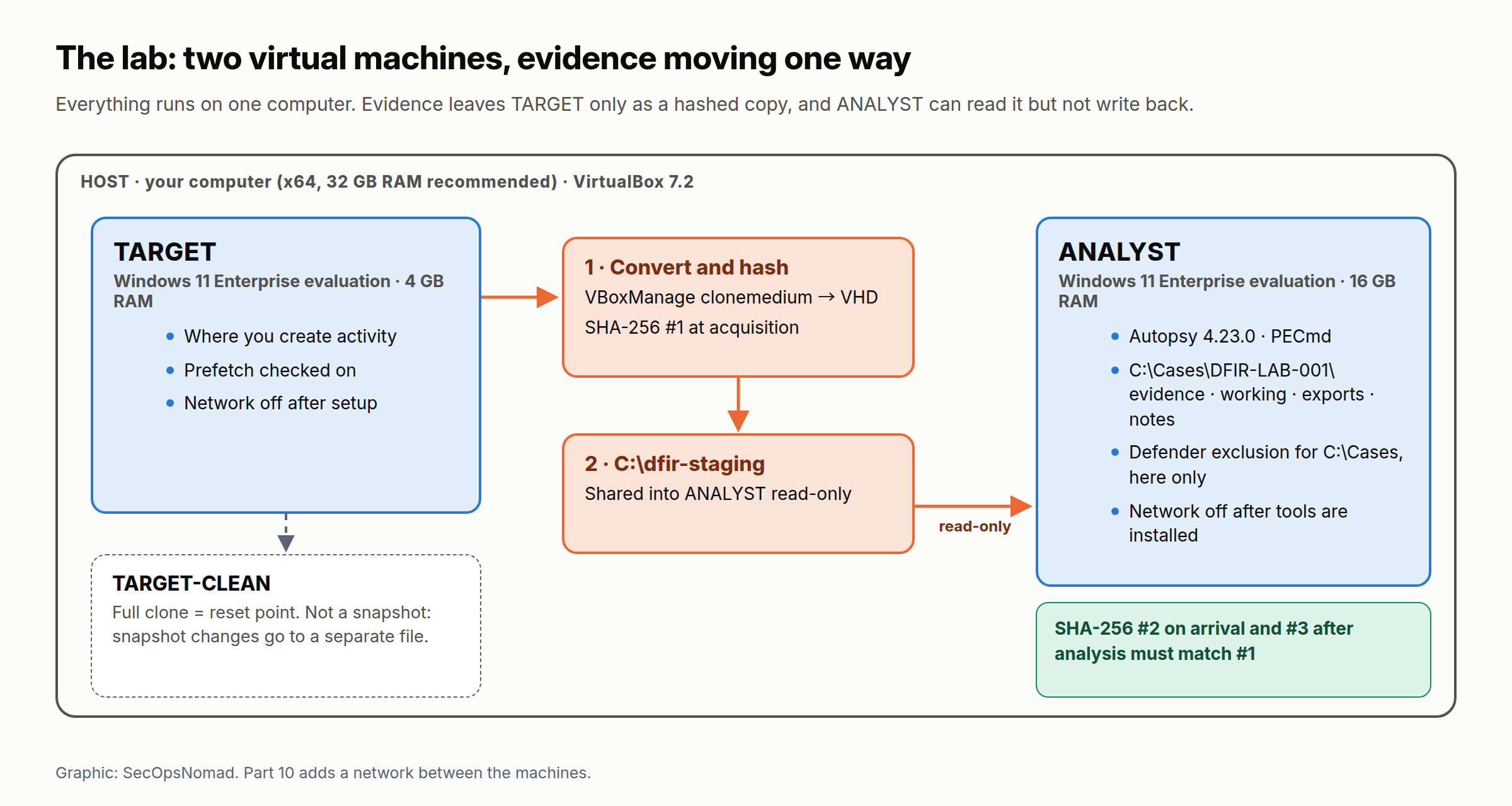
Figure 2. The lab used throughout the course. Part 10 adds a network between the machines.
What you need
- A computer with an Intel or AMD (x64) processor. Some tools later in the course run only on x64 Windows.
- Memory: 32 GB is comfortable. Autopsy’s installation guide recommends at least 16 GB of RAM for the machine that runs it, and you will run TARGET and ANALYST one at a time. On a 16 GB host you can still do this lab by giving ANALYST about 12 GB; that is below Autopsy’s recommendation, so expect ingest to be slower.
- Disk: about 150 GB free, preferably on an SSD.
- A hypervisor. This lesson uses VirtualBox 7.2, which is free (the base package is open source under the GPL version 3) and offers the TPM and Secure Boot settings that Windows 11 needs. VMware Workstation Pro has been free for all uses, including commercial, since November 2024, and Hyper-V is built into Windows Pro and Enterprise. Both work; the menus differ.
- Windows 11 Enterprise evaluation from Microsoft’s Evaluation Center. It runs for 90 days, which is enough for this course, and you can rebuild it afterwards.
Step 1: build TARGET
Create a virtual machine named
TARGET, type Windows 11 (64-bit), with 4 GB of RAM, 2 processors and an 80 GB dynamically allocated disk. In its settings, check that the TPM is version 2.0 and Secure Boot is on; Windows 11 setup refuses to install without them.Install Windows 11 from the evaluation ISO. If you select the ISO in the New Virtual Machine wizard, VirtualBox installs Windows unattended by default: the user name and password you type become an administrator account, and the computer name defaults to the VM’s name,
TARGET. Use a throwaway local account, not your personal Microsoft account: the disk image you make later will contain whatever that account syncs.Install updates once, then disconnect the network (in VirtualBox, set the network adapter to “Not attached”). Updates arriving mid-exercise would add noise to your evidence.
Check that Prefetch is working, because the exercise relies on it. In PowerShell:
Get-Service -Name SysMain | Select-Object Name, Status, StartType
(Get-ChildItem -Path 'C:\Windows\Prefetch' -Filter '*.pf').Count
You should see
Runningand a count above zero. Prefetch is normally on in Windows client editions and off in Windows Server.Shut TARGET down and make your reset point: right-click it in VirtualBox, choose Clone, and make a full clone named
TARGET-CLEAN.
Do not use a snapshot as the reset point for this lab. After a snapshot, VirtualBox writes new changes into a separate differencing file; its manual says the original disk “is never written to again”. The main disk file would still show the machine as it was before the exercise. Imaging that file would give you a clean disk and a confusing first case.
Step 2: build ANALYST
Create a second virtual machine named
ANALYST: Windows 11 (64-bit), 16 GB of RAM if your host allows it (see above), 4 processors, a 120 GB disk.Install Windows 11, then VirtualBox Guest Additions (Devices menu, Insert Guest Additions CD image). Guest Additions provide the shared folder you will use to move evidence.
While still online, install your tools:
- Autopsy 4.23.0 from autopsy.com, the version whose user guide this lesson was checked against.
- 7-Zip. Eric Zimmerman’s page says not to use Windows’ built-in extraction for his tools, because Windows blocks their DLLs.
- The .NET 9 Desktop Runtime from Microsoft. His current builds need .NET 9, and the graphical tools in later parts need the Desktop runtime.
- PECmd, the .NET 9 build, from Eric Zimmerman’s tools page. Extract it with 7-Zip to
C:\Tools\EZTools, not under Program Files, which the page also warns against.
His tools are digitally signed. Check the signature before you trust the copy:
Get-AuthenticodeSignature -FilePath 'C:\Tools\EZTools\PECmd.exe' | Format-List Status, SignerCertificateThe status should be
Valid. His page says that once the signature checks out, antivirus alerts on the file are false positives.Create the case folder and exclude it from Defender. In PowerShell run as administrator:
$case = 'C:\Cases\DFIR-LAB-001'
'evidence', 'working', 'exports', 'notes' | ForEach-Object { New-Item -ItemType Directory -Path (Join-Path $case $_) -Force | Out-Null }
Add-MpPreference -ExclusionPath 'C:\Cases'
The exclusion stops Defender from quarantining files inside your evidence copies and case folder, which would change them and spoil your hashes. Autopsy’s installation guide recommends the same. Later parts handle real malware samples, which is why ANALYST is a separate, offline machine. Notice that this is the same command attackers use in T1562.001 above. On a company laptop your EDR should flag it; in the analysis VM it is deliberate. Never add it to your everyday computer.
On the host, create a staging folder,
C:\dfir-staging. In ANALYST’s VirtualBox settings, add it as a shared folder nameddfir-stagingand tick Read-only, so nothing in ANALYST can write back to the evidence.Disconnect ANALYST’s network adapter.
Step 3: start your notes
Open C:\Cases\DFIR-LAB-001\notes\case-notes.txt from the template at the end of this lesson. Record the SHA-256 of each installer you downloaded and compare it with the value the publisher gives, where it gives one. That is your first verified fact.
Exercise 1: find what you did
In this exercise you are both the suspect and the investigator. You will do five things on TARGET and write down exactly when; then you will investigate the machine as if a stranger had used it, and check your findings against your own record. That record is your ground truth: the answer key that real cases never give you.
Part A: create the activity on TARGET
Start TARGET and write down the time (with time zone) of each step.
Open Notepad and type this line:
HERON-7741 project plan: meet at the north gate on Friday.Save it assecret-plan.txtin your Documents folder, then close Notepad.Wait two minutes. Open PowerShell (not as administrator) and run:
Copy-Item -Path "$env:USERPROFILE\Documents\secret-plan.txt" -Destination 'C:\Users\Public\Downloads\copy-of-plan.txt'
Get-Date -Format o
Get-Date -Format oprints the exact time with its offset from UTC. Copy it into your notes, then close PowerShell.Open Calculator, leave it open for a minute, then close it. Windows writes the Prefetch file a few seconds after a program starts; waiting makes sure it is there.
In File Explorer, select
secret-plan.txtin Documents and press Shift+Delete, then confirm. Shift+Delete skips the Recycle Bin. (An ordinary delete renames the file into the Recycle Bin instead; part 8 covers that.)Shut TARGET down from the Start menu.
Part B: acquire the evidence on the host
Autopsy 4.23 reads raw images, E01 files and the VMDK, VHD and VHDX virtual disk formats, but not VirtualBox’s own VDI. (Hyper-V users can add a VHDX directly.) With TARGET switched off, convert its disk to VHD and hash the result. On a Windows host:
& 'C:\Program Files\Oracle\VirtualBox\VBoxManage.exe' clonemedium "$env:USERPROFILE\VirtualBox VMs\TARGET\TARGET.vdi" 'C:\dfir-staging\DFIR-LAB-001-target.vhd' --format VHD
Get-FileHash -Path 'C:\dfir-staging\DFIR-LAB-001-target.vhd' -Algorithm SHA256 | Format-List
On a macOS or Linux host, the same steps are:
VBoxManage clonemedium ~/"VirtualBox VMs/TARGET/TARGET.vdi" ~/dfir-staging/DFIR-LAB-001-target.vhd --format VHD
shasum -a 256 ~/dfir-staging/DFIR-LAB-001-target.vhd
clonemedium copies the disk; VirtualBox’s manual says only the identifier (UUID) differs between the original and the clone. The VHD is still a new container file, so its hash will not match the VDI’s. From now on the VHD is your evidence, and the hash you just calculated is its acquisition hash. Write it in the chain-of-custody record.
In a real case you would image a physical disk through a write blocker, or a live machine with a tool such as FTK Imager, usually into the E01 format, which stores the hash inside the image. Part 2 covers that.
Part C: examine on ANALYST
Start ANALYST, copy the VHD from the read-only share into the case and hash it again:
Copy-Item -Path '\\VBoxSvr\dfir-staging\DFIR-LAB-001-target.vhd' -Destination 'C:\Cases\DFIR-LAB-001\evidence\'
Get-FileHash -Path 'C:\Cases\DFIR-LAB-001\evidence\DFIR-LAB-001-target.vhd' -Algorithm SHA256 | Format-List
The value must match your acquisition hash. If it does not, the copy is damaged: copy it again before you do anything else.
Open Autopsy and create a new case named
DFIR-LAB-001, with its base folder inC:\Cases\DFIR-LAB-001\working.Add a data source. Let Autopsy generate a host from the data source name, choose Disk Image or VM File, select the VHD, and set the time zone to TARGET’s own. The setting matters most for FAT volumes, which store no time zone; NTFS records times in UTC. Leave the hash fields empty for now. Autopsy does not copy the image into the case, so leave it in the evidence folder for as long as the case is open.
For ingest modules, select at least Recent Activity, File Type Identification, Keyword Search and Data Source Integrity. In the Keyword Search settings, tick Add text to Solr Index. Since version 4.21, Autopsy otherwise runs only an in-line search during ingest, and a search afterwards for text you choose will not cover all the files. Let ingest finish; on a lab disk this takes from a few minutes to an hour.
With no hash entered, the Data Source Integrity module calculates the image’s hashes and stores them; select the data source under Data Sources and open the File Metadata tab to see them. Expect a different value from your
Get-FileHashresult. Autopsy reads the disk inside the VHD, whileGet-FileHashfingerprints the VHD file itself. Record both, labelled: two fingerprints of the same evidence, taken at different layers.
Now investigate. Answer these four questions from the evidence alone, before you look at your notes:
- Which file containing “HERON-7741” was deleted, from which folder, and roughly when?
- Where is the copy, and what do its timestamps say about how it was made?
- Which programs ran around that time, and when did each last run?
- Did your examination change the evidence?
Use the keyword search box at the top right for HERON-7741 (hits appear under Keyword Hits in the tree, and the Extracted Text tab shows where), File Views → Deleted Files, and the file tree. Autopsy shows times in your computer’s time zone unless you change it. Set it to UTC so its times line up with your notes: the gear icon above the tree, or Tools → Options → Views.
Check your answers
| Question | Where to look in Autopsy | What you should find | Why |
|---|---|---|---|
| 1. The deleted file | Keyword Hits for HERON-7741; File Views → Deleted Files; Users\(your account)\Documents | secret-plan.txt, marked as deleted, with its text still readable |
Deleting a file marks its record in the Master File Table ($MFT) as unused but does not erase it. A file this small is stored inside its own MFT record, so the text survives until Windows reuses the record |
| 2. The copy | Users\Public\Downloads | copy-of-plan.txt; its Created time matches step 2, and its Modified time matches step 1, earlier than Created |
A Windows copy keeps the source file’s modified time and gives the copy a new created time. Modified earlier than Created is a classic sign that a file was copied |
| 3. Programs that ran | File tree: Windows\Prefetch | NOTEPAD.EXE-….pf, POWERSHELL.EXE-….pf and CALCULATORAPP.EXE-….pf, each modified within seconds of the matching step in your notes |
Windows keeps one Prefetch file per program to speed up the next launch and rewrites it after each run. In PECmd’s own documentation example, the file was last modified two seconds after the last run it records |
| 4. Unchanged evidence | Hash the VHD again after the examination | The same SHA-256 as at acquisition | The case refers to the image instead of copying it, and nothing you did should change it. The hash proves that rather than assuming it |
You will probably find the marker text in more places than the two files: Windows 11’s Notepad saves the contents of open tabs in its own state files, and fragments can sit in the page file. Each extra hit shows how much a system remembers that its user never saved.
If secret-plan.txt is missing, Windows may have reused its MFT record before shutdown. That is a finding too: deletion evidence fades, which is why part 8 teaches the change journal that records the deletion separately. Restore TARGET from TARGET-CLEAN and repeat the exercise, shutting down straight after step 4.
Confirm with a second tool
One tool’s reading is a clue. Autopsy showed you the Prefetch files and their file-system times; PECmd reads the run times recorded inside them, a separate source, with its own parser.
In Autopsy’s file tree, open
Windows\Prefetch, select theNOTEPAD.EXE-…,POWERSHELL.EXE-…andCALCULATORAPP.EXE-…files, right-click and choose Extract File(s). Save them toC:\Cases\DFIR-LAB-001\exports\prefetch.Run PECmd on that folder:
& 'C:\Tools\EZTools\PECmd.exe' -d 'C:\Cases\DFIR-LAB-001\exports\prefetch' --csv 'C:\Cases\DFIR-LAB-001\working' --csvf prefetch.csvCompare. PECmd lists each program’s run count and up to eight recent run times (the last run plus seven earlier ones). Does the last run time match your notes and the file’s Modified time in Autopsy? If they differ by exactly nine hours, one side is in Japan time: check Autopsy’s time setting and the offset in your
Get-Dateoutput. That is the most common timeline mistake in real cases, and you have now seen it safely. Ignore PECmd’s SourceCreated and SourceModified columns here. They describe the exported copy on your disk, which may not match the original file; take the original’s times from Autopsy.
You may see more than one Prefetch file for the same program name. The number after the name is a hash of the program’s folder path, so the same name run from two folders produces two files. That detail matters in part 4, when malware calls itself svchost.exe but runs from the wrong folder.
Finally, hash the VHD once more and record the result. If it matches, you have completed an investigation from start to finish: a question, preserved evidence, two tools that agree, and an answer you can prove.
What professionals add
The exercise is small, but the habits are the ones experienced examiners use on large cases:
- Test the tool, not just the evidence. What you just did, creating known activity and checking that the tool finds it, is called a known-answer test. Laboratories repeat it when a tool updates. NIST’s Computer Forensics Tool Testing programme publishes such tests for widely used tools.
- Record versions. Write down which version of each tool you used, as Japan’s guideline asks (section 7-4-2). A finding that changes between versions is a finding about the tool.
- Peer review. Before a report leaves, a colleague repeats the key steps from your notes alone. If they cannot, the notes are not finished.
- Check the clock. In a real case, compare the machine’s clock with a trusted time source when you collect, and record the difference. Every time in the timeline depends on it.
- Close the case cleanly. When the report is final, make the case folder read-only, record where the evidence is kept and for how long, and delete working copies you no longer need. Evidence copies are personal data too.
Templates
Case notes. One file per case; add a line for every action.
CASE NOTES
Case ID:            DFIR-LAB-001
Examiner:
Authorised by:      (name, role, date, scope: machines, accounts, data)
Time standard:      UTC (local times converted; JST = UTC+9)

Time (UTC)           | Action                               | Why                         | Result / hash / file
---------------------|--------------------------------------|-----------------------------|---------------------
2026-10-19T00:00:00Z | Downloaded Autopsy 4.23.0 installer   | Analysis tool               | SHA-256: ...
                     |                                      |                             |

Facts (what an artifact shows):
Inferences (what I conclude, and from which facts):
Unknowns (what I could not check, and why):
Tool versions used:
Chain of custody. One record per evidence item; add a line every time it moves.
CHAIN OF CUSTODY
Case ID:            DFIR-LAB-001
Item ID:            E001
Description:        Virtual disk of TARGET, converted to VHD
Source:             TARGET.vdi on host computer (name / serial)
Acquired by:
Acquired at (UTC):
Method and tool:    VBoxManage clonemedium --format VHD (VirtualBox version: )
SHA-256 at acquisition:

Date/time (UTC) | Released by | Received by | From          | To              | Purpose          | SHA-256 verified (Y/N)
----------------|-------------|-------------|---------------|-----------------|------------------|-----------------------
                |             |             | C:\dfir-staging | ANALYST evidence | Examination      |
Investigation questions. Fill this in before you open a tool.
INVESTIGATION QUESTIONS
Case ID:            DFIR-LAB-001
Trigger:            (what made someone ask: alert, user report, notice from a third party)

#  | Question                         | Hypothesis                  | Evidence that would prove it      | Evidence that would disprove it | Status / confidence
---|----------------------------------|-----------------------------|-----------------------------------|---------------------------------|--------------------
Q1 | What happened?                   |                             |                                   |                                 |
Q2 | When did it start and stop?      |                             |                                   |                                 |
Q3 | How did they get in, what ran?   |                             |                                   |                                 |
Q4 | What did it touch? (scope)       |                             |                                   |                                 |
Q5 | Is it still happening?           |                             |                                   |                                 |

Confidence: Confirmed = two independent artifacts agree; Likely = one artifact, consistent with the rest; Possible = fits, not shown directly.
What comes next
Part 2: collecting evidence without destroying it. You will capture memory first with Magnet DumpIt and Magnet RESPONSE, check for disk encryption with Magnet Encrypted Disk Detector, collect a triage package, image a disk to E01 with FTK Imager, and keep the hashes and chain of custody you practised today. The full syllabus, including the parts on lateral movement that draw on JPCERT/CC’s research into the traces attack tools leave, is on the DFIR course page.
Keep TARGET-CLEAN and your case folder: later parts reuse the lab.
Sources
- NIST, SP 800-86, Guide to Integrating Forensic Techniques into Incident Response, and SP 800-61 Revision 3, Incident Response Recommendations and Considerations for Cybersecurity Risk Management (April 2025).
- IETF, RFC 3227, Guidelines for Evidence Collection and Archiving.
- Institute of Digital Forensics (デジタル・フォレンジック研究会), 証拠保全ガイドライン 第10版 (15 March 2025), sections 5-1-2, 5-2-1, 7-3 and 7-4, and the publisher’s page.
- MITRE ATT&CK: T1070 Indicator Removal, T1562.001 Disable or Modify Tools, T1003.001 LSASS Memory.
- Microsoft Learn: Get-FileHash, Get-AuthenticodeSignature and Add-MpPreference.
- Autopsy: download page and the 4.23.0 user guide: Data Sources, Installing Autopsy, Keyword Search Module, Data Source Integrity Module and View Options.
- Oracle, VirtualBox User Guide for Release 7.2: unattended installation, cloning, differencing images, shared folders, network modes and
VBoxManage clonemedium. - Eric Zimmerman: tools page and requirements, PECmd and its manual; KAPE frequently asked questions.
- Magnet Forensics: Magnet RESPONSE and free tools. Exterro: FTK Imager. Kroll: KAPE.
- Unauthorized Computer Access Act on e-Gov; Personal Information Protection Commission, general guidelines; National Police Agency, cyber incident contact point.
- NIST, CFReDS Data Leakage Case, used in part 12.
Published 19 October 2026. Updated 19 October 2026, about 10:10 JST: checked against primary sources collected into this site’s repository (the Autopsy 4.23.0 user guide, the VirtualBox 7.2 user guide, Eric Zimmerman’s tools page, manuals and repositories, the KAPE documentation and the Institute of Digital Forensics guideline, 10th edition). Corrected: KAPE’s licence terms (no commercial use since 1 January 2026), Autopsy’s memory recommendation (16 GB) and version (4.23.0), the formats Autopsy reads (VHDX added), the keyword search setting the exercise needs, how to extract and verify Eric Zimmerman’s tools, the guideline’s address and date, and the Prefetch check, which no longer relies on an Autopsy result its guide does not document. Added: the guideline’s rules on power state, verifying identity and records, VirtualBox’s unattended installation, and Autopsy’s own hash calculation. Still not opened directly from our research environment: NIST, the RFC Editor, MITRE ATT&CK, e-Gov, the Personal Information Protection Commission, the National Police Agency, Magnet Forensics, Exterro, Kroll’s own site, the Hayabusa, Volatility and LogonTracer repositories, JPCERT/CC’s tool analysis pages and NIST’s CFReDS. For those we relied on search results that quote the pages and on the vendors’ own announcements. If a menu or option differs in your version, the tool’s documentation wins; please tell us and we will correct the lesson. Updated again 19 October 2026, about 22:00 JST, while preparing part 2: Magnet DumpIt for Windows is free under Magnet’s end-user licence, not open source; only the Linux version is open source, according to Magnet’s announcement of the two tools.