The first hour decides what an investigation can ever know. Memory disappears when the power goes. Network connections close. A well-meaning administrator reboots the machine, an antivirus scan quarantines the attacker’s tools, and an encrypted disk becomes unreadable the moment it is switched off. None of that can be undone later, however good the analysis.
Part 1 taught you to hash what you collect, write everything down and work on copies. This part is about the step before: getting evidence off a Windows machine while changing it as little as possible, and proving what you did change.
By the end of this part you will be able to:
- decide what to collect first from a machine that is running, switched off or encrypted;
- capture memory and a triage package onto your own drive, keeping your footprints small and recorded;
- check for disk encryption and secure the recovery key before anyone switches the machine off;
- image a disk to E01 behind write protection and verify the image with two tools;
- keep a master copy, a working copy and a chain of custody that will hold up.
If you are in the middle of a real incident right now, use our ransomware response playbook or account compromise playbook instead, and come back to this course afterwards. The full syllabus is on the DFIR course page.
Decide before you touch
Every action on a live machine changes it. Running a tool loads it into memory and writes a Prefetch file; a memory capture tool loads a driver; even switching the machine off writes to the disk. There is no option that leaves no trace, only a choice of what to lose. Make that choice on purpose, write down why, and make it before someone else makes it for you by rebooting.
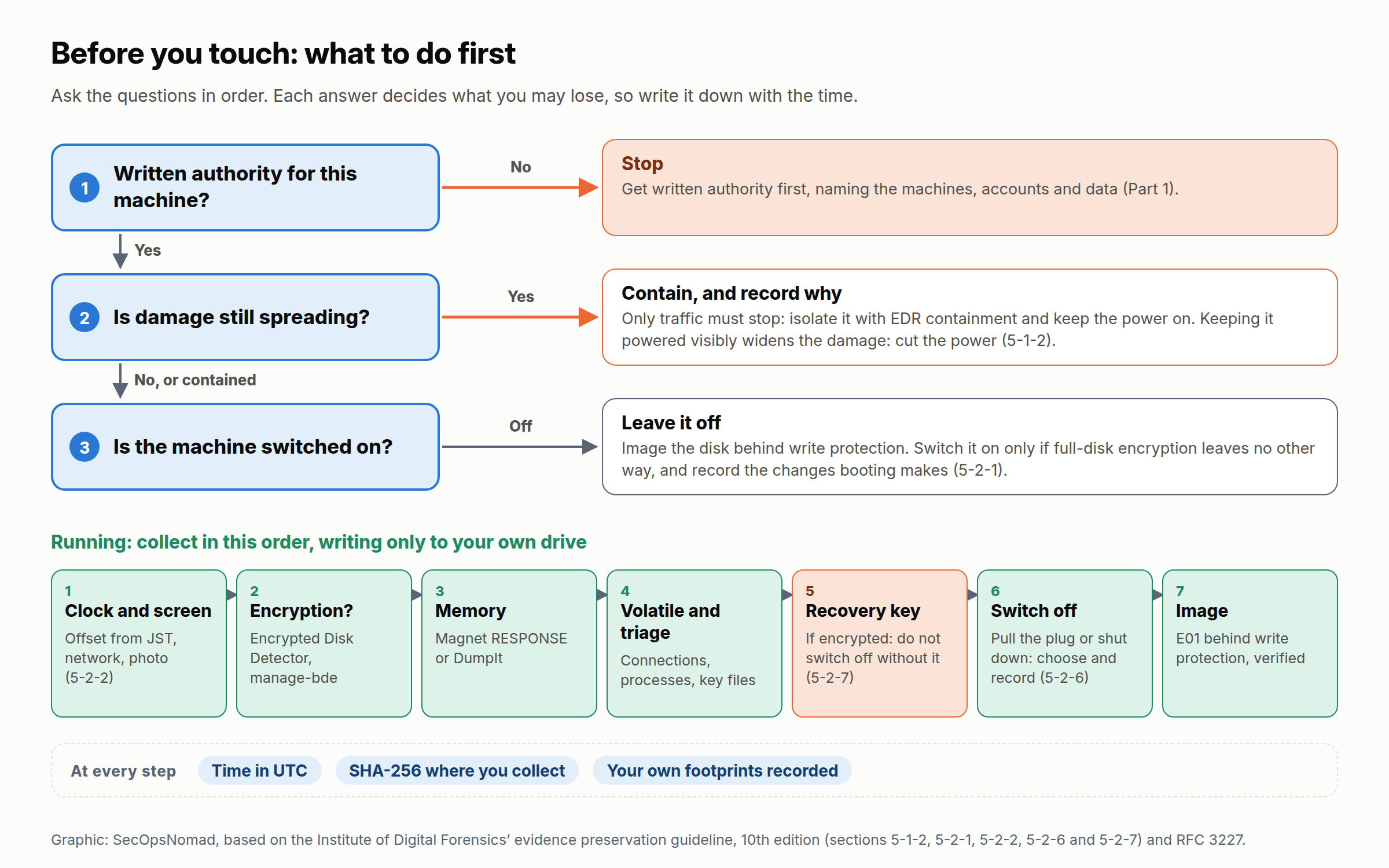
Figure 1. What to do first. Based on the Institute of Digital Forensics’ evidence preservation guideline, 10th edition, sections 5-1-2, 5-2-1, 5-2-2 and 5-2-7.
Ask four questions, in this order:
- Do you have authority for this machine? Part 1 covered why. Without it, stop.
- Is damage still spreading? Files being encrypted on a share, data visibly leaving. Japan’s evidence preservation guideline (証拠保全ガイドライン), 10th edition, says to cut the power promptly when keeping a machine running visibly widens the damage, and to disconnect it from the network while keeping it powered when you only need to stop unwanted traffic (section 5-1-2). An EDR’s network containment does the second without touching a cable.
- Is it on or off? If it is off, leave it off and image the disk. The guideline allows switching it on only where full-disk encryption leaves no other way, under the direction of whoever leads the preservation and accepting the changes that booting makes (section 5-2-1). If it is on, keep it on until volatile data has been captured: pulling the plug first tends to make the facts harder to establish, a bigger risk than losing some data on the disk (section 5-2-2).
- Is the disk encrypted? If it is, do not switch the machine off until you hold the recovery key or a live image. The guideline lists full-disk encryption among the cases in which a machine must not be switched off (section 5-2-7).
At a running desktop, the guideline’s order (section 5-2-2) is:
- Record the type of computer, the operating system and how far its clock is from Japan Standard Time.
- Record the network environment.
- Photograph or write down what is on the screen.
- Touch files, icons and anything moving on screen only if you must.
- Collect volatile data, such as a memory dump, with an automated tool prepared in advance for that operating system.
- Switch the machine off, then remove the cables, switch off Wi-Fi and Bluetooth, and label every cable and port before you unplug it.
Shut down, or pull the plug?
Neither is clean. The guideline sets out the risks of each (section 5-2-6):
| Method | Risks listed by the guideline | Notes |
|---|---|---|
| Pull the plug (forced power-off) | Bad sectors on the disk; damaged or unreadable files; recent activity never written to the registry or event logs; volatile data lost | The guideline’s PC checklist says to pull the plug on a Windows machine, after volatile data has been captured (appendix A). On a laptop, remove the battery first; if it cannot be removed, hold the power button down (section 5-2-3) |
| Normal shutdown | Bad sectors on the disk; volatile data lost | Windows writes to the disk as it shuts down: System events 1074 and 6006, for example, and the hibernation file if Fast Startup is on. The guideline warns that fast-boot features and disk encryption can make preservation after power-off difficult (section 5-2-6) |
If there is no time to run a memory tool, the guideline mentions hibernating the machine as a last resort: memory is saved to the hibernation file, but writing it overwrites part of the disk (section 6-3-3).
The order of collection in practice
Part 1 introduced RFC 3227’s order of volatility. On a Windows endpoint it turns into this sequence:
| Step | What | Free tool | Check or fallback | Lost if you skip it |
|---|---|---|---|---|
| 1 | Clock, time zone, screen | Get-Date, a camera |
A trusted clock for comparison | Certainty about every time in the timeline |
| 2 | Encryption | Magnet Encrypted Disk Detector | manage-bde -status |
Possibly the whole disk |
| 3 | Memory | Magnet RESPONSE or Magnet DumpIt | FTK Imager’s Capture Memory | Running processes, connections, keys, code that exists only in memory |
| 4 | Volatile state | Magnet RESPONSE’s volatile data | Built-in PowerShell commands | Connections and processes as they were |
| 5 | Triage files | Magnet RESPONSE, KAPE or Autopsy’s logical imager | A second collector, or the full image later | Speed: the disk still holds them, but answers come days later |
| 6 | Recovery key, if encrypted | manage-bde -protectors -get |
The copy backed up to Microsoft Entra ID or Active Directory | Access to the disk image |
| 7 | Power-off decision | Your notes | The guideline, section 5-2-6 | Control: someone else decides, by rebooting |
| 8 | Disk image | FTK Imager to E01, behind write protection | FTK Imager’s verification; Autopsy’s Data Source Integrity module | Deleted files, unused space, everything triage left behind |
Why memory before the volatile commands? Every command you run changes memory, and the memory image already contains the process list and network connections, which part 9 extracts with Volatility 3. Some responders capture connections first because a memory capture takes minutes and connections close in the meantime. Both orders can be defended if you record which one you chose. The encryption check comes before memory because it takes seconds and can change the whole plan.
Your collection kit
Prepare it before the incident, on a clean machine, and rehearse with it in the lab. The guideline asks for tools to be tested and checked in advance (section 6-4-5).
- A collection drive for the outputs, new or wiped so that it holds no data at all, checked at the binary level rather than by deleting files (section 6-1-2). Format it NTFS: FAT32 cannot hold a file larger than 4 GB, which rules out memory images, and the guideline recommends a journaling file system such as NTFS (section 6-1-4). Make it larger than the machine’s memory plus the triage package.
- The tools, each with its version and SHA-256 recorded. Run them from your drive; do not install them on the machine.
- A response account with administrator rights on that machine only. As Part 1 explained, never use a domain administrator account.
- A camera, labels, evidence bags and the two record sheets at the end of this lesson.
- A hardware write blocker for disks you remove, and a second, larger drive for disk images.
- A word with your SOC. Memory tools load kernel drivers and read every process’s memory, which is what credential theft looks like to an EDR. Agree in advance which tool names and hashes will appear, so your own collection is not blocked or contained halfway.
The rule that matters most: write every output to your drive, never to the machine you are collecting from. KAPE’s documentation warns that if the destination is on the target’s system drive or another of its local disks, the collected files are written to the target first. Every byte written there can overwrite deleted evidence.
Encryption: check before anything goes off
A BitLocker-encrypted disk that is switched off is unreadable until someone supplies the key. Starting with Windows 11 version 24H2, Microsoft removed two hardware prerequisites for device encryption, so more devices are eligible for automatic encryption (BitLocker overview). Treat a modern laptop as encrypted until you have checked.
Use two checks, both run as administrator:
- Magnet Encrypted Disk Detector, a free command-line tool that Japan’s guideline names for this job (section 4-1-3). It checks the physical drives for TrueCrypt, PGP, VeraCrypt, Check Point, SafeBoot and BitLocker volumes and shows what it finds in red. It recognises known encryption products and mounted encrypted volumes; it does not measure randomness, so a home-made encrypted container will not show up. Autopsy’s encryption detection module looks for those later, in the image.
- Windows’ own
manage-bde. The first command shows the state of drive C:. The second lists its key protectors, including the numerical recovery password; the guideline gives it as the way to retrieve the recovery key while the drive is unlocked (section 4-1-3).
manage-bde -status C:
manage-bde -protectors -get C:
Microsoft’s BitLocker operations guide defines four states, as the Control Panel shows them. Here is what each means for collection:
| State | Meaning | Before power-off |
|---|---|---|
| Off | Not encrypted | Nothing extra |
| On | Encrypted and protected, usually by the TPM | Record the recovery password and its protector ID, or retrieve the key from Microsoft Entra ID or Active Directory, where device encryption backs it up |
| Suspended | Still encrypted, but the key is stored in the clear on the disk | Record the state. Protection can resume by itself after a set number of restarts (one, if Suspend-BitLocker was run without a count), so do not restart the machine |
| Waiting for Activation | Encrypted with a clear key only and no protector yet. On a machine with only local accounts, device encryption stays in a clear-key state like this | Record the state; the data is encrypted but not yet protected |
Treat a recovery key as a credential: it unlocks the evidence and everything else on the disk. Store it apart from the image, list it in the chain of custody, and never paste it into a ticket. Autopsy 4.23 asks for a BitLocker password when you add an encrypted image, and Eric Zimmerman’s bstrings has a built-in pattern, bitlocker, that finds recovery keys in memory images and files.
Before removing a disk, the guideline’s checklist also asks you to check whether the drive itself encrypts in hardware, and afterwards to confirm through the write blocker that it can be read (appendix A). If you cannot get the key at all, image the disk while it is still running and unlocked (see live imaging below).
Capturing memory
Three free tools do the job. Choose one, and keep a second ready in case the first fails or is blocked.
| Tool | How it runs | Output | Licence |
|---|---|---|---|
| Magnet RESPONSE | A single program, run from your drive as administrator: enter a case reference, tick what to collect, choose an output folder | A .zip of the collected files with its hash stored inside, and memory as a separate .bin file. Dragging the .zip onto the program checks it | Free, under Magnet’s end-user licence |
| Magnet DumpIt for Windows | Run from your drive as administrator. Options differ between versions: DumpIt.exe /? lists them |
A full Microsoft crash dump, readable by WinDbg and by Volatility 3 | Free, under Magnet’s end-user licence. The Linux version is open source |
| FTK Imager | File → Capture Memory: destination folder, file name (memdump.mem by default) and, optionally, the page file | A raw memory image | Free. FTK Imager Pro, a paid upgrade, appeared in September 2025 |
Magnet RESPONSE uses DumpIt for memory and falls back to Magnet RAM Capture if DumpIt fails, according to Magnet’s announcement of the tool. FTK Imager also offers to create an AD1 file; leave it unticked unless your examination tool needs that format. Exterro says recent versions can run from a portable drive, which keeps the installer off the machine you are examining.
Four things to know before you start:
- Memory changes while you capture it. The capture takes minutes, the system keeps running, and a second capture would never produce the same hash. Hash the file as soon as the capture ends: that is its acquisition hash. As Part 1 explained, the guideline expects this when the original cannot be hashed, as long as you record why (section 7-3).
- The image holds every secret in memory: passwords, tokens and keys, including those in LSASS (ATT&CK T1003.001). Handle it as the most sensitive item in the case.
- Your tool leaves traces: its own Prefetch file and, because it loads a driver, usually a new service (System event 7045) or an EDR driver-load record with its name. Record what you ran and when, so that part 4 can tell your activity from the attacker’s.
- Not everything in memory is plain text. Windows can compress memory pages it is not actively using, and a string inside a compressed page will not show up in a simple text search. Part 9 returns to this.
Collecting triage data
A triage collection copies the files that answer most questions, in minutes rather than the hours a full image takes. Japan’s guideline calls this fast forensics. For Windows, its list is event logs, Prefetch, the registry, the file system journal and metadata, browser and email data, and memory (section 7-7). It recommends dedicated tools, because collecting all that quickly by hand is not realistic.
| Tool | What it collects | How it runs | Output | Licence |
|---|---|---|---|---|
| Magnet RESPONSE | Volatile data; critical system files such as the $MFT, registry hives and Prefetch; extended process information; files matching keywords | From your drive, as administrator | A .zip with its hash stored inside | Free |
| KAPE | Whatever its Target files describe; compound targets such as !SANS_Triage gather the usual triage set, and --vss also searches shadow copies |
Command line or the gkape window; administrator rights; .NET 4.5.2 or later; nothing to install | Folders, or a VHD, VHDX or zip container | Free for government, educational, research and internal company use; not for commercial use since 1 January 2026 |
| Autopsy logical imager | Files matching rules you set (folder names, extensions, sizes and more); user accounts; alerts if encryption programs are found | Configure it in Autopsy (Tools → Create Logical Imager), which writes tsk_logical_imager.exe and its configuration to your drive; run it on the target as administrator. Windows only; not on FAT drives other than exFAT |
A folder of files, or sparse VHDs, which Autopsy loads as a data source | Open source (Apache License 2.0) |
Where KAPE’s terms allow you to use it, run it from your collection drive and write to the same drive:
& 'E:\Tools\KAPE\kape.exe' --tsource C: --target '!SANS_Triage' --tdest 'E:\DFIR-LAB-002\kape\tout' --vhdx '%m_triage'
--tdest is on E:, your drive, not on C:. KAPE replaces %m with the machine name, so the container is named after the machine. If you work on clients’ machines, KAPE’s terms rule it out; Magnet RESPONSE and the logical imager are the alternatives.
Imaging a disk
A disk image copies every sector: the files, the deleted files, the unused space and the areas the operating system hides. Japan’s guideline asks for exactly that (section 6-2-2). Copy the whole medium, including deleted, hidden and unused areas. Carry on past bad sectors and record where they are, so that a hash difference can be explained later. Save the result as an image file, such as a dd or EnCase image.
Two functions are not optional (section 6-2-1 and table 3):
- Write protection. Nothing may write to the original, whether you use a hardware device or a software measure.
- Verifying identity. Part 1 introduced it: hash the original and the copy, and show that they match.
E01 or raw?
| Format | What it is | Strengths | Weaknesses |
|---|---|---|---|
| Raw (dd) | Every sector, and nothing else | Every tool can read it | Full size; no hashes or case details inside |
| E01 (EnCase, also called Expert Witness) | Sectors in compressed chunks, with case details and the hashes taken at acquisition | Smaller; carries your case details; Autopsy and other tools verify it themselves | Tools must support the format; a text search of the file itself misses the compressed contents |
With FTK Imager
- Connect the disk through a hardware write blocker. For a machine that must keep running, see live imaging below.
- Choose File → Create Disk Image, select Physical Drive (the whole disk, not one partition) and pick the drive.
- Choose Add, select E01 and fill in the evidence item details: case number, evidence number, description, examiner and notes. They are stored inside the image.
- Choose a destination folder on another NTFS drive and a file name. Leave fragment size and compression at their defaults unless you have a reason to change them.
- Make sure Verify images after they are created is ticked, then choose Start.
When the copy finishes, FTK Imager reads the image back and compares the MD5 and SHA-1 values it calculated from the disk with those of the image, and it lists any bad sectors. It saves the same details in a text file next to the image. Copy them into your notes.
Live imaging
When a machine cannot be switched off (an encrypted disk with no key, or a server the business cannot lose), image it while it runs. FTK Imager can image a Logical Drive such as C: through the running Windows, which reads the data already decrypted. The cost is that the disk changes while you read it: nobody can reproduce the image, and its hash proves only that the copy has not changed since. Record that, and why you chose it.
Master and working copies
- The master is the first image. Verify it, record its hash, store it on separate media, and open it again only to verify it or to make another copy.
- The working copy is what you examine. Check its hash against the master’s before you start and again when you finish.
- Give each item an ID (E001, E002 and so on) and keep the chain-of-custody record from Part 1 for each one.
- Label the original disk with the case and item number, and photograph its maker’s label and connectors, as the guideline’s checklist asks (appendix A).
Seen from both sides: attacks on collection
Attackers who expect a response try to leave nothing worth collecting, or to make collection fail. Each move below costs you evidence, and most leave a trace that makes a good alert.
| Attacker’s move | ATT&CK | What it costs you | What it leaves behind | Alert worth having | Part |
|---|---|---|---|---|---|
Delete volume shadow copies (vssadmin delete shadows, or the same through WMI) |
T1490 | Earlier versions of files and logs that KAPE’s --vss would have collected |
Process creation for vssadmin, wmic or PowerShell with shadow-copy arguments | Any shadow-copy deletion outside your backup software | 8 |
| Stop or blind the EDR and antivirus | T1562.001 | The telemetry you would have used instead of the disk | Defender events 5001 (real-time protection switched off) and 5007; service stops; a gap in EDR check-ins | A sensor that stops reporting while the machine stays online | 6 |
| Switch off event logging or change the audit policy | T1562.002 | Logs from that moment on | Security event 4719 (audit policy changed); the Windows Event Log service stopping | Any 4719 outside a change ticket | 5 |
| Run code only in memory | T1620 | Anything for a disk image to find | Code in memory; sometimes PowerShell script block logs | Capture memory when you suspect this, before anyone reboots | 9 |
Wipe free space or delete files securely (cipher /w, SDelete) |
T1070.004 | Deleted files that imaging would have recovered | Prefetch for CIPHER.EXE or SDELETE; change journal entries | Wiping tools run on a user’s machine | 8 |
| Reboot or switch off the machine remotely | T1529 | Memory | System events 1074 and 6006 | An unplanned reboot of a machine under investigation | 5 |
The defender’s lesson is the same as in Part 1: forward telemetry off the machine as it is written. Memory is the exception. Nothing forwards memory, so the only defence against the last two moves is to capture it early.
Exercise 2: the evidence that dies with the power
In Part 1 you found on the disk what you had done. This time you will create evidence that should exist only in memory, collect it as a responder would, switch the machine off as the guideline says, image the disk behind write protection, and prove two things: the memory holds what the disk does not, and your imaging did not change the disk. Your notes are again the answer key.
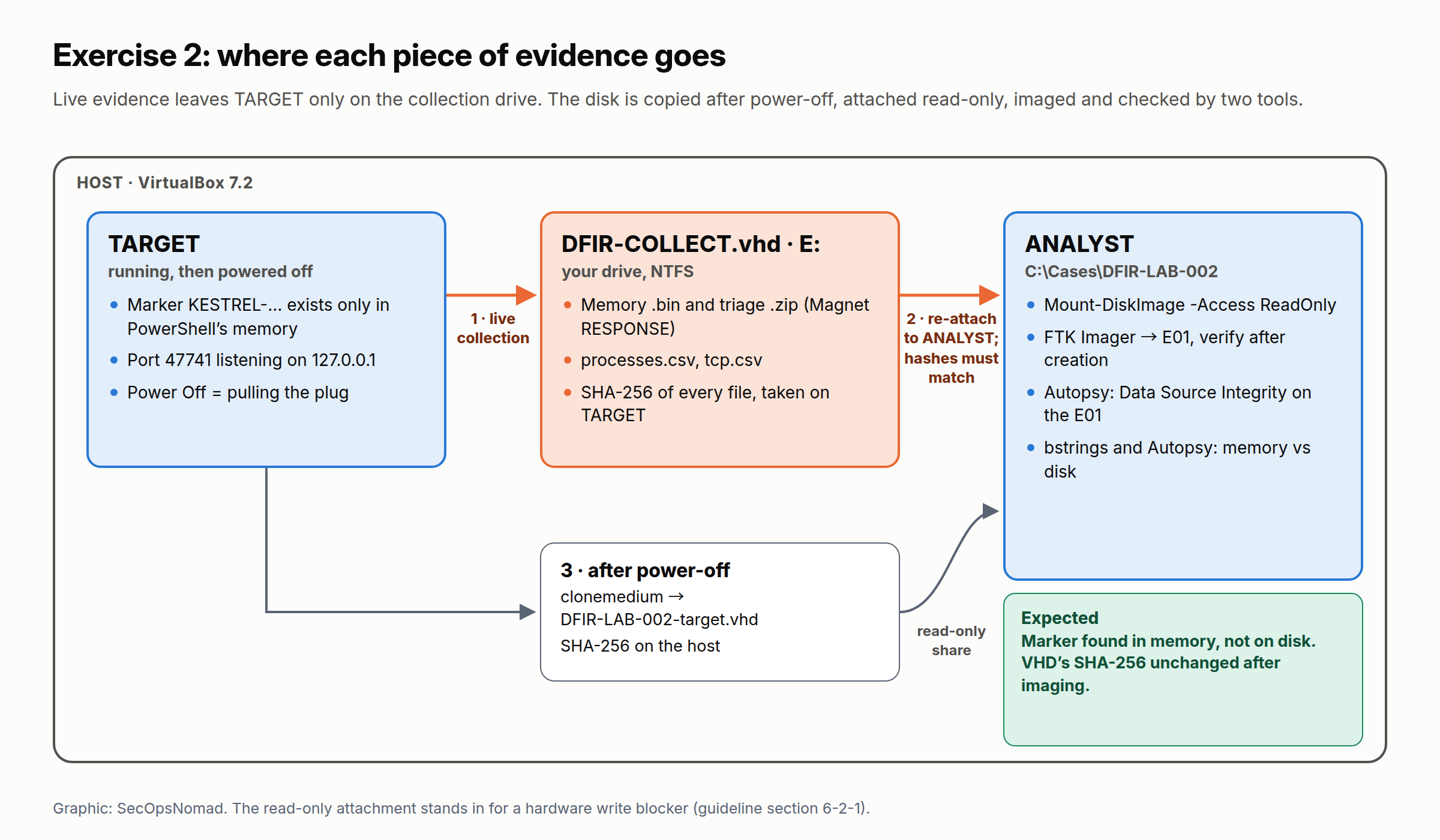
Figure 2. Where each piece of evidence goes in exercise 2. The read-only attachment stands in for a hardware write blocker.
You need:
- TARGET and ANALYST from Part 1.
- About 60 GB free on ANALYST’s C: drive and 80 GB on the host. If ANALYST is short, delete Part 1’s copy of the VHD from
C:\Cases\DFIR-LAB-001\evidence: the copy inC:\dfir-stagingon the host is your master, and its hash is in your notes. - From the official pages: Magnet RESPONSE and Magnet Encrypted Disk Detector (free; Magnet asks you to fill in a form), FTK Imager (free; Exterro also asks for a form), and bstrings from Eric Zimmerman’s tools page. On the host, extract the two Magnet tools into
C:\dfir-staging\kit, put the FTK Imager installer and the bstrings zip inC:\dfir-staging\tools, and record each file’s SHA-256.
Part A: prepare the collection drive
On the host, create a 40 GB virtual disk to act as your collection drive. On a Windows host:
& 'C:\Program Files\Oracle\VirtualBox\VBoxManage.exe' createmedium disk --filename "$env:USERPROFILE\VirtualBox VMs\DFIR-COLLECT.vhd" --size 40960 --format VHDOn a macOS or Linux host:
VBoxManage createmedium disk --filename ~/"VirtualBox VMs/DFIR-COLLECT.vhd" --size 40960 --format VHDWith ANALYST switched off, open its Settings → Storage, select the SATA controller and choose Add Disk, then Hard Disk. In the Hard Disk Selector, choose Add and select
DFIR-COLLECT.vhd. Start ANALYST.In PowerShell run as administrator, check that
Get-Disklists exactly one disk whose partition style is RAW: the 40 GB disk you just added. Then create this case’s folders and format the disk as E:, labelled COLLECT:$case = 'C:\Cases\DFIR-LAB-002' 'evidence', 'working', 'exports', 'notes' | ForEach-Object { New-Item -ItemType Directory -Path (Join-Path $case $_) -Force | Out-Null } Get-Disk | Where-Object PartitionStyle -eq 'RAW' | Initialize-Disk -PartitionStyle GPT -PassThru | New-Partition -DriveLetter E -UseMaximumSize | Format-Volume -FileSystem NTFS -NewFileSystemLabel COLLECT -Confirm:$falseA new virtual disk reads as zeros, which stands in for the binary-level wipe the guideline asks for (section 6-1-2).
Copy the kit onto the drive and record its hashes:
New-Item -ItemType Directory -Path 'E:\Tools' -Force | Out-Null
Copy-Item -Path '\\VBoxSvr\dfir-staging\kit\*' -Destination 'E:\Tools' -Recurse
Get-ChildItem -Path 'E:\Tools' -Recurse -File | Get-FileHash -Algorithm SHA256 | Select-Object Hash, Path | Export-Csv -Path 'C:\Cases\DFIR-LAB-002\notes\kit-hashes.csv' -NoTypeInformation
Install FTK Imager on ANALYST from
\\VBoxSvr\dfir-staging\tools, and extract bstrings with 7-Zip intoC:\Tools\EZTools. Check bstrings’ signature as you did for PECmd in Part 1.Shut ANALYST down, remove
DFIR-COLLECT.vhdfrom its storage settings and add it to TARGET’s in the same way. In a real case you would plug the drive into the running machine; attaching it while TARGET is off is simpler in the lab.
Part B: on TARGET, create evidence that lives only in memory
Start TARGET and log on. Write the time of each step in your notes on the host, never on TARGET. Check in File Explorer which letter TARGET gave the COLLECT drive; this lesson assumes E:, so change the commands if yours differs.
Open PowerShell (not as administrator) and run:
$marker = 'KESTREL-' + (Get-Random -Minimum 100000 -Maximum 1000000)
$listener = [System.Net.Sockets.TcpListener]::new([System.Net.IPAddress]::Loopback, 47741)
$listener.Start()
$marker
This creates a marker such as
KESTREL-482913that you never typed. PowerShell builds it from a random number, so your command can reach the history file on disk but the value cannot. PSReadLine, which keeps that history, saves each command line as you run it, not its output. The commands also open a listening network port, 47741, on the loopback address. Write the marker’s value in your notes on the host and leave this window open.Open a second PowerShell window as administrator. Record the clock and check for encryption:
Get-Date -Format o
Get-TimeZone | Format-List Id, BaseUtcOffset
manage-bde -status C:
Compare TARGET’s time with the host’s clock and record the difference. Then run Encrypted Disk Detector from
E:\Toolsin the same window. If either tool reports encryption, read “If TARGET is encrypted” below before you go on.Run Magnet RESPONSE from
E:\Toolsas administrator. EnterDFIR-LAB-002as the case reference andE:\DFIR-LAB-002\responseas the output location, and tick the options for RAM, volatile data and critical system files (the exact names vary between versions). For 4 GB of memory, expect a few minutes.Capture the volatile state a second way, with built-in commands, in the administrator window:
$out = 'E:\DFIR-LAB-002\volatile'
New-Item -ItemType Directory -Path $out -Force | Out-Null
Get-CimInstance -ClassName Win32_Process | Select-Object ProcessId, ParentProcessId, Name, CommandLine, CreationDate | Export-Csv -Path "$out\processes.csv" -NoTypeInformation
Get-NetTCPConnection | Select-Object LocalAddress, LocalPort, RemoteAddress, RemotePort, State, OwningProcess | Export-Csv -Path "$out\tcp.csv" -NoTypeInformation
Get-NetTCPConnection -LocalPort 47741 -State Listen | Format-List LocalAddress, LocalPort, OwningProcess
The last command should show port 47741 listening on 127.0.0.1, owned by the process ID of your first PowerShell window. Write that ID down.
Hash everything you collected, then note the time:
Get-ChildItem -Path 'E:\DFIR-LAB-002' -Recurse -File | Get-FileHash -Algorithm SHA256 | Select-Object Hash, Path | Export-Csv -Path 'E:\DFIR-LAB-002-hashes.csv' -NoTypeInformation
Get-Date -Format o
Switch TARGET off the way the guideline’s checklist says for Windows: pull the plug. In VirtualBox, close TARGET’s window and choose Power Off; VirtualBox’s manual calls this the equivalent of pulling the power plug on a real computer. Do not choose Shut Down or Save State. Note the time.
If TARGET is encrypted. Windows 11 may have switched device encryption on by itself. Record exactly what manage-bde and Encrypted Disk Detector showed: in a real case that is the finding that decides how you collect. If protectors are listed, run manage-bde -protectors -get C: and copy the recovery password into your notes on the host. For this lab only, decrypt the reset point so that later parts can read the disk offline: start TARGET-CLEAN, run manage-bde -off C: as administrator, wait until manage-bde -status C: shows Fully Decrypted, shut it down, make a new full clone named TARGET, and start Part B again. Never do this in a real case: decryption rewrites the whole disk.
Part C: image TARGET’s disk behind write protection
On the host, with TARGET switched off, convert its disk to VHD and hash the result, as in Part 1. This stands in for removing the disk from a computer. From now on the VHD is the original disk, and you will image it without changing it. On a Windows host:
& 'C:\Program Files\Oracle\VirtualBox\VBoxManage.exe' clonemedium "$env:USERPROFILE\VirtualBox VMs\TARGET\TARGET.vdi" 'C:\dfir-staging\DFIR-LAB-002-target.vhd' --format VHD
Get-FileHash -Path 'C:\dfir-staging\DFIR-LAB-002-target.vhd' -Algorithm SHA256 | Format-List
On a macOS or Linux host:
VBoxManage clonemedium ~/"VirtualBox VMs/TARGET/TARGET.vdi" ~/dfir-staging/DFIR-LAB-002-target.vhd --format VHD
shasum -a 256 ~/dfir-staging/DFIR-LAB-002-target.vhd
Move
DFIR-COLLECT.vhdfrom TARGET back to ANALYST and start ANALYST. In PowerShell run as administrator, copy the collection into the case and check every file against the hashes you took on TARGET. The destination foldercollectmust not exist yet:Copy-Item -Path 'E:\DFIR-LAB-002' -Destination 'C:\Cases\DFIR-LAB-002\evidence\collect' -Recurse Import-Csv -Path 'E:\DFIR-LAB-002-hashes.csv' | ForEach-Object { $copy = $_.Path -replace '^E:\\DFIR-LAB-002', 'C:\Cases\DFIR-LAB-002\evidence\collect' [pscustomobject]@{ File = $copy; Match = (Get-FileHash -Path $copy -Algorithm SHA256).Hash -eq $_.Hash } }Every row must say True. If TARGET gave the drive a different letter, use that letter in the
-replacepattern. Number the items in your chain-of-custody records: E001 for the memory image, E002 for the rest of the collection.Copy the VHD in from the read-only share, hash it, then attach it read-only and find its disk number:
Copy-Item -Path '\\VBoxSvr\dfir-staging\DFIR-LAB-002-target.vhd' -Destination 'C:\Cases\DFIR-LAB-002\evidence\'
Get-FileHash -Path 'C:\Cases\DFIR-LAB-002\evidence\DFIR-LAB-002-target.vhd' -Algorithm SHA256 | Format-List
Mount-DiskImage -ImagePath 'C:\Cases\DFIR-LAB-002\evidence\DFIR-LAB-002-target.vhd' -Access ReadOnly -NoDriveLetter
Get-DiskImage -ImagePath 'C:\Cases\DFIR-LAB-002\evidence\DFIR-LAB-002-target.vhd' | Get-Disk | Format-List Number, FriendlyName, Size, IsReadOnly
The hash must match the host’s.
IsReadOnlyshould beTrue: Windows will refuse to write to this disk, which is the software-based write protection the guideline allows (section 6-2-1). Note the disk number.Open FTK Imager as administrator. Choose File → Create Disk Image → Physical Drive, and select
\\.\PHYSICALDRIVEfollowed by the disk number you noted. Add an E01 destination with case numberDFIR-LAB-002, evidence numberE003and the description “TARGET system disk (lab stand-in for a write-blocked disk)”. Save it toC:\Cases\DFIR-LAB-002\evidenceasDFIR-LAB-002-E003, keep Verify images after they are created ticked, and start. Imaging an 80 GB virtual disk takes from several minutes to an hour.When verification finishes, record the MD5, the SHA-1 and the bad-sector result. Then detach the VHD and hash it again, together with the new E01:
Dismount-DiskImage -ImagePath 'C:\Cases\DFIR-LAB-002\evidence\DFIR-LAB-002-target.vhd'
Get-FileHash -Path 'C:\Cases\DFIR-LAB-002\evidence\DFIR-LAB-002-target.vhd', 'C:\Cases\DFIR-LAB-002\evidence\DFIR-LAB-002-E003.E01' -Algorithm SHA256 | Format-List
The VHD’s SHA-256 must be the same as before you attached it. The E01’s SHA-256 identifies the image file itself in your chain of custody, alongside the MD5 and SHA-1 that FTK Imager stored inside it for the disk.
Part D: compare memory with disk
Search both with bstrings. Put your own marker value in the first line:
$marker = 'KESTREL-482913'
$memory = Get-ChildItem -Path 'C:\Cases\DFIR-LAB-002\evidence\collect' -Recurse -Filter '*.bin' | Select-Object -First 1
& 'C:\Tools\EZTools\bstrings.exe' -f $memory.FullName --ls $marker --off
& 'C:\Tools\EZTools\bstrings.exe' -f 'C:\Cases\DFIR-LAB-002\evidence\DFIR-LAB-002-target.vhd' --ls $marker
& 'C:\Tools\EZTools\bstrings.exe' -f 'C:\Cases\DFIR-LAB-002\evidence\DFIR-LAB-002-target.vhd' --ls KESTREL --off
bstrings searches both ASCII and Unicode text by default, and
--offprints where in the file each hit is. Search the VHD rather than the E01: the E01 is compressed, so a text search of the file would miss its contents. If your memory file is not a .bin, change the filter.Confirm with a second tool. In Autopsy, create a case
DFIR-LAB-002with its base folder inC:\Cases\DFIR-LAB-002\working.- Add the E01 as a Disk Image or VM File, with the Data Source Integrity, File Type Identification and Keyword Search modules, ticking Add text to Solr Index as in Part 1. You do not enter a hash: the E01 carries its own.
- Add the memory file as a second data source of type Unallocated Space Image File. Do not break it into chunks: Autopsy’s guide warns that a keyword spanning a chunk boundary can be missed.
- When ingest has finished, search for your marker value, then for
KESTRELalone.
Check your answers
| Question | Memory image | Disk image | Why |
|---|---|---|---|
| 1. Where is the full marker value? | Found by bstrings and by Autopsy, as Unicode text | Not found by either tool | The value existed only in the memory of the PowerShell process and its console |
| 2. Where is the word KESTREL on its own? | Found | Found in ConsoleHost_history.txt under AppData\Roaming\Microsoft\Windows\PowerShell\PSReadLine |
PSReadLine saved your command line, 'KESTREL-' + (Get-Random …), but never the value it produced |
| 3. Was port 47741 open, and who owned it? | In Magnet RESPONSE’s volatile data and in your tcp.csv: listening on 127.0.0.1, owned by the PID you wrote down |
No trace | Network state lives in memory; part 9 recovers it from the memory image with Volatility 3 |
| 4. Did imaging change the disk? | — | FTK Imager’s verification matches; Autopsy’s inbox reports that the stored hash verified; the VHD’s SHA-256 is unchanged | The read-only attachment held, and two tools confirm the image matches the disk |
If the full marker turns up on the disk, look at where. In pagefile.sys it is memory that Windows wrote to disk: a finding in its own right, and the reason part 9 analyses the page file alongside memory. If bstrings finds nothing in the memory image, Windows may have compressed the page holding it. Repeat Part B and run Magnet RESPONSE straight after creating the marker.
If Autopsy reports that verification failed, the image does not match what FTK Imager read from the disk. Copy the E01 again from the master or re-image it, and record the failure: a failed check that you report is part of the record, and one you hide is not.
What professionals add
- Collect remotely when you can. With hundreds of machines, responders collect through the EDR’s live response feature or a remote collection tool rather than walking to each desk. KAPE’s documentation shows how to collect from a remote machine while writing only to the collection system. The rules in this lesson still apply: record what ran, where the output went and its hash.
- Use the hypervisor. When the suspect machine is itself a virtual machine, the hypervisor can save its memory and disk without running anything inside the guest. VirtualBox’s Save State, for example, writes the machine’s full state to the host’s disk. Ask the platform team before anyone shuts it down.
- Check the destination before you use it. The guideline asks for destination media to be tested and to contain no data at all (sections 6-1-1 and 6-1-2), and warns that flash media, including SSDs, are hard to prove empty because of their hidden spare areas.
- Prefer tested tools. The guideline recommends tools tested by NIST’s Computer Forensics Tool Testing programme (section 6-3-2). Your own known-answer test, like this exercise, is the next best thing: repeat it whenever a tool updates.
- Write the collection up as you go. The live response record below is meant to be filled in at the machine, not reconstructed afterwards.
Templates
Live response record. One sheet per machine; fill it in as you work.
LIVE RESPONSE RECORD
Case ID:              DFIR-LAB-002
Machine:              (name, make, model, serial number, asset tag)
Location:
Responder / witness:
Authorised by:        (name, role, date, scope)

State on arrival:     [ ] on  [ ] off  [ ] sleeping  [ ] locked
Screen photographed:  [ ] yes  file:
Clock on machine:     (Get-Date -Format o)
Reference clock:      (source and time)        Difference:
Time zone:
Network:              [ ] wired  [ ] Wi-Fi  [ ] isolated by EDR at (time)
Encryption:           EDD result:            manage-bde state:
Recovery key:         [ ] recorded (where, by whom)  [ ] not available (why)

Time (UTC)           | Tool and version          | Run as   | Output path                  | SHA-256
---------------------|---------------------------|----------|------------------------------|--------
                     |                           |          |                              |

Power-off:            [ ] plug pulled  [ ] shutdown  [ ] left running   Time (UTC):
Reason for choice:
Cables and ports labelled and photographed: [ ] yes
Evidence item register. One line per item; the chain-of-custody record from Part 1 follows each item.
EVIDENCE ITEM REGISTER
Case ID:            DFIR-LAB-002

Item | Description                        | Source machine | Acquired (UTC) | Tool and version     | Hash at acquisition            | Master stored at | Working copy at
-----|------------------------------------|----------------|----------------|----------------------|--------------------------------|------------------|----------------
E001 | Memory image                       | TARGET         |                | Magnet RESPONSE      | SHA-256:                       |                  |
E002 | Triage collection and volatile CSVs | TARGET        |                | Magnet RESPONSE; PS  | SHA-256 list: hashes.csv       |                  |
E003 | Disk image (E01)                   | TARGET         |                | FTK Imager           | MD5: / SHA-1: (inside the E01) |                  |
What comes next
Part 3: your first case in Autopsy, and the same case in Magnet Axiom. You will open evidence, run ingest, search, tag, build a simple timeline and export a report in Autopsy, then open the same evidence in Magnet Axiom and compare what the two tools find, and where they disagree. Keep your DFIR-LAB-002 case folder and the master copies on the host: part 9 returns to the memory image.
Sources
- Institute of Digital Forensics (デジタル・フォレンジック研究会), 証拠保全ガイドライン 第10版 (15 March 2025): sections 4-1-3, 5-1-2, 5-2-1 to 5-2-8, 6-1, 6-2, 6-3, 6-4-5 and 7-7, and appendix A (checklist for PCs).
- IETF, RFC 3227, Guidelines for Evidence Collection and Archiving.
- Microsoft Learn: BitLocker overview (device encryption and Windows 11 24H2), BitLocker operations guide, manage-bde, Suspend-BitLocker, Mount-DiskImage, Get-DiskImage, Get-NetTCPConnection and about_PSReadLine.
- KAPE documentation by Eric Zimmerman: getting started, using KAPE and remote collections, and the frequently asked questions for the licence terms.
- Eric Zimmerman, bstrings (version 1.5.1.0 README).
- Autopsy 4.23.0 user guide: Logical Imager, Data Sources, Data Source Integrity Module and Encryption Detection Module.
- Oracle, VirtualBox User Guide for Release 7.2: closing a VM (Save State, Shut Down, Power Off), storage settings and
VBoxManage createmedium. - Magnet Forensics: Magnet RESPONSE, Magnet DumpIt for Windows, Encrypted Disk Detector. Exterro: FTK Imager.
- MITRE ATT&CK: T1490, T1562.001, T1562.002, T1620, T1070.004, T1529 and T1003.001.
Published 19 October 2026. Checked against primary sources collected into this site’s repository: the Institute of Digital Forensics guideline (10th edition), the Autopsy 4.23.0 user guide, the VirtualBox 7.2 user guide, the KAPE documentation and the bstrings README; and against Microsoft Learn for the Windows commands. Not opened directly from our research environment: Magnet Forensics’ and Exterro’s own pages, MITRE ATT&CK, the RFC Editor and NIST. For Magnet RESPONSE, Magnet DumpIt, Encrypted Disk Detector and FTK Imager we relied on search results that quote the vendors’ pages and user guides, so menu and option names may differ in your version. The System event 7045 for a memory tool’s driver is typical rather than guaranteed; check what your tool actually leaves in the lab. If a step does not work as described, the tool’s own documentation wins; please tell us and we will correct the lesson.